Installing Python on Windows (64-bit)
This article was translated from its source language with AI assistance. Please check technical terms and equations against the original.
1. First, check your computer's system information, specifically the 64-bit and x64 details. (If you already know these, skip to Step 2.)
1-1. Right-click the This PC icon and click Properties.
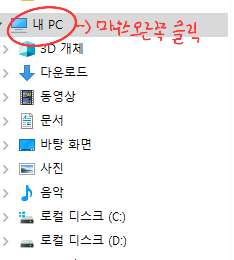
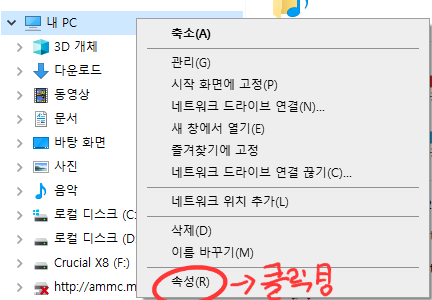
1-2. You can now check your PC's information.

2. Visit https://www.python.org/.
3. On the Python website, hover over Download–Windows and select Python 3.12.0 or the appropriate Python version.
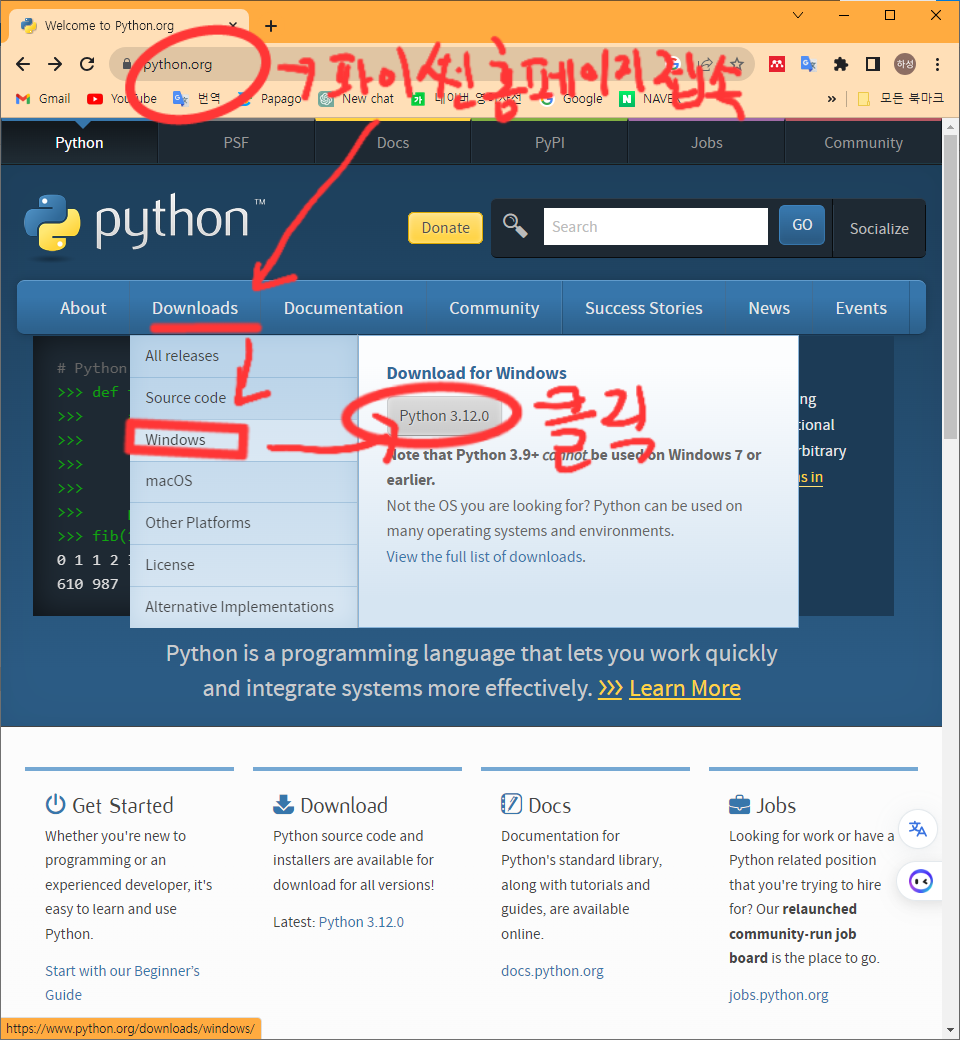
4. Click the Python installer .exe file to install Python.
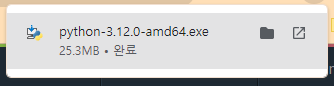
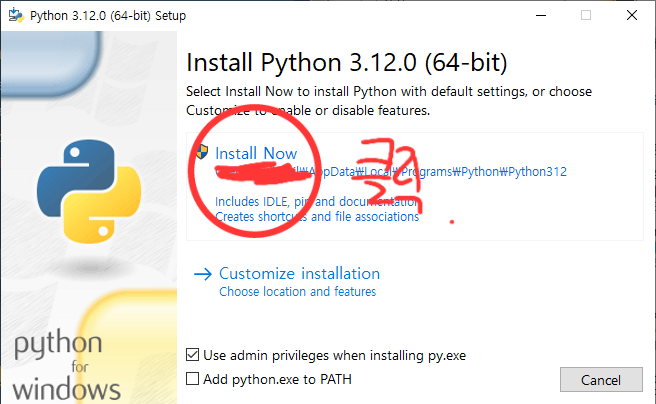
5. Opening the Python installer .exe displays the following screen. Select Install now and continue through the remaining screens by clicking Next.
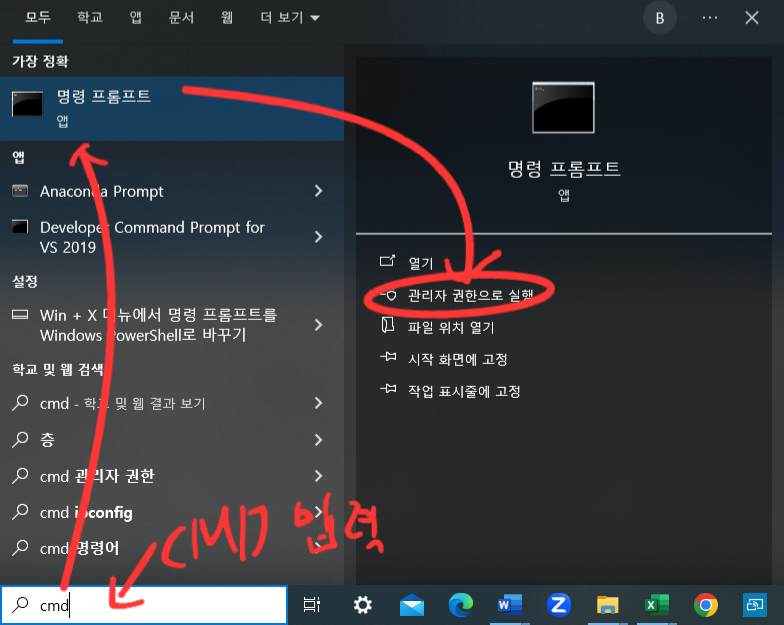
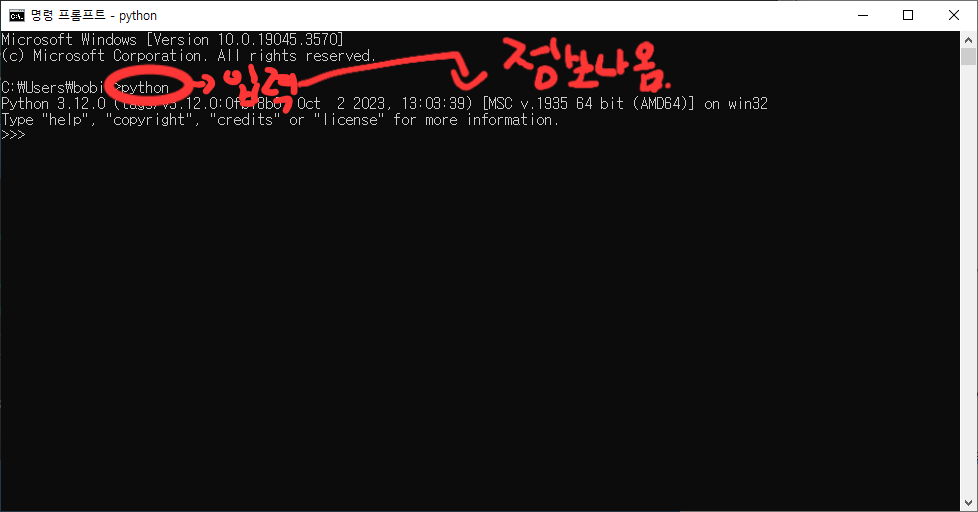
6. Installation is complete. To check whether it was installed correctly, enter cmd in the Windows search box and open Command Prompt as an administrator.
7. Then, at the command prompt, type
python
. If the mode and information appear, Python has been installed correctly.
That concludes the instructions for installing Python.
Next time, I will post installation instructions for another program related to Python automation.
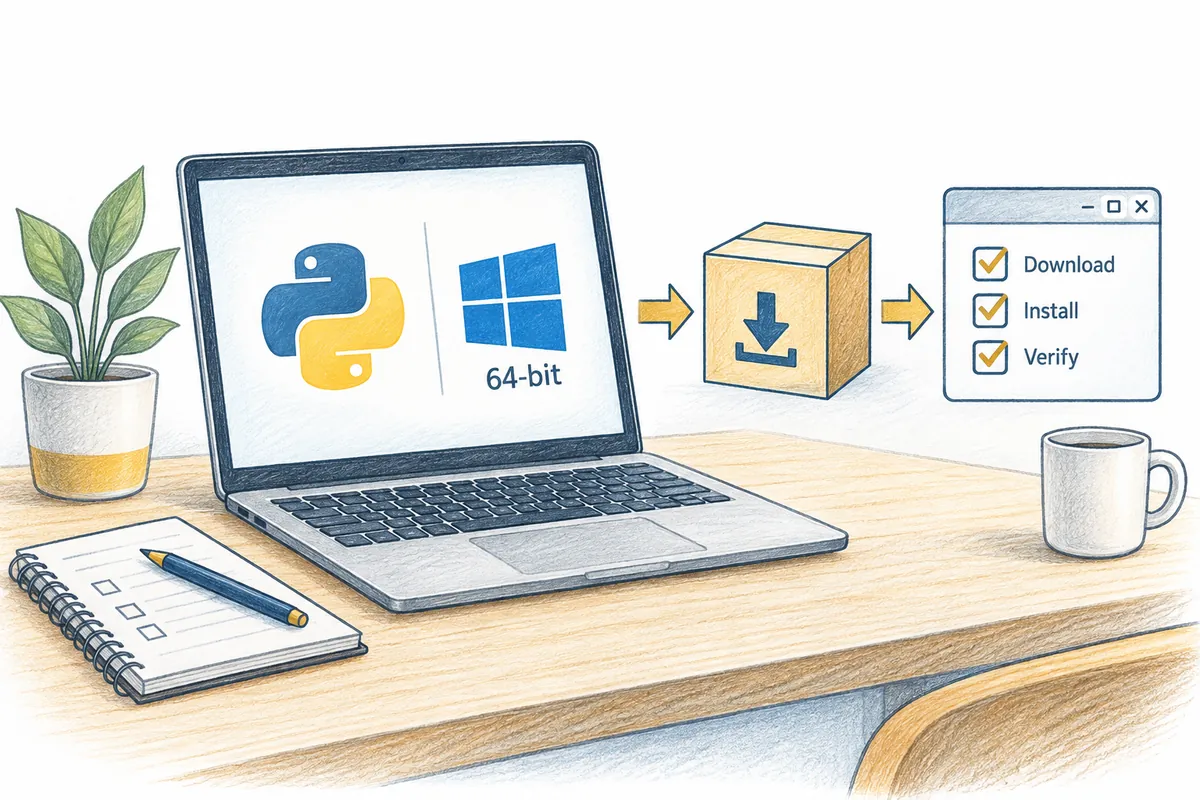
Original illustrations created to help explain this article.
Original on Tistory ↗