Things to check before renaming the user folder: Prevent path errors
This article was translated from its source language with AI assistance. Please check technical terms and equations against the original.
If your username in the Users folder on your C drive appears truncated or outdated, you might be tempted to rename the folder yourself. However, this folder serves a different purpose than a typical work folder containing a few documents. Since it is where your Windows user profile and app settings are connected, you must first separate the purpose of renaming it to a more aesthetically pleasing name from the purpose of resolving program path issues. This article explains how to determine the scope of necessary changes without applying the old renaming procedure directly to devices running Windows 10 or later.
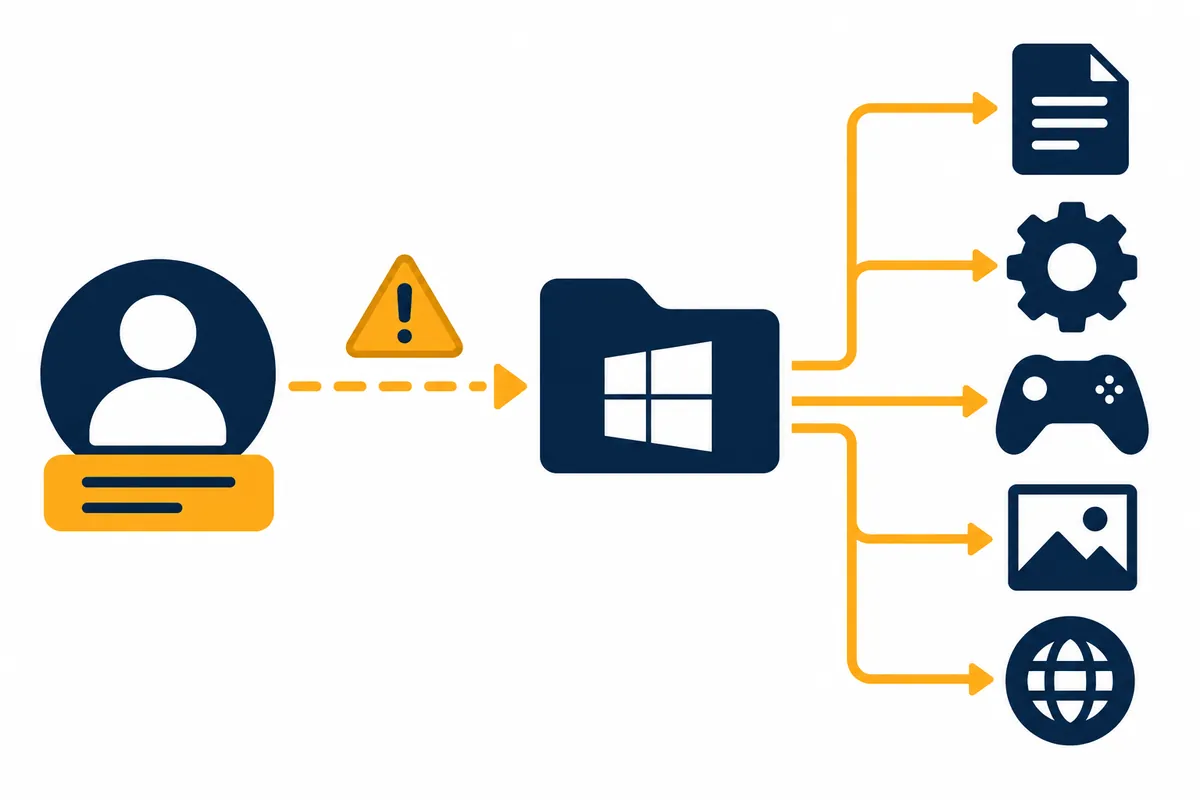
1. Display name, account, and profile folder are different information
The name displayed on the login screen is for display purposes only. The user profile path under the C drive is the location where files are looked for, and apps can save that path to Settings or Shortcuts. It should not be assumed that changing the name changes the folder path of the existing profile as well. The fact that a user profile includes not only a simple Documents folder but also user-specific settingsMicrosoft's profile descriptionYou can check it at .
Please describe the starting point of the problem specifically. 'I don't like the login screen name', 'Project execution fails in the path', and 'Existing profile is corrupted and a new environment is needed' require different actions. Applying a full profile path change to the first problem would be excessive. For the second problem as well, unless you identify which string the app fails at, the cause may remain even if you rename the folder.
2. Read the application targets for older official documents first.
Just because an official document found through a search contains a procedure to replace both the registry and folders does not mean it is the recommended method for the current Windows. Microsoft'sPrevious version documents regarding profile pathsis intended for Windows 7 and Server 2008 R2, and it specifies that this bypass procedure should not be applied to Windows 10 or later. It also explains why winget may not work. You must read the applicable targets and exceptions before copying the procedure based solely on the document title.
This article does not reintroduce the outdated registry modification procedure as steps for current PCs. Nor does it adopt the method of changing folders first and then adjusting settings if errors occur as the standard solution. Since the user profile is an environment loaded by Windows and is associated with various apps, modifying just one path string cannot guarantee that all references will be corrected in bulk. If the issue is aesthetic, it is more appropriate to examine whether it is possible to maintain the existing path and adjust only the display information.
3. Table for Selecting Small Actions for the Purpose
| problem | Target to check first | Action range |
| The login screen name was the old name | Account display information | Determine separately from profile path changes |
| Project execution failed in path | Error message · Execution location · App settings | Review the problem project's working path |
| Current user environment is corrupted | Whether the same problem occurs in a new profile | Verify necessary data as a new user and move |
| The existing folder name has already been changed | Original change history and data location | Stop further changes and check the recovery support path |
The scope of action in the table does not mean that all issues can be resolved by recreating a single account. To fix an error in a single app, first examine its execution path, and create a separate migration plan only when the user experience itself needs to be reconfigured. By classifying symptoms and then reducing variables one by one, it also becomes easier to identify which changes actually helped.
4. How to read the actual path and errors
Check the address bar of the problematic document or project in File Explorer. Do not confuse the displayed username with the actual full path. If there is an error message from the developer tools, check the location where the file could not be found. For example, if the settings point to C:\Users\oldname\work\project but the file is in a different location, you may need to re-specify the saved project path to the correct location.
The path above is an example for illustrative purposes. It does not mean that you should recreate the oldname or project exactly as they are in your environment. You should enter the path existing in File Explorer, the path displayed by the tool, and the path saved in the execution settings into the three fields and compare them. If the three paths match, you should check for other causes of the error rather than the spelling of the user folder. If you suspect issues with space handling or encoding in certain tools, check the official path support conditions of the tool. Do not conclude that there is a defect in Windows as a whole simply because Korean characters appear in the path.
You can copy only the problematic project to a separate working folder for review. For example, create a practice folder with a short path that you can use, preserve the original, and use the tool's "Open Project" function. Check if the shortcuts and execution settings point to the new location, and see if any materials using relative paths are present. This is a diagnostic method and does not guarantee that moving all projects will result in automatic recovery.
5. If you need to move to a new user, classify the materials first.
If you need to reconfigure the user experience, separate your documents, photos, project sources, app settings, and online account data. Copying document files is different from transferring app logins and licenses. Also, check if separate imports or resets are required for the Mail app, development environment, and sync apps. Microsoft'sDamaged Profile Recovery Guideexplains the flow of creating a new account and copying files, as well as the need to reset and reinstall some apps.
This official guide is a recovery document for corrupted profiles. It should not be interpreted as a document requiring the creation of a new user for every situation where you intend to customize a name. It is limited to serving as a reference path when a new environment is actually needed. It does not duplicate a new profile by overwriting the entire user folder, including hidden system files. The official guide also includes a condition advising against changing Explorer options to display hidden or protected operating system files.
Create a move list with 'Original Location, New Location, Verification Method, Completion Status'. Establish criteria for each type of material, such as actually opening documents to verify content, running practice runs after configuring dependencies for projects, and checking the import results provided by the app for emails. For cloud files, do not assume the offline original has been secured simply because the name is visible. You must verify both whether the file can be opened and the app's synchronization status. Do not clean up existing users' data until verification is complete.
6. Verification sequence that does not attempt to complete the move in one go
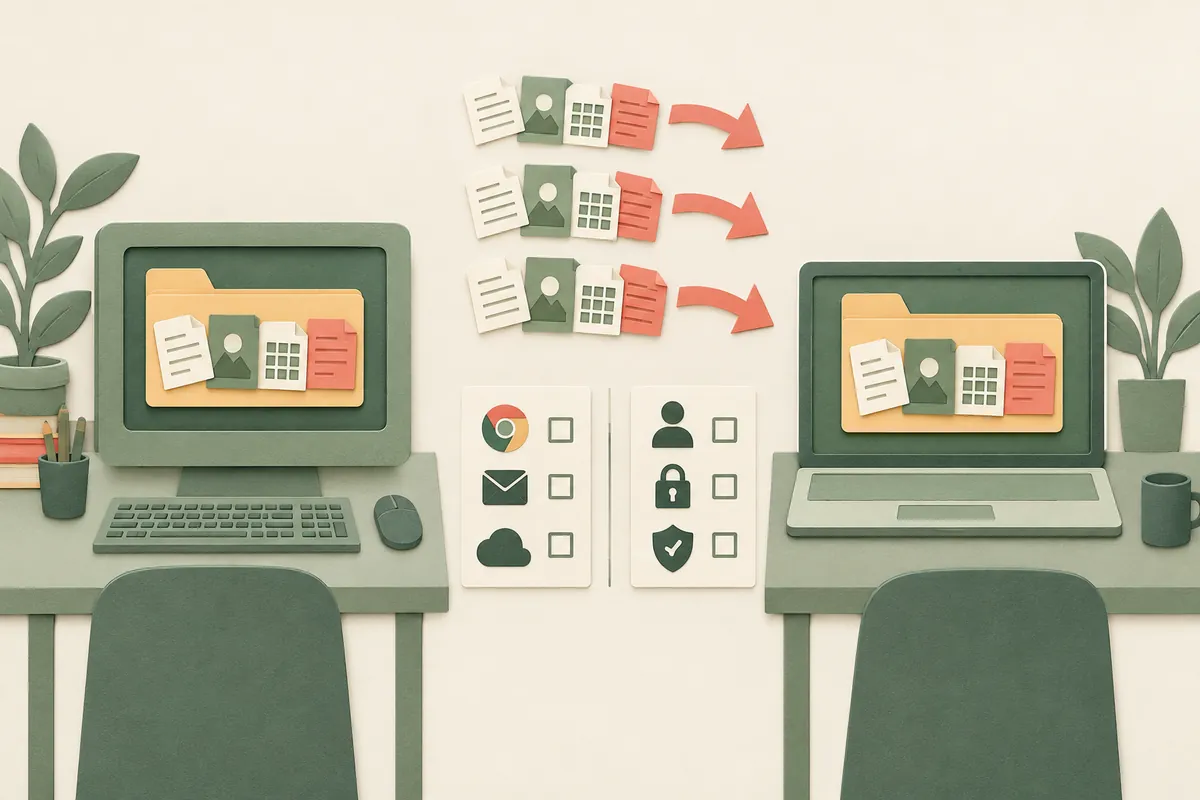
First, verify that you can log in successfully as a new user, and copy and open a few non-essential files. Next, prepare essential documents and apps one by one. It is difficult to identify the cause of the error if you proceed by logging in for the first time after moving all the data. If you check for path and permission issues in the practice files and then broaden the scope, you can separate the default behavior of the new environment from problems with specific apps.
There is a difference between a single app opening normally and the entire system being fully operational. Taking development tools as an example, even if the executable is installed, additional project dependencies, storage locations, credentials, and tool settings may be required. Before copying an existing app configuration file entirely, check the official export and import functions provided by that app. It is easier to manage settings by separating the necessary configurations for each app rather than resorting to the workaround of directly duplicating the system user environment.
The explanatory move log can be configured as 'First login successful, practice document opened successfully, required manuscript opened successfully, task app setup completed, original archive confirmed.' These results must be verified directly on the reader's PC. This article is not a record of a move test performed by creating an actual profile. By pre-establishing criteria for determining completion, you can reduce the problem of reporting the transfer as finished merely based on the action of copying materials.
7. If a problem occurs after you have already changed the name
Do not perform additional folder changes and registry modifications consecutively. Record the original folder name, changed name, time of change, displayed errors, and the location of remaining data. Mixing recovery procedures from various guides makes it difficult to determine the current status. First, verify whether a normal login is possible and whether important files can be accessed; if it is an organizational PC, forward the records to the administrator.
Do not assume that all existing documents have been deleted simply because the newly visible desktop is empty. You must check which profile Windows loaded and where the files are located. If you receive a notification that you have entered a temporary profile, do not continue to save your unique source files in that session; instead, check the official recovery instructions. Cleaning up the state through a reset or user deletion before finding your existing data can erase both the evidence of the problem and the source files.
8. Checklist for verifying path stability rather than name
- Is what you intend to change the display name or the actual profile path?
- Does the document you intend to apply target the current Windows version?
- Can a single app issue be reviewed with a small change to the working folder?
- If you are moving to a new environment, have you established verification criteria for each data type?
- Have you verified the actual document and app behavior while keeping the original archived?
While user folder names are frequently visible, what is required to continue operations stably is for the paths and data to match. If the goal is display information, stay within that scope; if the issue is an app path problem, narrow down the search starting from the location where the error occurred. When a new profile is needed, using a sequence of classifying, verifying, and moving data can reduce the need to reconfigure the entire normal working environment due to a single name change.
Official Sources and Writing Standards
- User Profile Configuration
- Restrictions on application of the previous version profile name change document
- Repair corrupted user profiles
Data Verification Date: 2026-10-10. This explanation was generated by AI based on actual official data. Calculations, codes, and verification examples marked separately are for illustrative purposes only and are not the results of direct testing or actual measurements of the user environment. We will re-verify whether there have been any changes to the functions and data on the publication date.
Problems to narrow down before changing user folder
1. Purpose Classification: Display Name · App Path · Profile Compromise
→
2. Comparison of actual file path and error reference path
→
3. Check if it is an official document compatible with the current Windows.
→
4. If necessary, keep the original and move it to the new environment in stages.
→
5. Determine previous completion after verifying documents, apps, and logins.
Flowchart for explanation
Original illustrations created to help explain this article.
Original on Tistory ↗