When you forget your login password: Official recovery path for your account
This article was translated from its source language with AI assistance. Please check technical terms and equations against the original.
If you cannot remember your password on the login screen, you must first identify 'which account and which information is being entered'. The recovery paths for your PC PIN, local user password, personal Microsoft account password, and work account password are not the same. This article summarizes the official procedure for regaining access to your account. It is not a guide on how to find out your password or bypass another user's authentication, but rather a guide on selecting the next steps based on your currently available identity verification method.
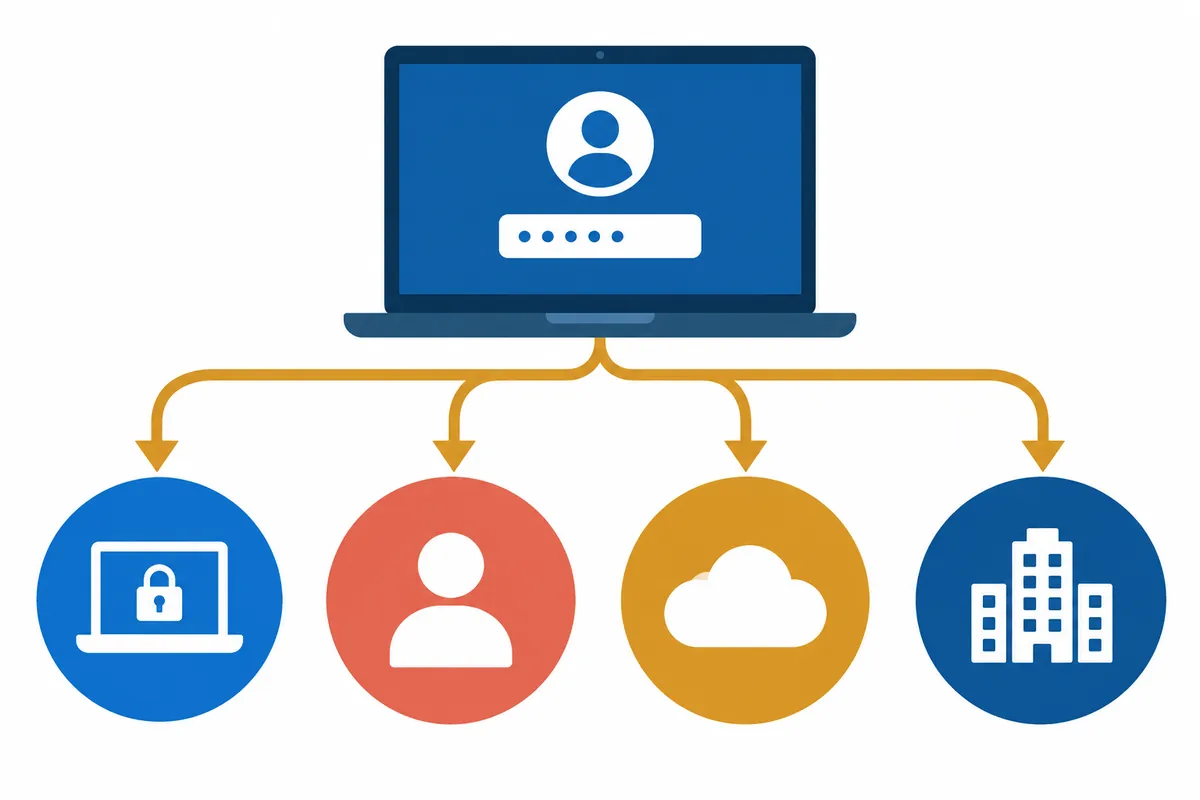
1. Check the input target before repeating the remembered values
On the login screen, start by examining the selected user and input method. If you entered your online account password in the field requiring a PIN, you will not achieve the desired result even if the password is correct. Open the login options to check the authentication methods available on the screen. Also, check the language input status and Caps Lock, but do not assume these are the cause of all failures. Reading the error message first allows you to categorize them into 'Incorrect type of information entered,' 'Not remembered,' and 'Unable to use authentication method.'
If this is a work or school device, check the organization instructions on the screen. The Personal Microsoft Account Recovery page is not a window to recover all accounts in your organization on your behalf. Even if the email addresses look similar, the managing entities may be different. Creating a new user account does not restore the online data or permissions stored in the original account. If you are unsure of the account type, refer to user information on another device that is logged in normally or the instructions from your organization administrator.
2. Divide the four situations into a table
| Blocked target | Official Path | Required verification |
| Personal Microsoft Account Password | Microsoft Password Reset & Login Assistant | Account identification and registered identity verification methods |
| Windows local account password | Password reset on the login screen | Previously configured security questions or reset disk |
| Windows Hello PIN | PIN recovery guide for the device | Whether account types and other login methods are available |
| Company/School Account | Recovery procedures provided by the organization | Management Policy and Scope of Support by the Person in Charge |
The verification methods required in the table are based on what is actually provided on the screen right now. The fact that you recall a previously used phone number is different from the fact that you can currently receive a code at that number. Organizing your accessible email or phone number before starting the recovery process can reduce the need to open multiple procedures unnecessarily simultaneously. You do not need to paste the actual password or authentication code into the memo table.
3. Reset your personal Microsoft account password
On the Microsoft login screen, select the "Forgot password" option, orOfficial Password Reset InstructionsStart by navigating to the path linked to . Verify the identifier of the account you wish to recover and select the method provided on the screen, such as your registered email or phone number. After verifying your identity using the received code, set a new password. Since creating a new account and resetting the password for an existing account are different tasks, please continue to verify that this is the correct account.
For illustrative purposes, let's assume a personal account A used for logging into a laptop and an email address B used for contact. The account to be entered on the recovery screen is A, while the contact receiving the verification code is B. However, receiving the code at B does not mean the recovery target changes to B. Listing these two roles on separate lines can reduce confusion caused by changing the password for a different account. In this example, A and B are role indicators, not actual account information.
If you are unable to receive the code or cannot recognize the displayed contact, select the relevant situation in the official Login Assistant. Rather than attempting to resolve the issue by repeatedly entering old phone numbers, you should verify your current available means and account status. This article does not guarantee a uniform recovery success time or the necessary authentication procedures. The steps requested by the actual screen take precedence, and situations where identity verification cannot be completed are distinguished from simple password entry errors.
4. Recovery of Windows Local Accounts
If it is a local account, changing the Microsoft Online password does not reset the password for that PC. Microsoft'sLocal Account Password GuideAt , you can check the login screen reset and the pre-made reset disk path. If password reset is provided on the screen, you will see the procedure to set a new password by answering previously set security questions. If you have not configured security questions or do not remember them, you will first determine whether that path is available.
A reset disk is a pre-prepared means. Simply plugging in any USB while the account is already locked does not create a reset disk for the existing account. You must verify that what you currently have is the actual disk prepared for that account. It does not consider another user's disk or recovery installation file to be the same. Reconfiguring Windows using installation media has a different scope of impact than the simple action of recovering a login password.
If no questions or disks are available, read the remaining options in the official documentation and check if administrator support is currently accessible. For organizational PCs, contact the relevant person, and for personal PCs, prioritize cleaning up your data first. Since PC reset can affect data and apps, do not treat it like a password recovery button. You should avoid proceeding with a reset first without verifying saved data on the device containing the only original source.
5. Divide whether only the PIN was forgotten or if the password was also forgotten
The PIN is the login method for that PC and is different from the online account password. Microsoft'sPIN Change/Reset GuidePlease check separately. If you can access Windows through other available methods, you can consider resetting your PIN in Settings. Since the availability of 'Forgot PIN' on the login screen depends on the account type, finding the same link on all accounts does not resolve the issue.
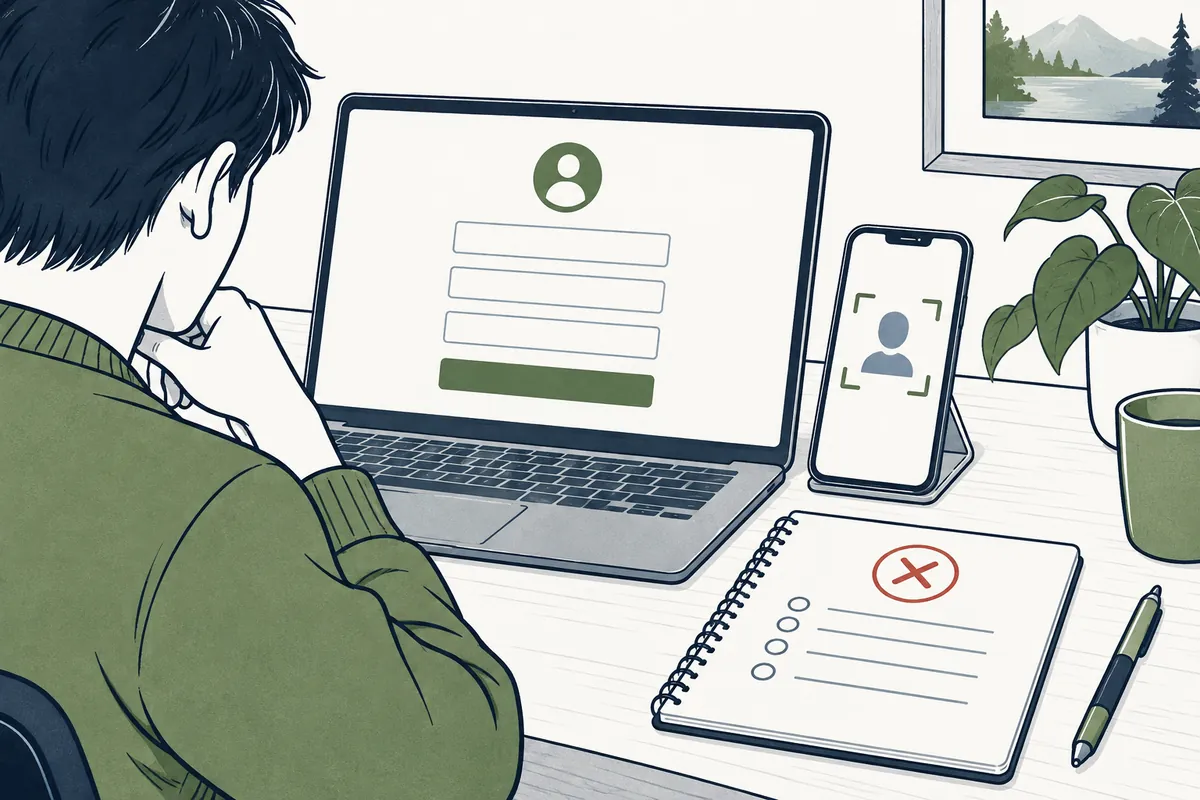
For example, if you usually log in using only your fingerprint but the sensor is not working properly, first check your available PIN or password paths. Changing all your online passwords at once due to a sensor issue may not be appropriate. If you do not know either your PIN or password, you may need to recover your account using the account's identity verification method. Note down what is blocked at each path to reduce the time spent repeatedly navigating through the same screens.
6. Records to save when recovery stops midway
Try organizing your troubleshooting log into five categories: 'Account type, available login methods, error message, last successful step, and next authentication method required.' An example is 'Personal account, started password reset, completed selecting registered email, waiting for code.' This makes it easier to determine the next step than simply writing 'Recovery failed.' You can also use your role or a partially masked address instead of your full email address to still be able to identify yourself.
Being blocked from receiving authentication codes is a different issue from being blocked from logging into the PC after setting a new password. The former is a process of identity verification, while the latter is a step to re-verify the device's login method and connection status. Please record separately whether you can log in with the new password in the browser and whether the method selected in Windows is a password or a PIN. Combining the two results into a single 'login successful' obscures which specific point remains unresolved.
Do not send passwords or codes as they are, even when explaining to official support. Microsoft informs you of restrictions that support representatives cannot send password reset links on your behalf or access or change account information. Rather than attempting to resolve situations where personal verification methods cannot be used through advertisements claiming that outsiders can unlock the system, the standard practice is to check the following options within the scope of the official Sign-in Assistant and your organization's support.
7. Clean up after restoration to prevent the same problem from recurring.
Once access is restored, verify that the available recovery contact is current information. Leaving an old phone number as is may cause you to get stuck at the same step again next time. Manage your new password so that it is not mixed with passwords for other accounts, and store it separately from your device PIN. There is no reason to use or continue saving the one-time code received from the recovery screen as a login password for future use.
Also verify if you can actually open important files. We view being back in your online account and having normal document access on your PC separately. On some devices, you may have successfully logged in, but the necessary files might be located in a different user profile or sync folder. Including the intended account, access to key apps, and the location of important documents in the recovery completion record allows you to compare it to the normal state during the next issue.
If you find yourself in a situation where recovery is necessary every time, it is helpful to organize account roles by device and app. Try separating and listing 'Users who access Windows,' 'Accounts that own online data,' and 'Contacts that receive codes.' Even if they all share the same address, their roles may differ. If you have a practice of logging in using a family member's account, consider reorganizing it to ensure you use your own user space. The more contacts and data from multiple people are mixed together, the more difficult it becomes to identify which items need to be recovered.
8. Checklist Before and After Recovery
- Is this your account and have you verified the account type?
- Did you distinguish between the PIN and the password that the current screen is requesting?
- Can you now access the registered verification method?
- Did you record only the current stage and errors, excluding passwords and codes?
- Have you verified access to the intended device and important data after recovery?
Recovery is less about pressing many buttons and more about selecting the correct path. For personal online accounts, it is based on identity verification through registered means; for local accounts, it is based on the recovery method prepared on that PC; and for organizational accounts, it is based on administrative procedures. Rather than forcing yourself to repeat methods that are not available, accurately documenting the blocked step makes it easier to find the next item to check in the official guide.
Official Sources and Writing Standards
Data Verification Date: 2026-10-10. This explanation was generated by AI based on actual official data. Calculations, codes, and verification examples marked separately are for illustrative purposes only and are not the results of direct testing or actual measurements of the user environment. We will re-verify whether there have been any changes to the functions and data on the publication date.
Original illustrations created to help explain this article.
Original on Tistory ↗