Setting and Changing Windows Hello PIN: Differences from Account Passwords
This article was translated from its source language with AI assistance. Please check technical terms and equations against the original.
If you log in with a short number on your PC but it doesn't work on the Microsoft account website, you must first verify what credentials you are trying to enter. A Windows Hello PIN is not a short alias for your online account password. Confusing the two can lead you to reset your valid password multiple times or repeatedly enter long passwords into the PIN field. This article explains how to set up and change a PIN on a personal PC, as well as what to do if you forget it. For company or school-managed devices, additional requirements set by the organization may apply.

1. Where is a PIN connected as a login method?
A Windows Hello PIN is a login method that connects to the device you have set up. Microsoft Learn'sWindows Hello Related FAQexplains the difference between a PIN connected to a device and an online password. Even if you use the same Microsoft account on multiple PCs, Hello settings are verified on each device. It is important not to assume that a PIN works in the same way as an online account password simply because it is short.
Since this official FAQ also covers Hello for Enterprise, the specific details of enterprise TPM, keys, and policies do not automatically apply to personal PCs. The key point here is that the PIN is the authentication method for the device. You must separately verify the device's policies or the methods allowed on the login screen. Changing the PIN does not mean that the online password for your Microsoft account changes to the same number, nor does changing your Microsoft password require you to match the PIN value on every PC.
2. Table for selecting Change/Reset
| Current situation | path to select | Check first |
| Windows compatible, knows existing PIN | Change PIN in settings | Current Windows user and existing PIN |
| Windows available, forgotten PIN | PIN reset in settings | Displayed identity verification process |
| Unable to log in, using Microsoft account | Forgot PIN or other login options on the login screen | Display status of the item and account verification |
| Unable to log in, using local account | Check settings after logging in with available passwords | Do not confuse with the recovery link for Microsoft accounts |
In this table, 'Available' means that you can successfully access the Windows desktop. Simply being able to log in to mail via a browser does not qualify you for 'Windows Available'. 'Know existing PIN' also means that you know the PIN for the current user and device, not that you remember a specific number. If you switch between multiple PCs or family accounts, the target can easily change here, so please verify the account name and device first.
3. When setting up for the first time, check in the login options.
Open Accounts and Sign-in options in Settings and check the PIN (Windows Hello) item. If you have not yet configured it, select the setup action provided on the screen and follow the identity verification instructions. If you are already using a PIN, you may see options for changing or deleting it instead of the initial setup button. Even if the menu differs from the instructions, you must first read the current status to determine whether the setup is complete. Available features and requirements may vary depending on device configuration and policies.
Set your new PIN in accordance with the conditions allowed by the screen. It is not assumed that all PC PINs must be four digits. If character restrictions or length limits are displayed, follow those conditions. Instead of copying the numbers shown in the example text as your actual PIN, choose a value that you can remember and will not expose to others. You do not need to write your actual PIN or account password in troubleshooting posts, photos, or chat history.
It is recommended to check if account recovery methods are available before setup. If you rely solely on your PIN every day, you may not have checked your online account password or identity verification method for a long time. Rather than letting someone else handle the setup by sharing your account password, complete identity verification by personally reviewing the instruction screens. If you see an address different from the expected account during setup, do not simply click Next; instead, verify the target again.
4. Change sequence when existing PIN is known
While logged into Windows, go to Settings > Accounts, sign-in options, PIN (Windows Hello), and Change PIN. Enter your existing PIN and new PIN, and follow the on-screen instructions to complete. Microsoft'sPIN Change/Reset GuideYou can check the path based on login availability at . Verifying that the user who initiated the change is the same as the user who uses the account daily can reduce confusion when changing settings for other accounts.
After making the change, save important documents and go to the lock screen to verify that you can return to the new PIN. If you can authenticate immediately with your face or fingerprint, select the PIN entry method in the login options to verify if necessary. It is easy to determine if the change is complete if you record 'Settings window closed' and 'Re-authenticated successfully with new PIN'. Here, the lock is a verification method to maintain the work session, and there is no need to test ending unsaved work.
If the new PIN is rejected, check the credential type displayed on the screen. If you entered the PIN in the password field or selected a different user account, the issue may not be that the new value is incorrect. First, check the keyboard input status and the currently selected login option; do not resolve the issue by continuously entering remembered candidates. For errors displayed during the change process, only the phrase and the step in which they occurred are recorded, and the PIN number is excluded from the record.
5. If you can log in but have forgotten your PIN
If you can access Windows using another authentication method, check the reset actions, such as 'Forgot PIN,' in the PIN section of Settings. The change path, where you know your existing value, is different from the reset path, which requires identity verification. Create a new PIN after completing the authentication requested by the screen. Since the process will not proceed if you repeatedly select only the Change button without knowing your existing PIN, it is more efficient to first select the action appropriate for your current situation.
For illustrative purposes, let's consider a scenario where you have forgotten only your PIN on a personal laptop capable of fingerprint login. The goal here is not to change all online account passwords, but to reconfigure the PIN for the current device. After logging into Windows using your fingerprint, check the reset instructions in Settings. If you are unable to use the method used for identity verification, you must resolve that authentication issue first. This example describes a possible path and is not the result of actual recovery testing on a specific laptop.
6. When you get stuck at the Windows login screen
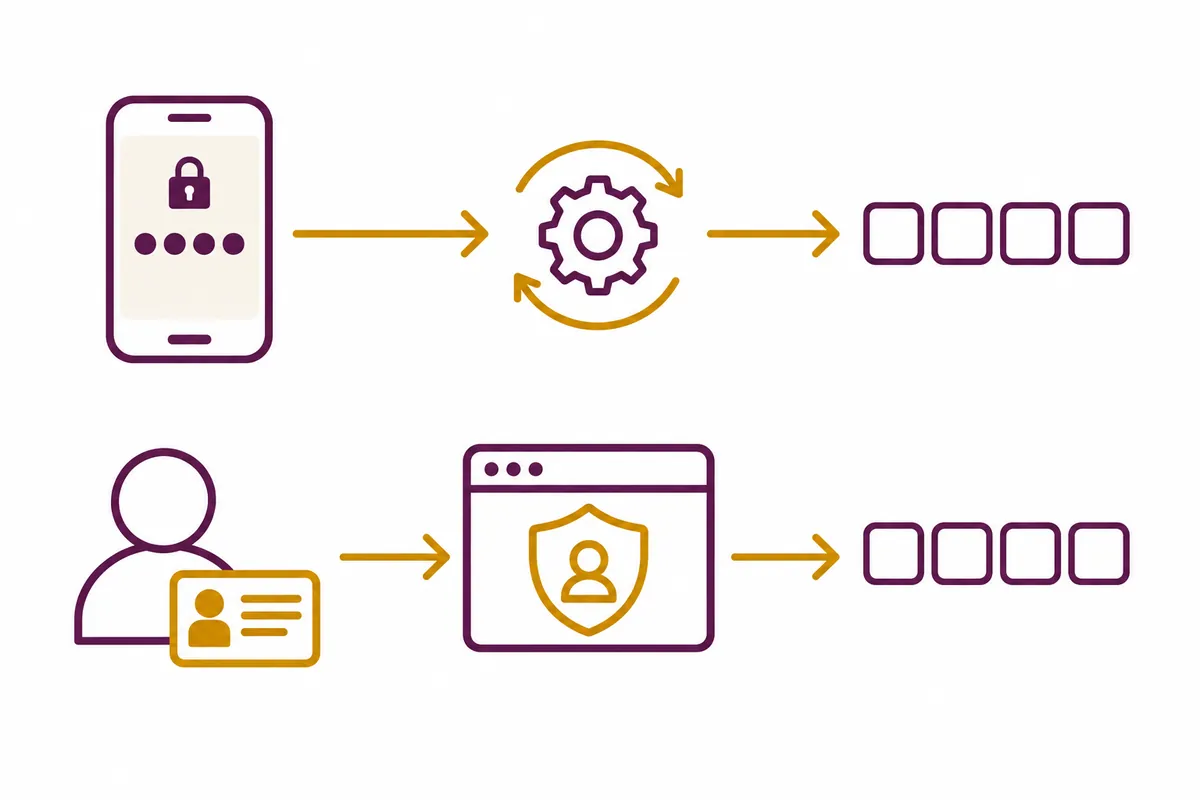
If 'Forgot PIN' is displayed on the login screen, check the relevant account and identity verification instructions. Microsoft support documents explain that this login screen path is provided for Microsoft accounts and is not identically available for local accounts. If there is no link, check the path to available password methods in Sign-in options and proceed with PIN reset in Settings. The instructions for personal Microsoft accounts are not assumed to be the same as the procedures for organizational accounts.
If you have also forgotten your password, you may need to recover the official password for the account before addressing the PIN issue. Even if you have recovered your online account password in your browser, double-check whether the Windows screen is currently requesting a PIN or a password. Since password selection may not be available due to passwordless login configurations or organizational policies, making arbitrary system changes to force a non-existent option is not the solution outlined in this article. Follow the recovery instructions provided on the screen or the procedures from your organization's administrator.
Do not delete user folders or reset security device settings if the reset process does not proceed. Changing your PIN is not the same as completely removing all authentication data from the system. Force reset commands found on the web can affect other authentication methods, so do not execute them in combination with simple change instructions. When describing the problem, you can begin by providing the account type, other available login methods, the displayed error, and whether there is a network connection.
7. Management methods to reduce confusion across multiple devices and users
Account passwords and device PINs are distinguished in management notes. By attaching the target and role, such as 'Work Laptop PIN', 'Home Desktop PIN', or 'Personal Microsoft Account Recovery', you can identify which one was changed. In public notes, only the change date and verification result are recorded, without writing the value. Since the role is not the same even if the numbers are identical, the fact that the values are the same does not mean that a change made on one device has been applied to another.
If your family shares a PC, it is useful to get into the habit of verifying the account selection first. Check if the user displayed on the login screen matches the user information after entering Windows. When using a new PC for the first time, rather than trying to recover a PIN from the previous PC, check if you need to configure Hello on the new device. Since policies regarding length and character requirements may differ on managed devices, a PIN setting that was successful on another PC will not be presented as a guaranteed condition.
8. Five things to check after setup
- Did you verify the target device and Windows user first?
- Have you distinguished between a change where you know your current PIN and a reset that requires identity verification?
- Did you understand that online account passwords and PINs play different roles?
- Have you verified the result of re-authenticating on the lock screen with the new PIN?
- Did you not leave the actual PIN, password, or authentication code in the recovery memo?
The way to save time in PIN troubleshooting is not to increase the number of attempts, but to determine the target and the path first. Answer the three questions first: Is it the PIN for the device you are currently using, is it your online account password, and can you access Windows? Then, by using the Change or Reset options provided on the screen, you can perform only the necessary tasks without unnecessarily altering account settings on other working devices.
Official Sources and Writing Standards
- Official Guide to PIN Change & Reset
- The principle of device connection in Windows Hello
- Windows Login Options
Data Verification Date: 2026-10-10. This explanation was generated by AI based on actual official data. Calculations, codes, and verification examples marked separately are for illustrative purposes only and are not the results of direct testing or actual measurements of the user environment. We will re-verify whether there have been any changes to the functions and data on the publication date.
PIN Order of classifying problems
1. Verify the target PC and Windows user
→
2. Distinguish between PIN entry and online password entry
→
3. Check Windows accessibility
→
4. Change if you know the existing PIN · Official reset if you do not know
→
5. Verify New PIN Authentication Result · Check Recovery Methods
Flowchart for explanation
Original illustrations created to help explain this article.
Original on Tistory ↗