Managing Saved Passwords: What to Check Before Viewing, Editing, or Deleting
This article was translated from its source language with AI assistance. Please check technical terms and equations against the original.
Key takeaway: Editing information stored in a password manager and changing an account's actual password on a website are separate tasks. Check the website address, username, and storage location, then manage only the entries you need.
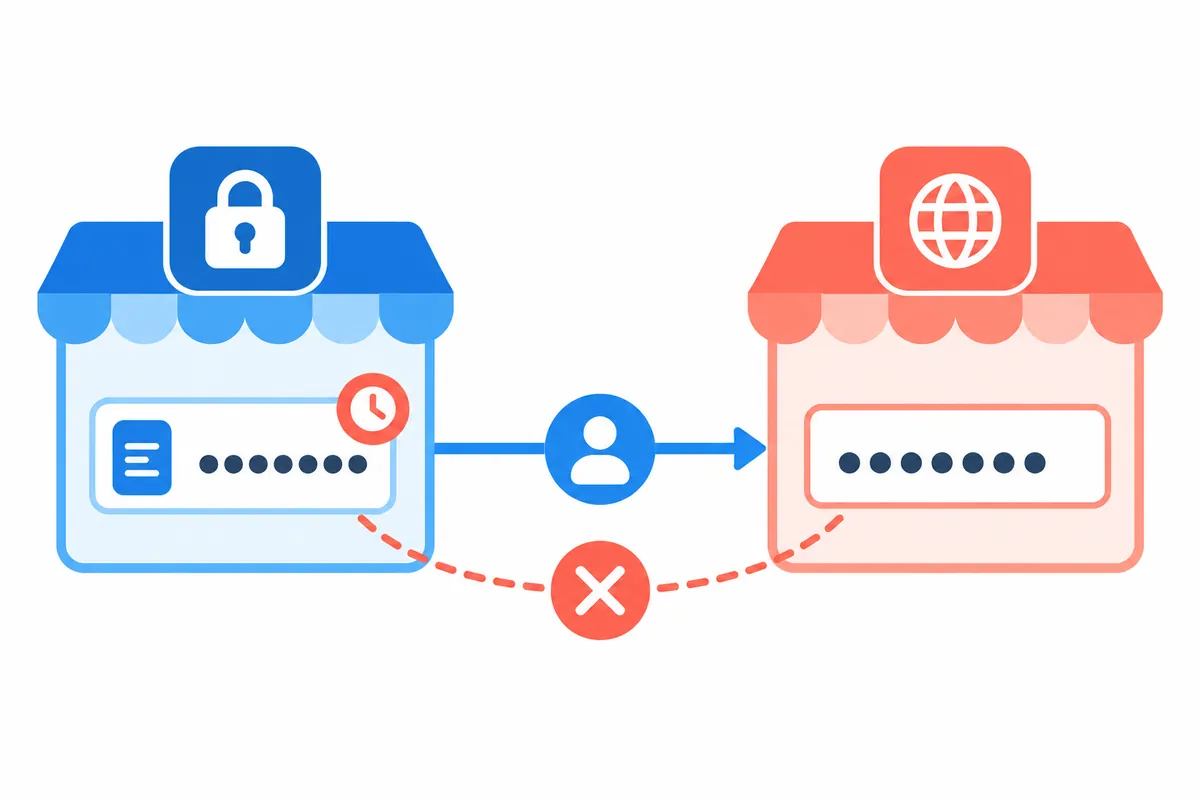
The process at a glance
This is an explanatory diagram, not a screenshot or the results of an actual test.
1. Check the saved website and account
2. Distinguish viewing, editing, and deleting
3. Compare with changes on the actual website
4. Handle only the entry you need
5. Verify the result through a normal login
A saved password and a website password involve different tasks
A password saved in Chrome is information used when you log in. Do not assume that editing the saved value in the manager automatically changes the account password on the service's server. Conversely, if you change your password on the website but the saved information still contains the old value, autofill may fail to log you in. Start by recording which one you changed.
This article explains how to manage your own accounts; it has not read, edited, or exported any actual passwords. The services and usernames below are fictional examples. You do not need to send passwords in a chat or display them publicly to troubleshoot a problem. Deleting all saved passwords is also not the default procedure in this guide.
| Task | Target | Where to verify completion |
| View a saved value | Login information kept in the manager | Website address, account, and target information |
| Edit a saved value | Saved information used for autofill | The relevant entry in the manager |
| Change the website password | The service's actual account credentials | Official website account management and a normal login |
| Delete a saved entry | Remove a specific entry from the manager | Whether another login method remains available |
| Export | A file for transferring information to another tool | The need for it and how the file will be handled |
| Save to device / save to account | Where information is stored | The current Chrome account and profile |
| Delete all data | A broader deletion scope | A different purpose from handling individual entries |
Read the website address and username first
If you have saved both personal and work accounts for the same website, it is easy to edit the wrong entry. Check the exact website address and username before selecting an entry. Different domains that look like the same service or old test addresses may also be mixed in. Similar names alone do not mean the information belongs to the same account.
Suppose the fictional address service.example has two entries, user-a and user-b. First determine whether you intend to manage user-a. When explaining a real problem to someone else, the domain and the distinction between accounts may be enough to describe the situation. You do not need to expose password strings for comparison or try logging in experimentally with another account's values.
Go to the relevant entry in Google Password Manager
Google's Chrome guide explains that you can open More, then Passwords and autofill, then Google Password Manager and select an entry. Viewing, editing, and deleting serve different purposes, so first decide what you are trying to do. If the device asks you to verify your identity, follow the normal authentication procedure rather than using a way to bypass it.
If the menus differ, read the manager screen in your current version and compare it with the official guide. Do not expand the task to looking up credentials through another person's profile or administrator privileges. This article assumes you are managing account information you are authorized to use and does not provide code for reading the browser's internal storage or cookies.
Distinguish device storage from account storage
Google explains that Chrome can save passwords to your account or locally on your device depending on whether you are signed in. If the lists differ across devices, check the storage location and current profile first. An entry existing on one PC does not mean every device has the same value.
If information appears to be missing, check that you have selected the correct profile and account instead of immediately saving a random new password. If you deliberately chose not to save information to your account, distinguish that decision from a problem in which it is not transferred automatically to another device. Do not report synchronization or recovery as complete without investigating the settings.
Match the saved value to the value changed on the actual website
Suppose a fictional user changed their password on the official website but the manager still contains the previous value. Find the correct website and account entry and manage the saved information so it matches the current credentials. Do not claim that the account password changed after editing only the manager's value unless you have evidence that the website change was completed.
When changing a password on a website, follow that service's account management procedure and recovery options. Instructions for saving or editing information in the manager do not replace the actual service's change rules. Test the result through the official login route you normally use; you do not need to copy the password itself into a tracking table.
비밀번호를 적지 않는 설명용 작업 기록
Site: service.example
Account label: personal-example
Chrome profile label: profile-a-example
Task: update saved login entry after changing password on the official site
Site password change: confirmed by user / not confirmed
Saved entry selected: correct site + correct username
Saved entry action: edit / remove / no change
Normal sign-in result: success / failed / not tested
Old entry retained elsewhere: unknown / checked

실제 비밀번호·복구 코드·인증 토큰은 이 기록에 넣지 않습니다.
Check how you will log in again before deleting
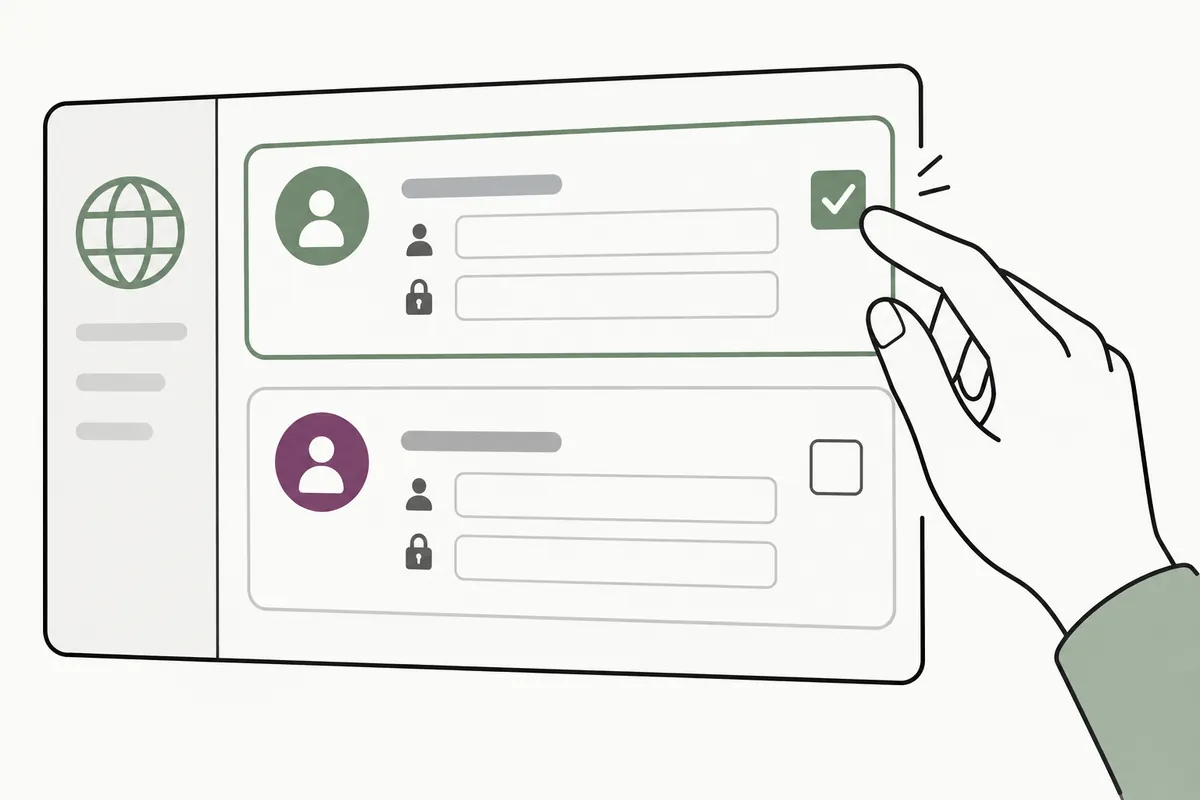
To remove an unnecessary entry, check the entry and website account again. Once the saved entry is gone, autofill information may no longer be available. First make sure you know the actual password or can use an official recovery method. Do not confuse deleting a manager entry with deleting the service account.
Handle only the entries relevant to your purpose instead of deleting several usernames for the same website at once. Afterward, check which entries were removed and which remain. This article does not offer a method that guarantees recovery of previously saved values. If you have not decided whether deletion or editing is necessary, record the current situation without broadening the task.
| Fictional symptom | What to check first | Confusion to avoid |
| Login fails when using autofill | Whether the website password changed and whether the account entry is correct | Thinking that editing the saved value changes the website password |
| An entry is missing on another PC | Profile, account, and storage location | Assuming that all devices already have identical lists |
| Two usernames appear | The actual account you intend to use | Thinking that the same website means a single account |
| No offer to save appears | Manager settings and whether saving was declined for that website | Confusing it with not having a website account |
| You want to delete an entry | How to log in again or recover access | Assuming that deletion is followed by automatic recovery |
| A compromised or weak password warning appears | The manager's guidance and the official website's change procedure | Treating dismissal of a warning as a password change |
| You want to add a note | Only information needed to distinguish the account | Copying sensitive codes into an ordinary work log |
Separate autofill failures from website authentication failures
A form not being filled and a website rejecting information after it has been filled are different situations. For the former, examine saved entries, profiles, and form selection. For the latter, check actual credentials and the website's guidance. Changing both areas for one symptom makes it difficult to determine which change had an effect.
Record whether autofill occurred and the website's response in separate columns of a fictional work log. If you have not verified a normal login, record the saved-entry edit as complete and the login as untested. Opening the page again or clicking the manager's Save button does not establish a successful service login.
Consider exporting separately when there is a specific need
The manager also offers export functionality, but exporting is not a necessary step for routine edits to a single entry. Only when you have a clear purpose, such as moving to another password manager, should you check the official procedure and how the output file will be handled. Consider who may be able to see the generated file and how you will manage it afterward.
You do not need to upload the file to a shared folder or public post for diagnosis. This article has not actually performed an export or inspected the security of the file format. Do not treat a password export file as the same kind of lightweight link list as bookmark HTML. Assess the purpose and access scope according to the nature of the entries.
Connect diagnostic warnings to action on the original website
Google Password Manager provides checks concerning weaknesses or exposure of saved information. Read the warning and identify the website and account entry concerned. If an actual change is needed, act through the original service's normal account management route, then compare the saved information. Closing a warning is not a change to credentials.
Checking whether you used the same password on other accounts may be an additional task for you. This article does not investigate whether an account has been compromised or guarantee that all risks have been removed. Record what you actually did after reading the guidance separately from what remains unverified.
Use notes to describe the account's purpose instead of its password
If you need a note explaining login information, distinguish its purpose with labels such as personal, work, or an old entry to clean up. In an external work log, record the target domain, account label, task type, and verification result instead of passwords or one-time authentication codes. There is no need to duplicate credentials unnecessarily in multiple places just to explain a problem.
Consider who can see any notes you write. Real account names are unnecessary in examples for a public article, so this article uses fictional labels only. The purpose of the record is to help you understand the relationship between saved information and changes to the actual service; it is not to provide a way to access someone else's account.
Separate saved state from login results in the completion record
Record three things separately: whether you edited the correct target, whether the desired information was saved, and whether you verified a normal login. For deletion, also check that other entries you needed to retain remain intact. Keep untested items marked as untested; clicking Save does not mean use on other devices has also been verified.
If a login fails, check the official recovery guidance for your own account and the actual website response, and distinguish the cause rather than repeatedly entering different values. The official sources establish Chrome's storage and management scope; the situation categories and work log in this article are original suggestions. No actual access to credentials or changes to security settings were performed.
Official sources and verification scope
Official materials checked: 2026-10-08. Items to recheck at publication: current manager menus, device/account storage behavior, and diagnostic guidance. Verify each service's actual password change and recovery procedures separately.
AI-assisted writing. The cases, figures, and work records in this article are original explanatory examples. They are not presented as experiences or measurement results from an actual user's environment.
Original illustrations created to help explain this article.
Original on Tistory ↗