Exporting and Importing Bookmarks: Check the Backup File First
This article was translated from its source language with AI assistance. Please check technical terms and equations against the original.
Key takeaway: Chrome bookmarks can be exported and kept as an HTML file. Preserve the original file and current bookmarks before importing, then check folders, addresses, and representative links after restoration. A bookmark backup differs from a backup of webpage content or login information.
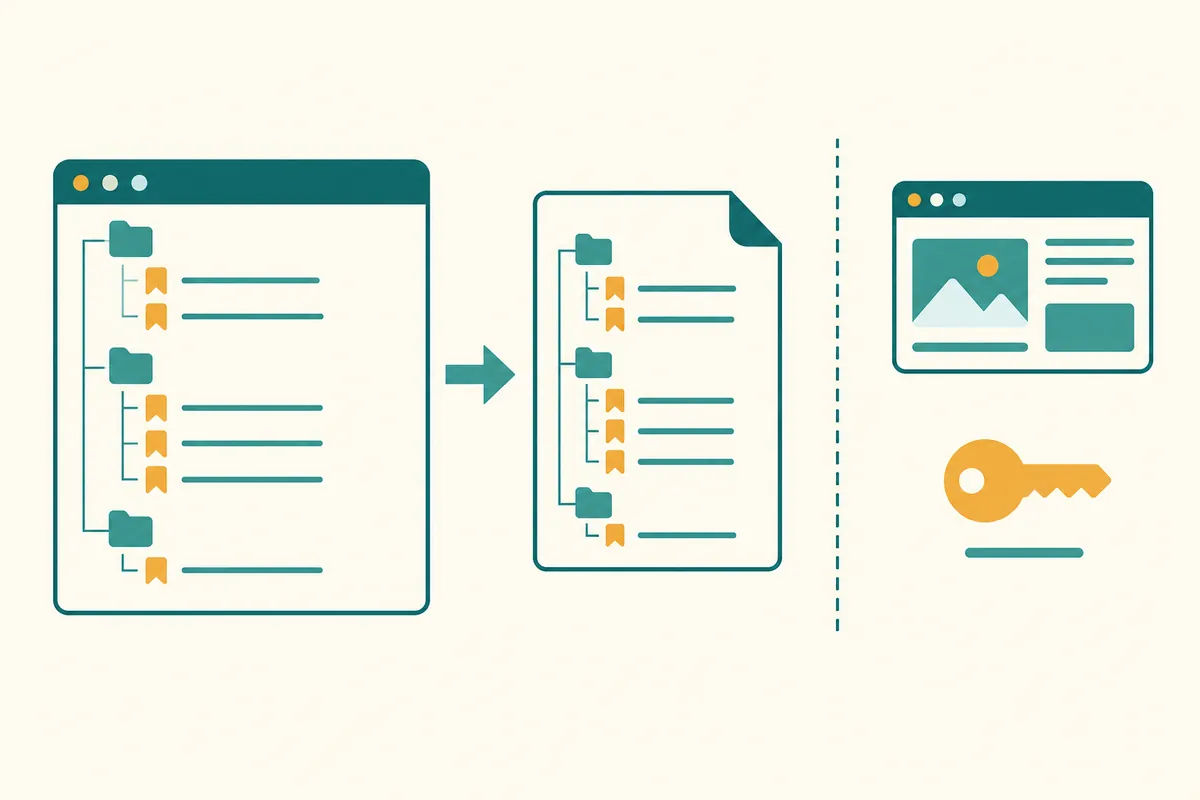
The process at a glance
This is an explanatory diagram, not a screenshot or the results of an actual test.
1. Check the profile in use
2. Export current bookmarks as HTML
3. Compare the backup file and folders
4. Import once into the intended destination
5. Check representative links and duplicate folders
What you are backing up is addresses and folders
Bookmarks are a list of web addresses you want to revisit and the organization of those entries. Exporting bookmarks as HTML does not also save the pages' text, images, or login sessions. If a page disappears or access permissions change, the backed-up address may no longer open. If your goal is to preserve documents offline, distinguish a bookmark list from saving documents separately.
This article explains how to move Chrome bookmarks; it has not exported or deleted any actual user's list. The filenames and folder structures are fictional examples. It uses the official bookmark manager's HTML export and import functions rather than extracting passwords, cookies, or internal databases.
| What to preserve | What bookmark HTML can provide | What is needed separately |
| Addresses to revisit | Addresses and bookmark entries | Check that the pages still exist |
| Organization into folders | The exported list's folder structure | Verify the imported location on the actual screen |
| Webpage content | No guarantee of a content backup | Preserve documents lawfully if necessary |
| Saved passwords | Separate from the bookmark file | The password manager's official procedure |
| Logged-in state | Not restored by bookmarks | Normal login to the website |
| History and extension settings | Separate from preserving bookmarks alone | Separate official procedures for the required items |
| Distinguishing the current profile | The selected profile's list | Check whether the target is work or personal |
Check the profile first, even within the same window
If you use both personal and work Chrome profiles, their bookmarks may differ. Before exporting, check the current window's profile and representative folders in the bookmark manager. If you discover after saving that the list differs, start by determining whether you restored a file from another profile.
For a fictional example, suppose the personal profile has a Travel folder and the work profile has a Materials folder. To move the materials list, export from the manager where that folder appears. A profile name alone does not mean you are permitted to move organizational resources to another account, so check the actual materials' permitted use in your own environment.
Export the current list as HTML
Google's guide takes you through Chrome's menu, Bookmarks and lists, Bookmark manager, More within the manager, and Export bookmarks. Choose the filename and location, then verify that an HTML file was actually created. If your browser version uses different menu names, read the export instructions on the management screen before continuing.
Including the date and profile in the filename can reduce accidental overwriting. For example, bookmarks_work_20261022.html is an illustrative name. Make a copy rather than immediately editing the original, and check that a few important links are present. A file-created message alone does not establish that the list is correct.
설명용 백업 구조
bookmark-backups/
  bookmarks_personal_20261022.html
  bookmarks_work_20261022.html
  backup-notes.txt

backup-notes.txt 예시
Export date: 2026-10-22
Profile label: work-example
Expected folders: 자료 / 일정 / 참고
Representative links checked: 3
Import target: new-work-profile-example
Original export retained: yes

위 구조는 직접 만든 예시이며 실제 계정·파일을 조사한 기록이 아닙니다.
Separate opening the file from testing restoration
You can open the HTML file and read representative entries' names and addresses, but that alone does not establish that importing into a new profile was successful. Checking the file is a small inspection of what was preserved; a restoration test is a separate step in the destination browser. Distinguishing the two results makes it easier to locate problems.
Addresses may reveal personal documents or internal organizational pages, so there is no need to upload the file to a public link. Even a simple list can expose the services you visit and document names. When asking someone to diagnose a problem, consider showing the structure of the affected entry and an example with personal information removed instead of the entire file.
Preserve the destination list before importing too
If the destination browser already has bookmarks, you can export that list first as well. It provides a baseline for judging how old and new entries were arranged during import. Do not assume importing automatically merges the existing list or removes duplicates perfectly.
Give the original backup and the destination's pre-change backup different names. Using the same name could replace the older file you intended to restore with the current list. If the result after one import is unclear, check the imported folder and representative entries in the manager before importing the same file repeatedly.
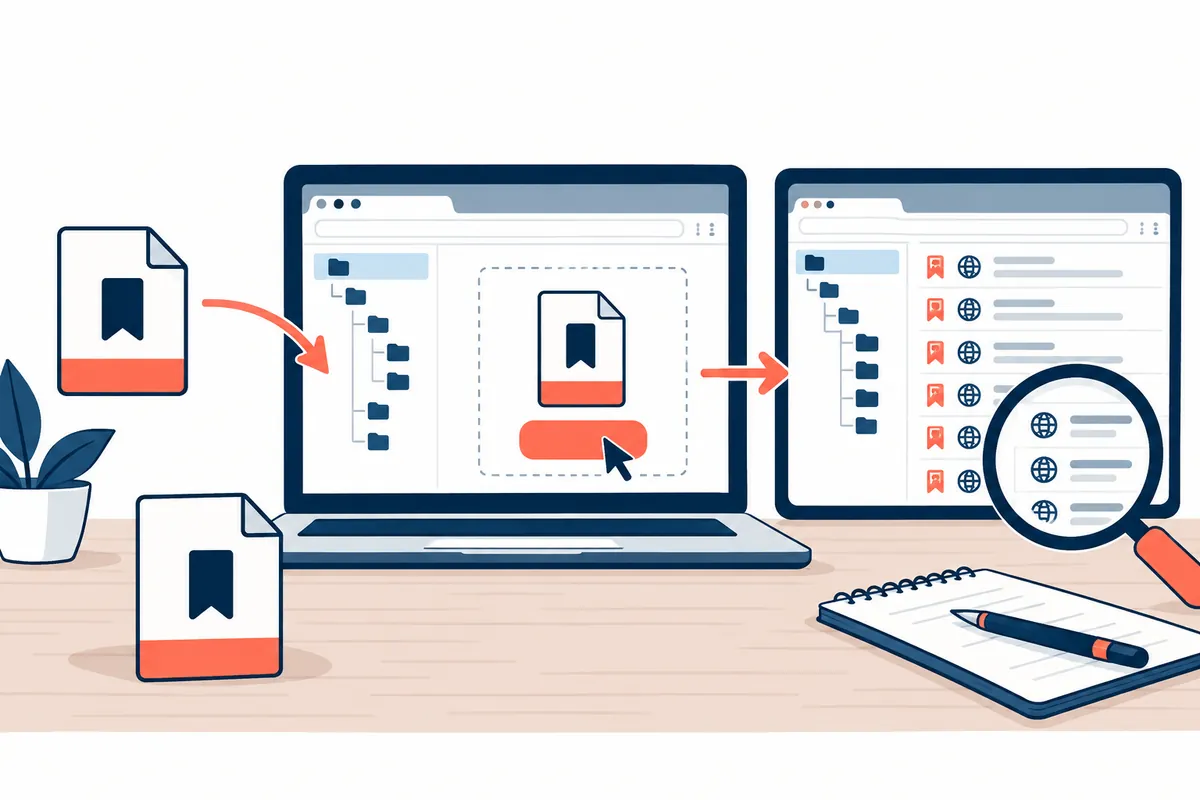
| Stage | Evidence to preserve | Condition for the next stage |
| Before export | Profile identity and representative folders | The list to export matches your purpose |
| After export | Filename, size, and storage location | The file is not empty and representative links are checked |
| Before import | Pre-change HTML of the destination list | A recoverable copy is available |
| Perform one import | Selected HTML file and destination profile | Compare the on-screen result first |
| Check imported folders | Locations of representative folders and entries | Distinguish original entries from new ones |
| Check representative links | Whether addresses match and remain accessible | Separate login problems from missing list entries |
| Clean up | Potential duplicates and a copy made before deletion | Handle only verified entries selectively |
Verify HTML imports on the destination screen
Google explains how to select an HTML file when importing bookmarks and settings. Check the selected filename, read the completion result on screen, and then find the entries in the bookmark manager. If a list already exists, new entries' locations or folders may differ from your expectations. Selecting a file alone does not mean restoration is finished.
If a fictional Materials folder contained a reference address, check whether the same name and address appear and try opening the entry. Identical titles can point to different addresses, so do not judge by name alone. If it is inaccessible, separately investigate whether the link is missing or the original website's permissions or address changed.
For duplicates, examine addresses and locations rather than names
Entries with the same title in multiple folders may serve different purposes, while different titles may point to the same address. Decide how to remove duplicates by considering both the addresses and the folders' roles. Preserve a copy of the destination list and inspect a small scope before deleting everything automatically.
For illustration, suppose Materials/Official guidance and References/Manual point to the same address. You can choose to retain one or keep both for separate roles. Conversely, two entries named Official guidance should not be deleted as duplicates if their addresses concern different services or versions. Organize the list according to your own classification purpose.
Synchronization and manual backups require different checks
Distinguish using the same bookmarks on several devices from preserving an HTML file at a particular point in time. A manual file can serve as a reference for the list as it existed then; it is not guaranteed to match what your current device displays. Do not claim restoration is complete on every device without checking synchronization status.
After checking the profile and account selected on the new device, actually read the screen to see whether the required entries appear. For missing entries, first look for them in another folder instead of obscuring the cause by importing resources from other accounts. This article does not present an experience of changing account synchronization or security settings.
Separate links that will not open from restoring the list
If a bookmark exists but the website does not open, other causes may include an address change, document deletion, or login and permission requirements. Do not record this as the same failure as a missing browser entry. Check the saved address and use the official website's normal navigation to see whether the document moved.
If you find a new link, note the old address and reason for the change before editing the bookmark. If the original material has disappeared, do not promise that the bookmark file alone can recover its content. For the next backup, you can maintain a history by exporting the corrected current list under a separate date and retaining the previous file.
Include recovery locations in the final check
Organize the original HTML, the destination's pre-change HTML, and the record of checks on imported folders and representative links together. A file is difficult to retrieve when needed if you do not know where it was stored. Choose a folder you manage and identify the date and profile in the filename or a note.
Bookmarks are useful for preserving a list of links. Do not overstate them as a full browser backup that restores document content, passwords, and logged-in state. The file structure and checklist in this article are original examples; the official Google sources establish the supported management, export, and import procedures.
Official sources and verification scope
- Google Chrome — Import and export bookmarks and settings
- Google Chrome — Create, find, and edit bookmarks
Official materials checked: 2026-10-08. Items to recheck at publication: export/import menus and how destination folders appear. Verify the actual profile's original files and restoration results separately.
AI-assisted writing. The cases, figures, and work records in this article are original explanatory examples. They are not presented as experiences or measurement results from an actual user's environment.
Original illustrations created to help explain this article.
Original on Tistory ↗