When an External Drive Is Read-Only: Distinguishing the Causes
This article was translated from its source language with AI assistance. Please check technical terms and equations against the original.
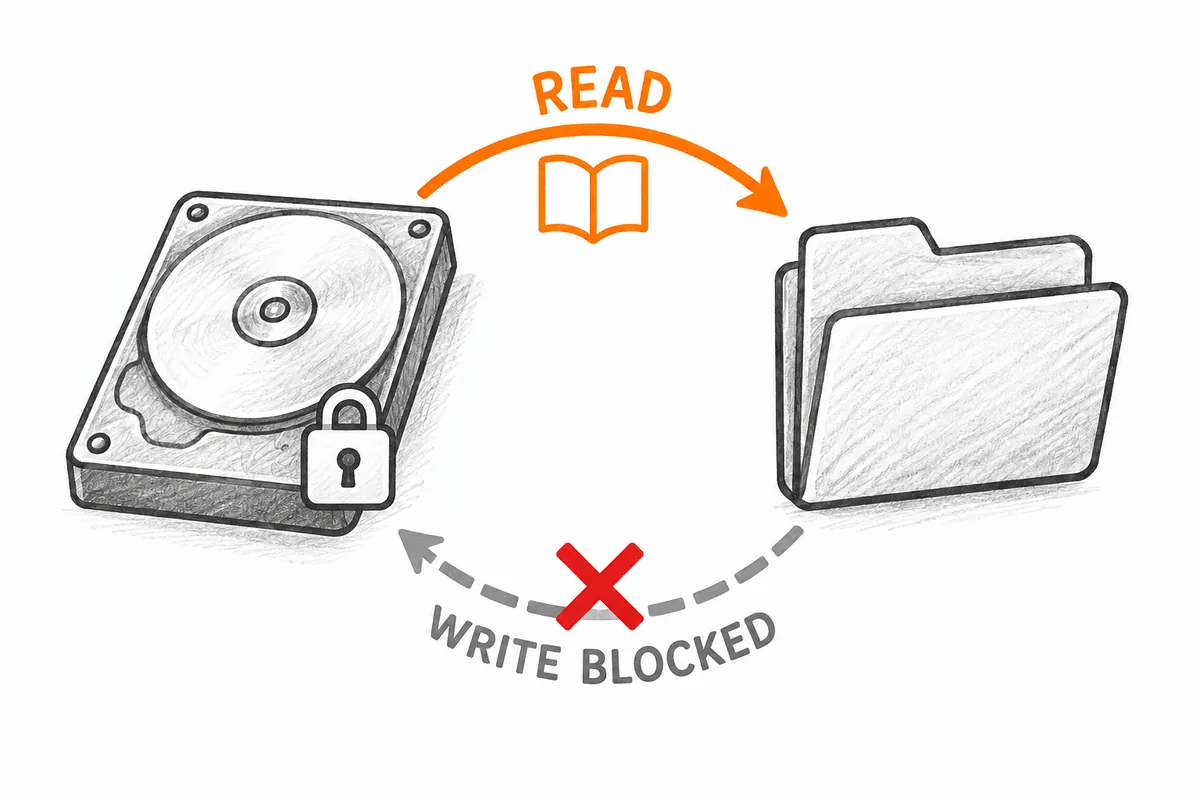
If documents on an external drive open but cannot be saved or deleted, first read the actual error. Write protection, access denial, insufficient space, and a security device not logged in cannot be treated as one condition. Being able to read is useful evidence, but does not establish one particular cause of blocked writing.
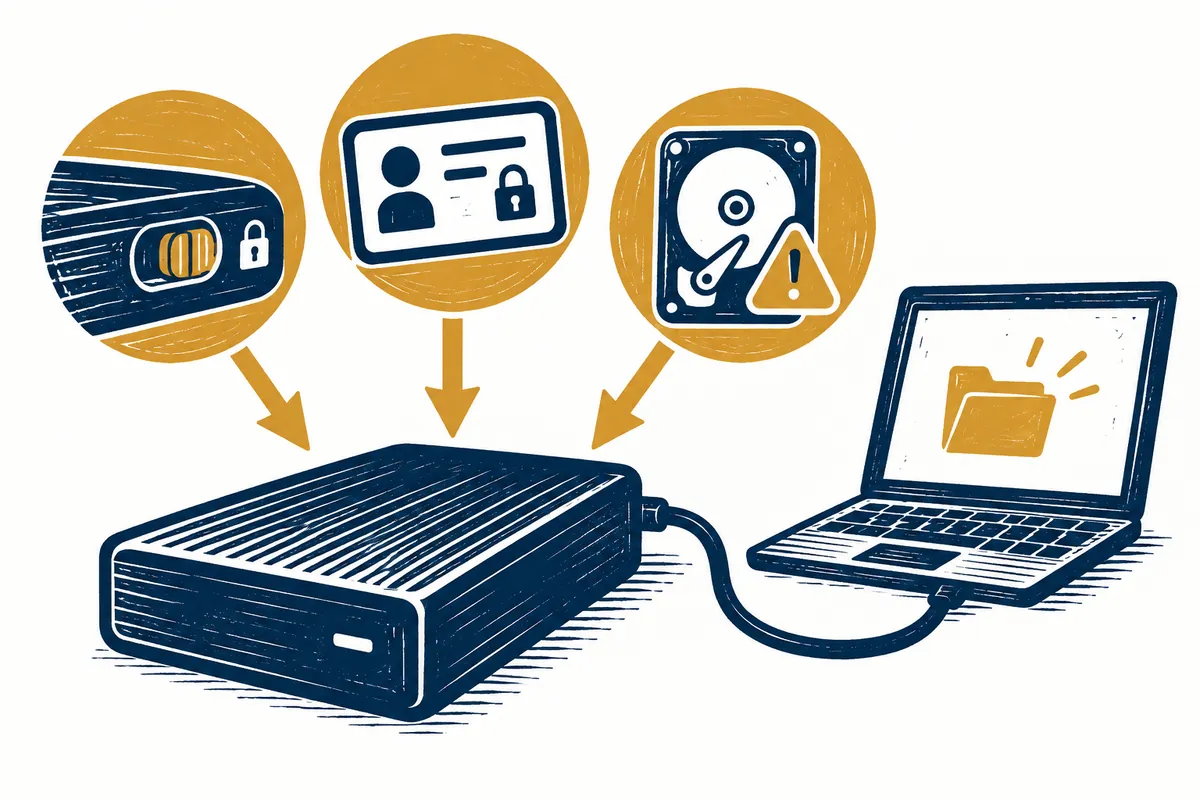
This article explains a sequence for separating causes. Product protection features and PC management differ, so one unlocking command cannot apply to every USB device. Device A and the work-PC cases below are illustrative, not records of changing disk attributes or inspecting your policies.
Checking external-drive write restrictions at a glance
Explanatory illustration — not an actual screen or test result.
1. Record the failed task, target path, and error text
2. Separate file, folder, volume, and PC-specific scope
3. Check the model's protection mode and management conditions
4. Compare causes through relevant attribute queries and official support
5. Verify the actual target task after permitted action
1. Record which action produced which message
Distinguish opening a document, copying a new file, editing an existing one, and deleting it. Identifying the failure stage narrows scope. Do not immediately convert one program's save failure into a whole-drive write failure.
Preserve the error exactly as displayed. “The disk is write-protected” and “Access is denied” do not necessarily call for the same next check. If space shortage is reported, inspect free space and task size; this does not justify beginning with protection removal.
| Record field | Illustrative example | Purpose |
| Target | External data device A | Avoid confusion with other drives |
| Task | Copy a new note file | Distinguish from opening, editing, and deleting |
| Scope | Checked only in one folder | Avoid assuming a whole-volume issue |
| Message | Exact actual error text | Separate observation from guessed cause |
| Environment | Company-managed PC | Compare device protection and PC conditions |
If current files matter, first check whether readable data can be preserved in another permitted location. Record copying separately from successfully opening the destination. Investigating read-only behavior does not require unnecessarily modifying original documents.
2. Determine whether one file or the entire device is affected
If only one document cannot be saved, inspect the program's message and actual save path. Read the target path even when considering Save As. Successfully saving a file in the PC's Documents folder does not establish successful writing to the external drive.
If wider testing is needed and writing is permitted, use a small disposable test file instead of existing documents. Record target folder, creation, and reopening. Success in one folder does not establish writing permission in every folder and program.
Suppose device A's documents in folder X open but new files cannot be created there. If folder Y and other PCs remain unchecked, the observation is limited to X. Specifying scope instead of “all writing to A is impossible” can reduce unnecessary disk-setting changes.
3. Check protection features by product model
Microsoft explains that some USB devices may have physical write-protection switches. Check the actual model's manual and markings first. Do not forcibly manipulate products without such switches or assume all external SSDs have identical locking functions.
A security USB's dedicated-software login mode can also cause this behavior. Kingston's IronKey D300S manual says choosing Read-Only Mode before login allows reading but prohibits changing or deleting content. This applies to D300S, not a universal menu for ordinary USBs or other IronKey models.
If a D300S owner wants authorized writing, consult its normal exit procedure and how to deselect read-only mode on the next login. Distinguish this from resetting or formatting to change modes. For another model, read its own manual.
If a hypothetical D300S user logged in read-only to inspect data, saving failure may match the selected mode. Do not turn a confirmed mode into a password error or hardware fault. Recording current security-software state and model helps explain the cause to support.
4. Check organizational policy on company PCs
If one device is write-restricted only on a specific work PC, inspect PC management conditions too. Microsoft's related troubleshooting documents describe group-policy restrictions on removable-storage writing in domain environments. This concerns managed organizational conditions, not a diagnosis for every personal PC.
That guidance explains domain policy can override local changes, and policy refreshes can revert local settings. Repeated registry changes therefore do not necessarily resolve the cause. Ask organizational administrators about applied policy and permitted storage methods.
Suppose two hypothetical USBs are read-only on one company PC but writable in another permitted environment. This supports investigating PC-specific differences, but is not direct evidence of a particular policy. Provide administrators PC details, device models, failed tasks, and error messages to verify actual conditions.
Respect data-use conditions when moving organizational material to another PC for testing. Record changed PCs and accounts; do not invent unverified policy names. If an approved storage route exists, also confirm how work material can remain preserved.
5. A DiskPart attribute query reads the selected disk
If familiar with command tools and able to identify the correct disk, DiskPart's disk-attribute query can be consulted. Microsoft explicitly states a disk must be selected before using attributes disk. Do not copy example disk numbers unchanged or identify the target from a drive letter alone.
attributes diskThe code above displays attributes of a disk already selected in DiskPart. This line does not automatically find an external device or remove write restrictions. If selection is uncertain, organize device information and the current error for support rather than proceeding.
Recording queried fields and values helps compare disk attributes with other observations. One query does not establish manufacturer-tool mode or organizational policy. Distinguish documented attribute-setting/clearing functions from the query needed here.
This article does not universally prescribe attribute-changing commands as a solution. First determine whether protection is intentional and which layer actually causes it. Changing another disk merely because “read-only” appeared misaligns the observation and action targets.
6. Choose the next action from verified findings
| Confirmed condition | Next check | Completion criterion |
| Model-specific read-only mode | Normal transition procedure in its manual | Permitted mode and actual save result |
| Restriction only on an organizationally managed PC | Ask the administrator about applied conditions | Confirmed policy and approved storage method |
| Error only in a particular file or folder | Error text and path differences | Target task succeeds at the required location |
| Cause remains unclear | Record model, scope, and status for support | Retain unknown items for additional checks |
For a confirmed product mode, follow that model's normal method. For confirmed organizational policy, use approved conditions. If only one program is affected, continue examining files and save paths. Do not compress results from different scopes into one unlocking method.
If formatting is requested for a device containing data, read the message and reconsider the goal. Resolving access while preserving files differs from emptying a device for reuse. Kingston's manual explicitly says formatting erases data, so it cannot replace checking the mode.
7. Verify target tasks and preservation after resolution
After identifying a cause requiring change and taking suitable action, recheck the originally failed task within a limited scope. If copying a small hypothetical test file, read its name and contents at the destination and record the result. Before editing an actual report, confirm preservation of originals and required earlier versions and choose a working copy.
Distinguish one successful save from the same conditions persisting on the next connection. Login modes and managed PCs can change conditions. If the issue recurs, separate changed from unchanged conditions to reduce restarting every check.
Support requests should include model, Windows environment, affected file scope, error text, actually checked product mode, and query results. Passwords are unnecessary for the cause record. The illustrations explain this sequence, not proof of actual unlocking or successful testing.
Official sources and writing standards
- Microsoft: attributes disk
- Microsoft: Windows marks as locked a USB device that has no lock software
- Kingston: IronKey D300S User Guide — Windows read-only mode
References checked: 2026-10-07. This explanation was written with AI assistance based on official sources actually opened. Separately marked calculations, code, and checking examples are illustrative, not results from directly testing or measuring the user environment. Recheck changes to features and references on the publication date.
Original illustrations created to help explain this article.
Original on Tistory ↗