When a USB Drive Does Not Appear: Checking Ports and Disk Management
This article was translated from its source language with AI assistance. Please check technical terms and equations against the original.
If a connected USB storage device creates no new drive in File Explorer, first determine how far it was recognized. No connection, Windows detecting hardware but unable to access its volume, and visible files that cannot open are different starting points. Turning “USB does not work” into specific observations makes choosing the next action easier.
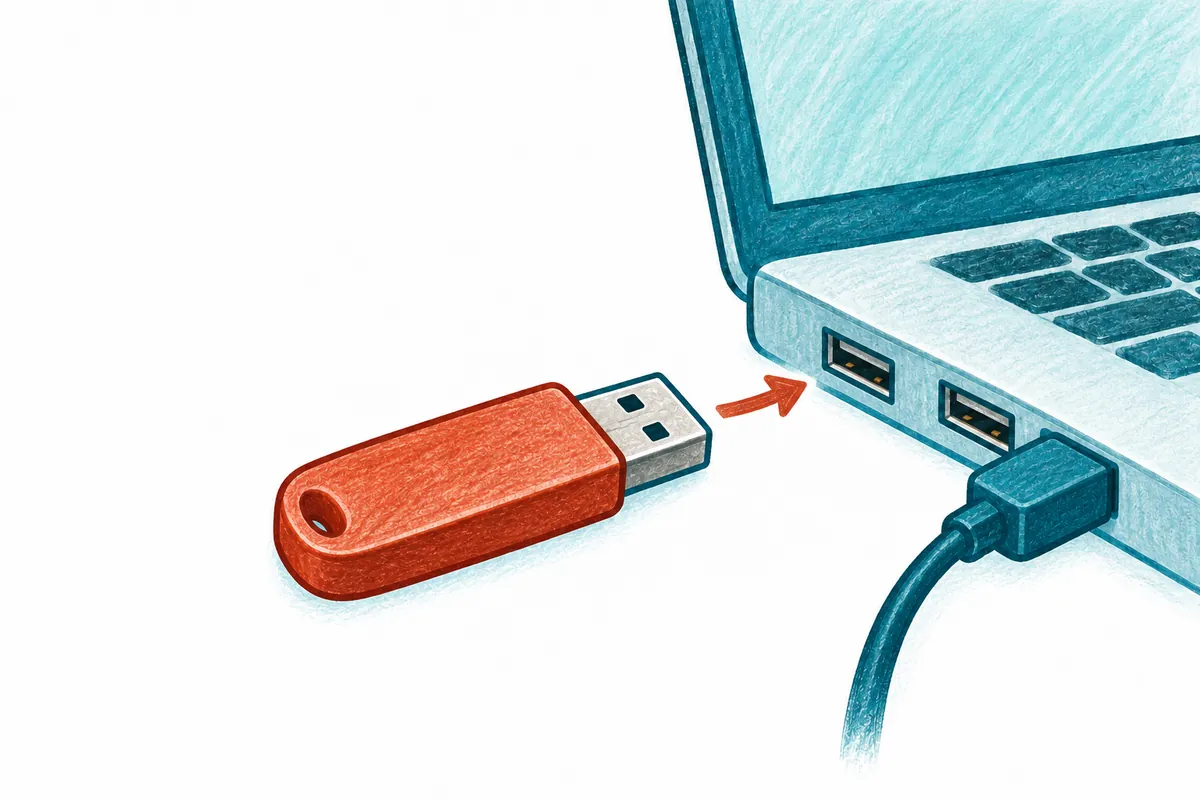
This article covers basic checks for USB flash drives and USB-connected external storage. It does not directly apply keyboard or printer installation procedures. Device A and port B are illustrative, not results of actual PC connection tests. For devices containing existing documents, reading the data is the priority.
Where to look when a USB drive is missing at a glance
Explanatory illustration — not an actual screen or test result.
1. Check devices and errors in File Explorer
2. Compare ports, cables, power, and another PC
3. Read names and status in Device Manager
4. Check capacity, letters, and file systems in Disk Management
5. Choose official procedures according to data-preservation needs
1. Record the screen where it is absent and the data needed
Note the device name and model, original data, and last PC used. Distinguish a new empty device from one whose documents opened yesterday. New-device setup and recovering access to existing files have different purposes and should not automatically use the same buttons.
No drive in File Explorer differs from no connection trace in Device Manager. Explorer shows file-access paths; Device Manager shows connected hardware and status. Disk Management reveals how storage devices and volumes appear.
| Observation location | Information to read | Next question |
| File Explorer | Drives, folders, and opening errors | Is there a route to access data? |
| Device Manager | Device name, warnings, and status text | What does Windows detect? |
| Disk Management | Disk, volume, letter, and status | How does storage appear? |
| Device manual | Model-specific cable and power conditions | Is the current connection appropriate? |
Connection sounds or indicator lights can be noted, but do not establish valid files. Record only checked scope, such as “light on, absent in Explorer, Disk Management not yet checked,” so new information stays distinct.
2. Change ports and cables one at a time
Dell's USB guidance describes checking ports and cables, trying another port and PC, and comparing a direct PC connection instead of a hub. Applying Dell-specific update tools universally to other manufacturers' PCs is a separate issue.
If hypothetical device A is connected through a hub, first record the arrangement. Finish active file tasks and follow supported safe-removal procedures, then compare a direct compatible PC-port connection. Changing port, cable, and device simultaneously makes it difficult to identify what altered the result.
For an external device with a detachable cable, compare with a compatible, verified working cable. Matching connector shape does not establish all required connection conditions; consult the model's manual. Products requiring separate power also need their power requirements checked.
If files appear at another PC port, record this and examine required data. One success does not conclusively diagnose the original port as faulty. Retain the original hub/cable combination, changed item, and actual display result for later comparisons.
3. Read warning text in Device Manager
Open Device Manager from the Start-button menu and inspect relevant devices. For warnings, read status text and error codes in the item's properties. Compare whether the displayed item corresponds to connected storage rather than selecting an arbitrary guessed name.
If an unknown-device item shows a code in a hypothetical screen, record its exact message. Writing only an interpretation like “driver failure” loses the actual error. Even matching codes require checking current device and connection conditions; one code does not explain every cause.
Initially use this stage to read status. Deleting every visible USB entry makes it difficult to track changes and impacts on existing input devices. If driver checks are subsequently needed, use manufacturer guidance appropriate to the actual PC and storage model and official documentation for the error.
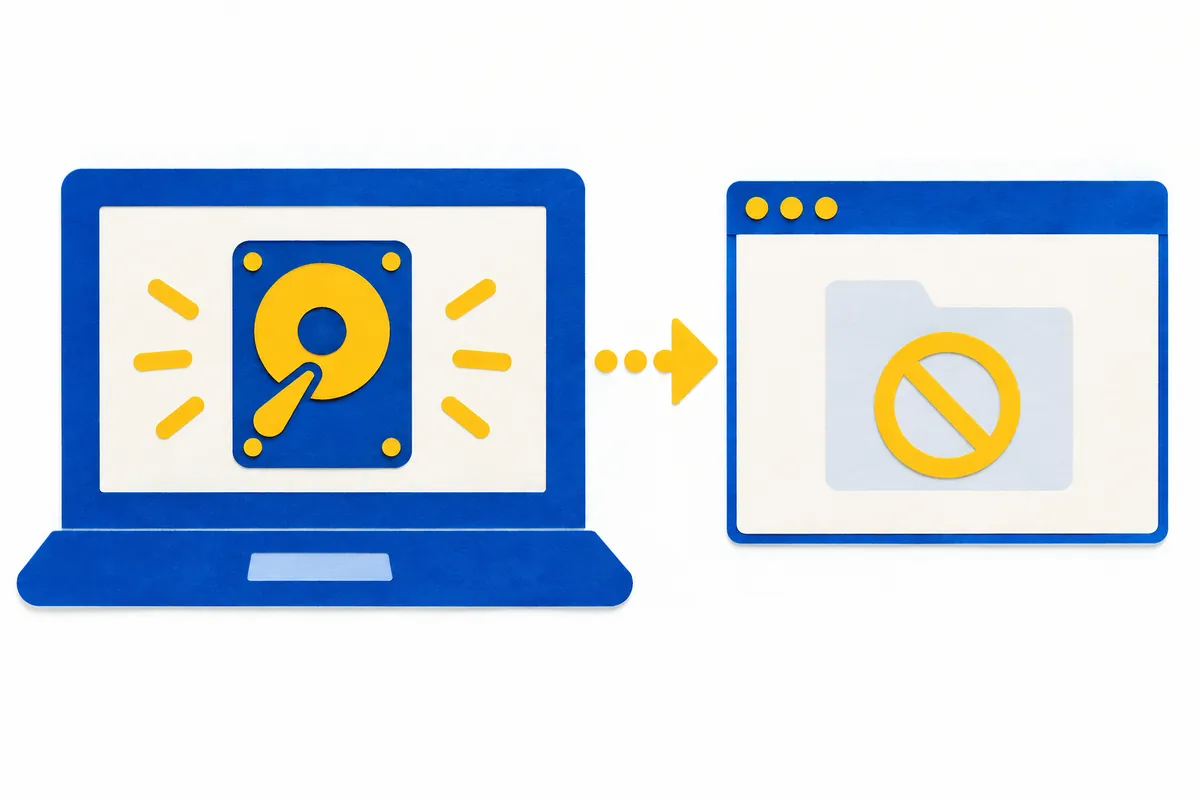
A visible device entry and readable files are different facts. A name in Device Manager leaves the Explorer-access stage unverified. If the relevant item cannot be identified, record the searched scope instead of declaring “no device.”
4. Read both target and status in Disk Management
Open Disk Management and find the item corresponding to connected storage. Compare its name, capacity, and volume arrangement before reading status with the target clear. Disk number or capacity alone can select another similarly sized device. This stage reads the screen; it does not create a new volume.
Microsoft's troubleshooting documentation distinguishes volumes with file systems but no letters, RAW displays, and unallocated space. For missing external devices, it describes reconnecting and using Rescan Disks in the Action menu.
| Displayed state | Initial interpretation | When existing data matter |
| File system present, no letter | Candidate access-path issue | Identify the volume before consulting letter-assignment guidance |
| RAW | Candidate file-system recognition issue | Do not replace finding data with formatting |
| Unallocated | Volume-state checks needed | Postpone creating a volume when recovery is the goal |
| Offline | Check status and connection conditions | Use official procedures after identifying the target and reason |
| Target itself not found | Compare connection and hardware recognition | Record port, cable, and other-PC observations |
Official documentation connects formatting RAW or unallocated storage with the condition that the device is empty. It says not to apply those steps when recovering existing files. An initialization prompt on a device holding required documents does not mean data recovery succeeded.
5. Distinguish missing letters from missing files
If an identified volume has a file system but no letter, consult Microsoft's assignment guidance. Do not modify EFI or recovery partitions used for PC operation by mistaking them for data USB storage. Assigning an unused letter to an unclear target does not replace proper identification.
If a hypothetical external-data volume appears in Explorer after letter assignment, open actual folders to check expected data. “A drive appeared” concerns access paths; “the required report opened” concerns content. Missing files or opening errors need separate records even when a letter appears.
If the target is absent from Disk Management too, letter changes cannot be the starting point. Return to connection-layer checks and compare which screens show the current device. Identical Explorer symptoms can need different procedures depending on Disk Management.
6. Record other-PC comparisons accurately
Checking the same device on another authorized PC can narrow scope. Before moving organizational data to a personal PC, check organizational conditions. This compares actual displays within permitted environments; it does not change authorization conditions.
If A's data appear on another PC but not the original, investigate PC-specific differences. If absent on both, recheck shared conditions including device and cable. Neither result alone is a measurement conclusively identifying a faulty component.
A hypothetical record can read “hub connection: absent in Explorer; direct connection: volume visible; one report opened successfully.” If testing another device at the same port, record its type and arrangement. A functioning keyboard does not prove that all storage devices will work.
7. Completion criteria after access returns
When data become visible, check required files first and whether they can be preserved in another functioning location. Distinguish names inspected from files actually opened. After copying, verify existence and readable required content at the destination to assess preservation.
For recurring disconnects or read errors, organize current outcomes and model information for manufacturer support. Include Windows version, connection arrangement, exact errors, Disk Management display, and comparisons performed. Do not report unperformed tests as successes or failures.
Assess normal use by access to required data and recurrence conditions, beyond one folder briefly appearing. Leave remaining items unverified. The four observation locations in the illustrations help identify next checks; the images themselves are neither diagnostic results nor actual screenshots.
Official sources and writing standards
References checked: 2026-10-07. This explanation was written with AI assistance based on official sources actually opened. Separately marked calculations, code, and checking examples are illustrative, not results from directly testing or measuring the user environment. Recheck changes to features and references on the publication date.
Original illustrations created to help explain this article.
Original on Tistory ↗