When a Drive Letter Changes: Correcting External-Device Paths
This article was translated from its source language with AI assistance. Please check technical terms and equations against the original.
If an external device formerly appeared as E: but now as F:, existing shortcuts or programs may fail to find files. First confirm that its data are actually visible. A changed path letter needs a different checking sequence from an unrecognized device or unreadable files.
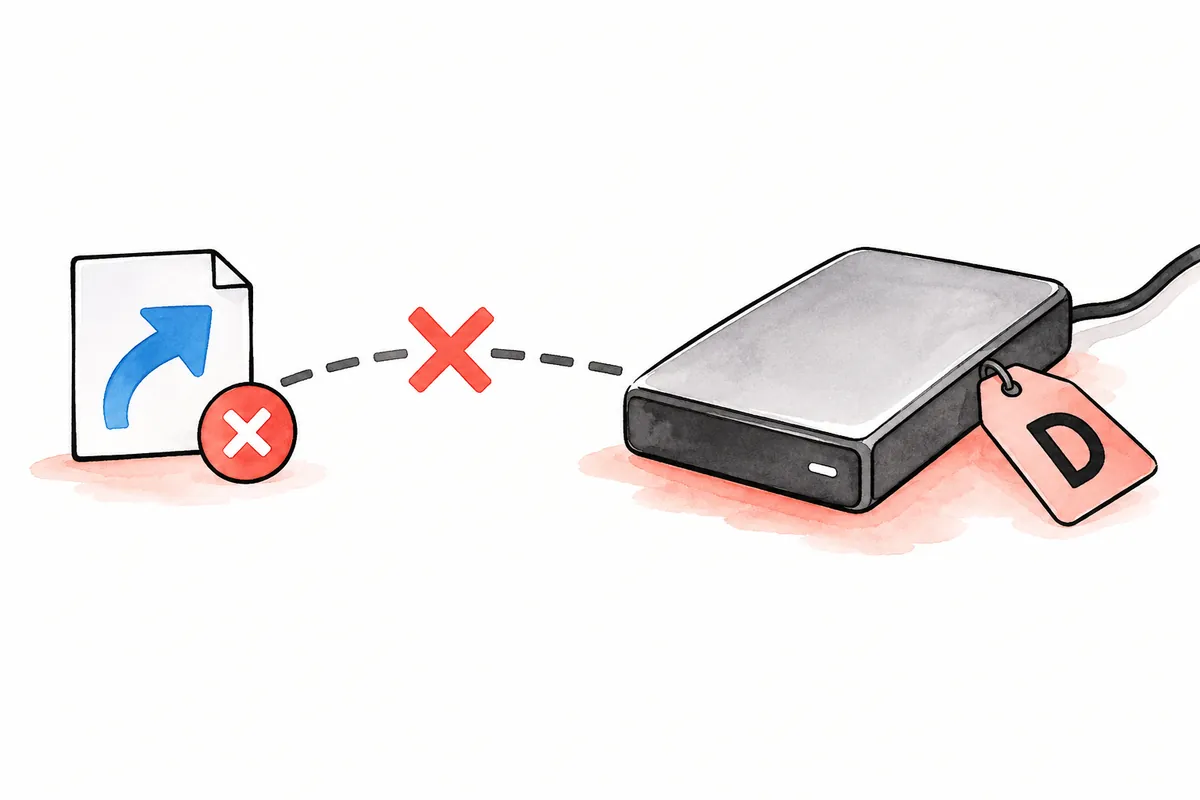
This article checks paths for external data storage. Changing letters of drives containing Windows or installed programs is outside its scope. Device names and paths below are illustrative, not records of actual disk changes or file inspection.
Safely aligning external-device paths at a glance
Explanatory illustration — not an actual screen or test result.
1. Identify the device by letter, name, capacity, and actual data
2. Verify reading files through the current path
3. Compare editing references with assigning a data-volume letter
4. Change only selected items and read the result
5. Compare documents, programs, and save locations in the record
1. Distinguish the drive letter from the device's identity
A letter such as E: is current volume-access information. It does not always identify the same physical device. With multiple connections, today's E: can differ from the former E: data drive; check name, capacity, and actual files together.
Suppose the work drive appears as F: while another USB uses E:. An existing program searches E:'s Work folder. Following E: alone could open the wrong USB. First establish that F: contains the original work files, then decide which path to correct.
| Check target | Information used | Why it is insufficient alone |
| Current letter | E: or F: | Not necessarily a permanent identifier of one device |
| Volume name | Work storage device | Other devices can share the name |
| Capacity | Actually displayed size | Other devices can have the same size |
| Content | Expected folders and documents | Evidence covers only data actually checked |
For a physical device with multiple volumes, identify which volume's letter is involved. Choose the volume holding necessary data rather than treating it as changing the whole device. If identification is unclear, compare actual connections and content before changing letters.
2. Check whether files are visible first
Open the device through its current letter in Explorer and check required folders. If the document opens, examine references using letter-based paths. If opening errors occur or files are missing, reconsider whether path correction alone can resolve the issue.
Formatting inaccessible external storage differs from changing a path name. Microsoft explains that formatting erases volume data. If existing data must be found, record the current state and handle access failure first. Do not apply new-empty-device setup unchanged to a device holding existing material.
Without a record of the former letter, inspect old shortcuts or program settings for required paths. Read which file the old path meant. E: in an error does not imply every device should be reassigned E:.
3. Choose between correcting references and reassigning the letter
If files remain accessible after a letter change, alternatives include updating shortcut/program data paths to the current letter or reassigning the needed letter to the data volume. Determine affected connections first to set change scope.
If only one hypothetical shortcut uses old E:, consider updating it to F:'s actual data path. If multiple workflows require the same data-volume letter, consider letter assignment. Neither method is universally better; choose from actual connection conditions.
| Choice | Check first | Verify result |
| Edit reference path | Which shortcut or program uses the old letter? | Open the required file through that reference |
| Assign a data-volume letter | Target volume, desired letter, and effects on other references | Compare the new letter with actual data |
| Diagnose access issues | Whether files are visible and the error text | Verify reading before editing paths |
If another device already uses the desired letter, identify it too. Do not repeatedly alter unfamiliar volumes just to obtain a letter. If references using that letter are unknown, first consider a small edit using the current path.
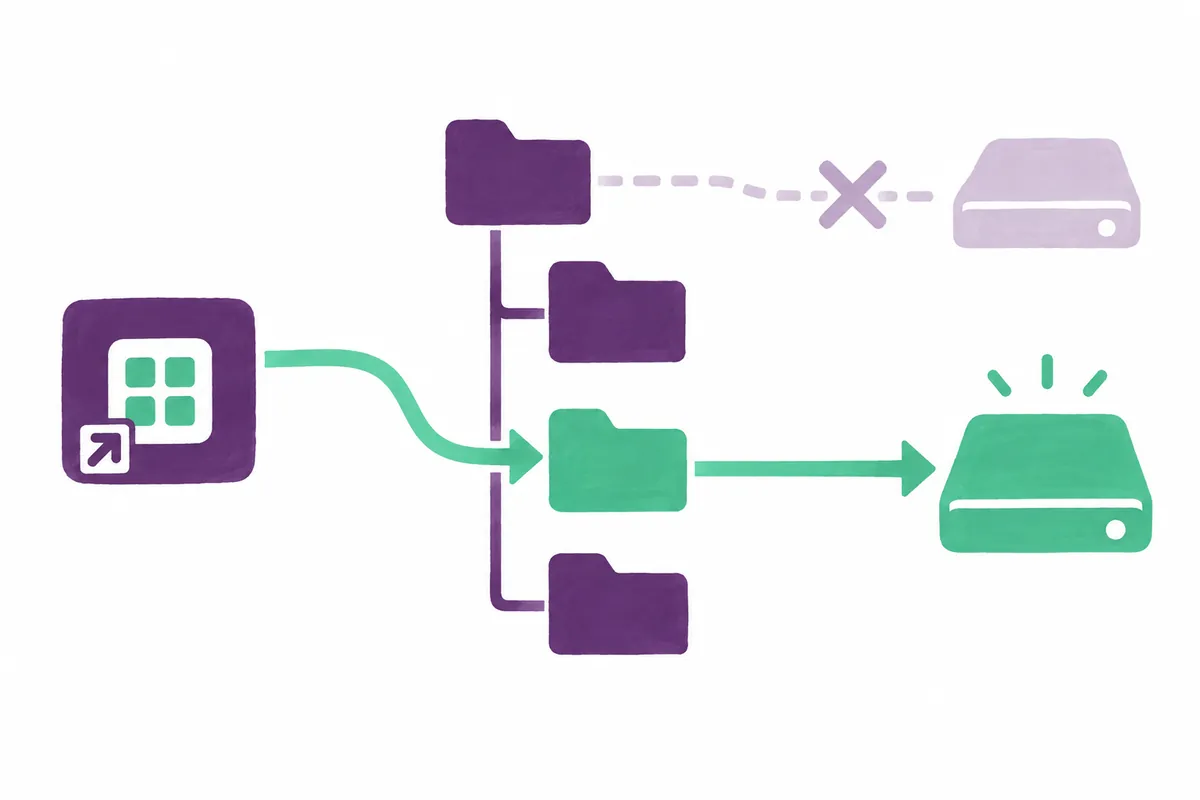
4. Reidentify the target volume in Disk Management
Microsoft describes opening Disk Management from Start's context menu or running diskmgmt.msc with Windows+R. It shows current disk and volume state. Opening it does not itself save changes.
diskmgmt.mscCompare the current volume's letter, name, and capacity with Explorer. Be clear which region of the work drive is selected. Microsoft explains that changing letters of drives containing Windows or programs can prevent apps finding them.
With multiple disks, compare information in the upper and lower screen areas for the same target. Similar capacity alone is insufficient. For administrative changes, check permissions and organizational management conditions. Circumventing prohibited changes is outside path inspection's purpose.
5. Changing a data-volume letter
Once the exact data volume is confirmed, choose Change Drive Letter and Paths from its context menu. To replace the current letter, choose Change and select a letter from the available list. Before confirming, compare the target and letter with the plan, then check the result.
Open the device through the new letter in Explorer and verify the same data. Then open actual files through affected shortcuts or programs. Record changed display and working program references separately.
If the menu is absent or disabled, do not move arbitrarily to creating a volume. Microsoft's guidance identifies volume readiness, accessible types, and permissions as checks. For a device with needed data, record its current state and read official diagnosis for that situation.
6. Compare references in programs and documents
Check program data paths as well as shortcuts. A hypothetical spreadsheet referencing external files may open while its links still target old paths. Compare actual files used in the workflow and record checked scope. Programs store paths differently and may need their own guidance.
Correct one reference and verify the required file opens before changing many settings. Opening a document, reading external data, and saving results are separate checks. A working read reference does not establish a correctly changed save location.
A hypothetical check opens a report at F:, inspects a shortcut still using E:, and reads the actual result-save path. If output lands on another device, the path problem remains. Check project and document content to avoid using different material with the same name.
7. Records for undoing changes
Record old and new letters, volume identifiers, edited program paths, and results. If returning to the original state, restore based on items actually changed. Initializing unrelated disks differs from the small restoration this record supports.
If the former letter belongs to another device, record that condition. The goal is matching references to actual data, not reclaiming an old letter at any cost. Consider paths possible in the current arrangement without modifying unknown letters or partitions.
On reconnection, briefly check the current display and actual files. A previously chosen letter does not validate every future connection arrangement. If devices or environment changed, compare the current volume and required references again.
8. Completion criteria for path resolution
Completion means identifying the desired device, reading required files, and verifying that relevant programs use the correct path. A changed letter alone does not finish the entire task. Record checked shortcuts and programs to find remaining references.
The illustrations explain identification, path selection, and result checks; they are not actual Disk Management screens or measurements. The key sequence uses your device's actual name, capacity, and data paths to change only necessary items and verify outcomes.
Official sources and writing standards
References checked: 2026-10-07. This explanation was written with AI assistance based on official sources actually opened. Separately marked calculations, code, and checking examples are illustrative, not results from directly testing or measuring the user environment. Recheck changes to features and references on the publication date.
Original illustrations created to help explain this article.
Original on Tistory ↗