Before Restoring a Backup: Preserving Originals and Testing Restoration
This article was translated from its source language with AI assistance. Please check technical terms and equations against the original.
Finding a backup can tempt you to restore it immediately to the original location. However, new work in current files may need preservation, and backups can contain different identically named material. Preparing to choose the required time and file and inspect restored contents makes selection clearer.
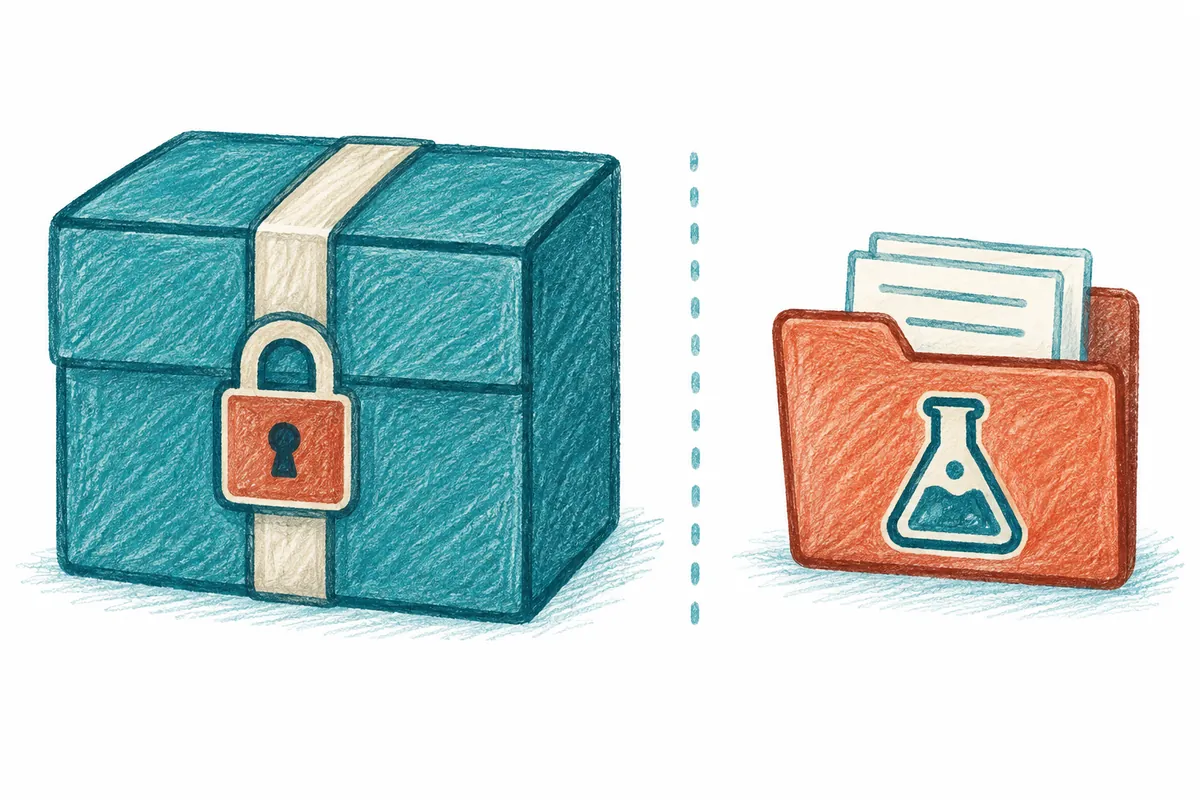
This article explains checks before using sources such as File History and OneDrive version history. Their storage and restoration methods differ, so consult official procedures for the method in use. Reports and tables below are illustrative, not records of actual recovery or inspection of your files.
Checking backup restoration while preserving current work at a glance
Explanatory illustration — not an actual screen or test result.
1. Define the content and time to recover
2. Record current-copy and backup locations
3. Preview the desired version's content
4. Test restoration appropriately and compare contents
5. Choose full replacement or partial incorporation and verify
1. State the target content and time in one sentence
Describe the goal more specifically than “recover a file.” “Recover the unit-price column written this morning while keeping notes added this afternoon” identifies the version and portion to inspect. The oldest file or newest backup is not always the desired result.
Suppose a hypothetical morning report contains a table, and afternoon work adds paragraphs. If the table is incorrectly edited later, replacing the whole document with the morning version can lose those paragraphs too. Decide whether you need the previous table or entire document, then plan preservation of the current copy.
| Restoration goal | Material to find | Material to preserve |
| Recover an incorrectly edited table | Version containing the pre-edit table | Explanations added afterward |
| Find a deleted photograph | Storage containing that photograph | Current photo folder |
| Return the whole document to a particular time | Complete version at that time | Current comparison copy |
| Restore a related file collection | Files from the same work time | Current links and outputs |
Defining the desired outcome also defines completion. Distinguish whether merely opening suffices, specific tables and numbers must match, or related images and links are needed. Starting full restoration without criteria makes usability difficult to judge.
2. Preserve backups and current files separately
If a current file remains, save a comparison copy elsewhere before restoring. Distinguish original working file, backup to restore, and test-restored copy. Folder names containing time or purpose help distinguish identical filenames.
For example, separate illustrative folders into “Current copy preserved” and “Test restoration,” recording each source. Verify created copies by actually opening them. If no original remains, first preserve the surviving backup and leave the current state unverified.
Compare paths so backup-location material is not mistaken for the working original. Check required space too. Different names for the same file in the same location do not create independent preservation. Recording what was retained where is central.
3. Identify restoration targets by name, time, and contents
Matching names can identify different files; renamed files can belong to the same work. Check path, format, storage time, and content together. Equal sizes do not prove identical contents. Distinguish metadata checks from content comparison.
For documents, inspect title, needed tables, and remembered final paragraphs. For spreadsheets, choose sheet names and cells; for photographs, subject and resolution. Tailor criteria to the information sought instead of applying one list to all files.
Distinguish storage time from actual editing time. An afternoon backup still needs checking for the desired pre-edit content. Compare displayed times with the restoration goal, but do not establish matching content from time alone.
4. Use File History previews and restoration to another location
Microsoft's File History guidance describes selecting previous versions, previewing contents, and restoring elsewhere instead of replacing the current file. Distinguishing opening from restoring permits review while preserving current work.

For test restoration, choose a separate folder and open the resulting file. Confirm screen-reported success separately from needed content being valid. Record target path, selected time, and new location to trace comparisons later.
Restoring to the existing location can replace current content. Decide after checking the current copy and test result. Menu operations cannot invent missing versions or unretained points in time.
5. OneDrive version history changes the current version
OneDrive guidance explains that restoring a saved version makes it current. It also describes version-history access through Explorer when the sync app is installed. Read procedures matching the account and actual file location.
Check which file receives the restoration. Do not assume it offers the same separate-location menu as File History. Preserve needed current content separately, then compare the selected version with the current file after restoration.
Administrators can control version-history availability for work or school accounts. If an item is absent, inspect actual account, location, and management conditions. Do not transfer another account's retention amounts or menus as guaranteed conditions.
6. Test restoration goes beyond checking a name
Open the restored copy and first inspect needed content. For the hypothetical spreadsheet's unit-price column, read values and calculation relationships. A file opening without the required sheet does not meet the restoration purpose.
| Material type | Illustrative checks |
| Report | Title, required table, and final paragraph |
| Spreadsheet | Sheet name, key cells, and formula references |
| Photograph | Desired subject, file format, and display state |
| Related file collection | Inter-file links and required supporting material |
Check associated material too. A document referencing external images or spreadsheets may need more than one recovered file. List required contemporaneous materials and record directly checked scope. Separate assumed references from confirmed links.
If opening prompts updates or saving, first consider the current purpose. Turning reviewed material into a new editable copy requires distinguishing it from the originally restored state. Separate comparison and editing files to track subsequent changes.
7. Choose full replacement or recovery of selected content
If the test result fits the goal, decide whether to replace the whole file or transfer only required content. If both an earlier table and current paragraphs are needed, compare the table and incorporate it into current work. Verify actual results of combining file contents too.
For full replacement, recheck the preserved current copy's location and target path. Identify the file to avoid replacing a same-name item elsewhere. After replacement, read the target content and verify use in the required program.
For partial transfers, record which portions came from the earlier version. A document mixing time points is not an unchanged past version. Retain its new name and modifications to distinguish source material from edited results later.
8. Information to retain when the desired version is absent
Check whether the location was covered by backup, the backup device is accessible, and the required time's record actually survives. An enabled feature does not prove preservation at every time. Check other copies and service retention separately.
For support, prepare original path, required time, surviving versions, and access errors. Describing versions found and the failure stage is clearer than “backup does not work.” Do not declare unverified retention states deleted or damaged.
A completion record should contain target content, preserved current copy, selected backup time, test-restoration location, and actual checks. Pressing Restore must connect to evidence that desired content returned. This sequence makes it easier to use earlier material while preserving current work.
Official sources and writing standards
- Microsoft: Backup and restore with File History
- Microsoft: Restore a previous version of a file stored in OneDrive
References checked: 2026-10-07. This explanation was written with AI assistance based on official sources actually opened. Separately marked calculations, code, and checking examples are illustrative, not results from directly testing or measuring the user environment. Recheck changes to features and references on the publication date.
Original illustrations created to help explain this article.
Original on Tistory ↗