Sleep Versus Hibernate: Comparing How Work Is Resumed
This article was translated from its source language with AI assistance. Please check technical terms and equations against the original.
Turning off the display, sleeping, hibernating, and shutting down may seem similar during a break, but they differ. Choice depends on more than absence duration: whether tasks must keep running and whether you want to resume previous documents and programs matter.
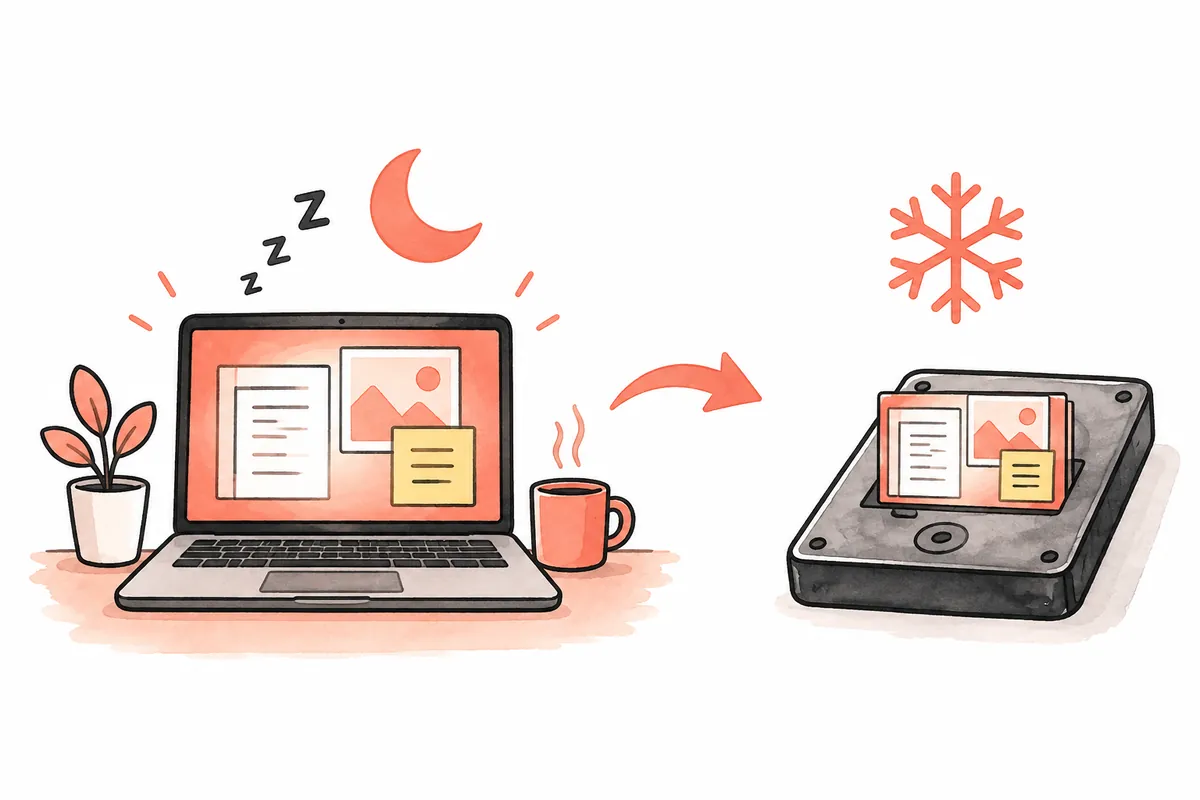
This article connects Windows power states with usage goals. Sleep and hibernate do not replace backups or completion checks. Cases are hypothetical, not measurements of wake time, power consumption, or battery drain on actual devices.
Distinguishing display and power states
Display off · Stops displaying · Check actual task progress
Sleep · Resume after a short absence · Supported state and wake behavior
Hibernate · Resume later from saved state · Availability and device recovery
Shut down · End current use · Save documents and finish tasks
1. Separate a dark screen from stopped work
Microsoft explains that devices can remain running with displays off. A dark screen alone does not establish sleep or hibernation. If programs must continue, check actual device state separately from progress results.
Conversely, sleep is not merely a setting hiding the screen. Preserving windows for later differs from continuing tasks during absence. For a continuing conversion, checking state preservation does not verify task completion.
First state the goal as “continue running,” “resume later,” or “finish completely.” For mixed purposes, complete and save needed tasks before choosing a state. Defining the needed outcome helps more than memorizing menu names.
2. How sleep and hibernate preserve state
Conventional S1–S3 sleep retains memory. Hibernate S4 writes memory contents to the storage hibernation file for resumption. Microsoft explains that some PCs use Modern Standby rather than traditional S1–S3. Do not equate every laptop's sleep with one hardware state.
Choose from preservation method and purpose. Supported sleep can suit brief absences and quick resumption; check hibernation availability for longer disuse. Wake speed and power vary by device, so avoid universal seconds or “zero power” figures.
| Choice | Main purpose | Separate check |
| Display off | Display unnecessary | Actual device and task execution |
| Sleep | Resume after a short absence | Device support and wake behavior |
| Hibernate | Resume later with stored work state | Availability and program state after waking |
| Shut down | End current use | Document saving and task completion |
3. Check states supported by your PC first
Not every PC shows Hibernate. An absent menu does not establish hardware failure. Microsoft's user guidance checks availability first, then describes accessing hibernation under shutdown settings through Control Panel Power Options and Change settings that are currently unavailable.
For detailed support, consult powercfg /a in Microsoft Learn. This queries available sleep states and reasons for unavailable ones. The example below was not run on your device; read your own output.
powercfg /aResults may list both availability and unavailability. Record the relevant list and reasons. Querying differs from enabling or disabling; do not execute successive internet change commands without understanding output. For managed PCs, follow organizational settings and support.
4. Handle saving separately from power-state preservation
Returning to a screen is not saving documents to the intended location. Save important edits first and confirm paths. For autosaving programs, separately inspect synchronization or save status. Retained windows do not imply every change reached the file.
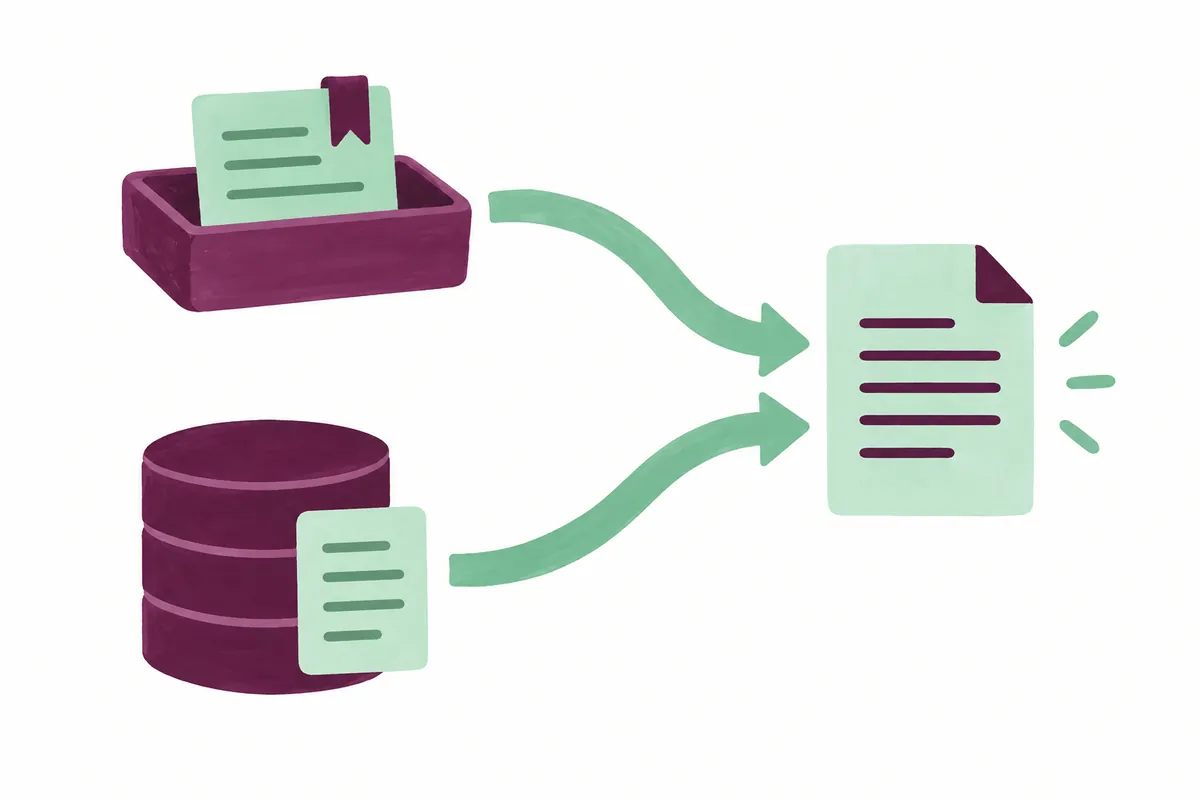
Suppose you want to resume a long report in an hour. Save and inspect the file first, then choose a supported state. On return, check editing position and saved contents. This keeps screen restoration distinct from file saving.
For synchronization or transfers, define completion clearly. Separate progress finishing, output existence, and changes reaching servers or other devices. Pausing work differs from external-system completion. Decide whether completion is needed before sleeping.
5. Check connected devices as well as windows after waking
Microsoft advises checking connections, restarting, or reviewing current drivers if monitors, printers, or scanners malfunction after sleep or hibernation. First inspect program windows, input devices, external screens, and necessary connections separately to define scope.
A missing external screen does not establish a lost document. Programs remaining without input and visible screens without resumed networking are separate observations. Breaking “cannot resume” into failed stages distinguishes power-state and peripheral issues.
Before holding the power button for forced shutdown, inspect saveable work on available screens. Seek support matching device and symptom. This article provides no universal reset for all resume failures; an entirely unresponsive device needs separate diagnosis.
6. Define execution conditions for automation and remote tasks
For scheduled-work PCs, check conditions before choosing power state. Resuming later differs from automatic execution at a scheduled time. Distinguish programs requiring an awake PC and logged-in session from tasks already scheduled on servers.
Hypothetical local document processing may depend on PC conditions, while scheduling saved in an external service may be processed there. Treating them identically can change expected outcomes. Check official execution requirements and actual saved scheduling before selecting a state.
Modern Standby documentation mentioning network events or maintenance does not guarantee every ordinary program keeps working. Verify needed tasks through actual results. Untested programs' “automatic processing during sleep” must remain unverified.
7. A template for short checks
Use saved sample documents instead of important data for brief checks. Record selected state, start time, wake method, document-window status, and external-screen status. Success does not validate other devices or longer durations. Include only actual scope.
| Record field | Check |
| Before selection | Documents saved and required tasks completed |
| Support | Menu and needed query output |
| Selected state | Actual choice of Sleep or Hibernate |
| After waking | Documents, input devices, external screen, and connections |
| Unresolved issue | Failed stage and error text |
If the first wake is quick and the next differs, record devices and power conditions along with time. Differing conditions cannot be treated as identical performance measurements. Check restored work usability and which devices returned normally.
8. Choose for the situation and restore changes
Notes for short breaks, long disuse, travel, and continuing tasks help selection. Match purpose and device support rather than using one state always. Retain separate document-saving checks regardless of shutdown or sleep choice.
If feature display or lid behavior changed, record original and new values. Restore only changed items to preserve other settings. For remaining problems, provide support with actual supported states, selected menu, and failed post-wake stage.
Useful selection asks how desired work state is preserved, not merely whether the screen looks off. Checking support, saving work, and comparing wake results reduces name-only choices. Keep unverified power numbers and automation behavior distinct from records.
Official guidance and writing standards
- Microsoft: Shut down, sleep, or hibernate your PC
- Microsoft Learn: System power states
- Microsoft Learn: Powercfg command-line options
References checked: 2026-10-06. This explanation was written with AI assistance after checking the official guidance below. Cases and records are illustrative, not direct measurements or tests on a particular PC. Windows builds, manufacturers, and management policies can alter screens and menu names. Current official guidance was rechecked during publication preparation.
Original illustrations created to help explain this article.
Original on Tistory ↗