Choosing a Power Mode: Balancing Performance and Battery Life
This article was translated from its source language with AI assistance. Please check technical terms and equations against the original.
Always choosing best performance for a slow laptop, or enabling every saving option for battery life, makes changed conditions hard to identify. Choose power mode for task and environment. Plugged-in desk work and battery use away from home can prioritize differently on the same PC.
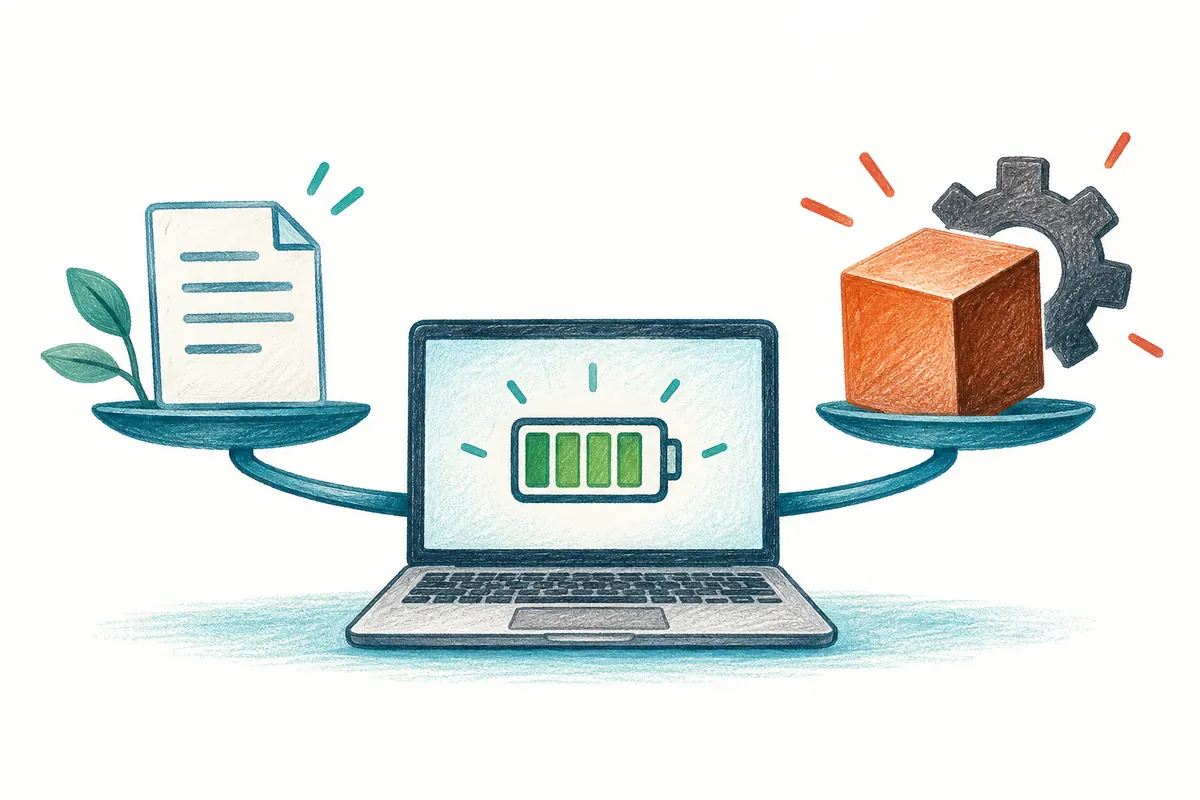
The goal is finding your needed balance, not recommending one correct mode. Paths follow current Microsoft guidance; tables and records are hypothetical. No measurements claim extra hours or percentage speedups for programs.
A simple power-mode comparison
1 → Record current mode and power connection
2 → Define purpose and completion in one sentence
3 → Change only one power mode at a time
4 → Compare using the same file and task
5 → Restore the original or retain the suitable choice
1. Power mode, Energy saver, and sleep timing differ
Microsoft describes power mode as choosing efficiency, balance, or performance to suit work. Energy saver separately manages processes and consumption. Display-off and device-sleep times are also distinct. Names containing power or saving do not imply identical functions.
Slow document response and screens repeatedly turning off during brief absences are different questions. Compare task and mode for the former; display/sleep timing for the latter. Longer screen-on time does not establish faster processing; mode changes do not automatically disable sleep.
| Setting | Main question | Related conditions to record |
| Power mode | Prioritize performance or efficiency for current work? | Power connection, task type, and perceived response |
| Energy saver | When is saving active? | Charge, activation, and affected tasks |
| Display-off time | How long should the display remain on? | Absence, external screen, and viewing purpose |
| Device-sleep time | When should inactivity cause sleep? | Ongoing work and resumption method |
2. Record current settings and choose one change
Open System, Power & battery and inspect mode. Microsoft's current guidance provides choices for plugged-in and battery use. If fields differ, check Windows build and management conditions rather than searching for an assumed absent field.
Record original mode and power, plus Energy saver separately. Change only mode during one comparison and maintain other conditions where possible. Changing brightness, program count, peripherals, and saving together obscures the cause of differences.
Write the key question with completion criteria: “Can I finish the meeting without charging?”, “Is this file's response adequate?”, or “Are everyday documents comfortable?” “Best” in a mode name does not make it best for every task.
3. Connect three modes to task goals
Guidance presents Best power efficiency as conserving battery, Balanced as balancing battery and performance, and Best performance as prioritizing performance. These directions do not guarantee specific improvements. Record mode name separately from actual experience.
For hypothetical reading while out, consider efficiency first. At a chargeable desk processing large data, compare performance priority with existing settings. Balanced can serve as an ordinary-work comparison baseline. These judgment exercises are not identical recommendations for every device.
If expectations are unmet, step down or restore the original. Find a choice within functional task requirements. If saving prevents completion or performance brings no improvement, reexamine purpose and results.
4. Compare briefly with matching tasks and conditions
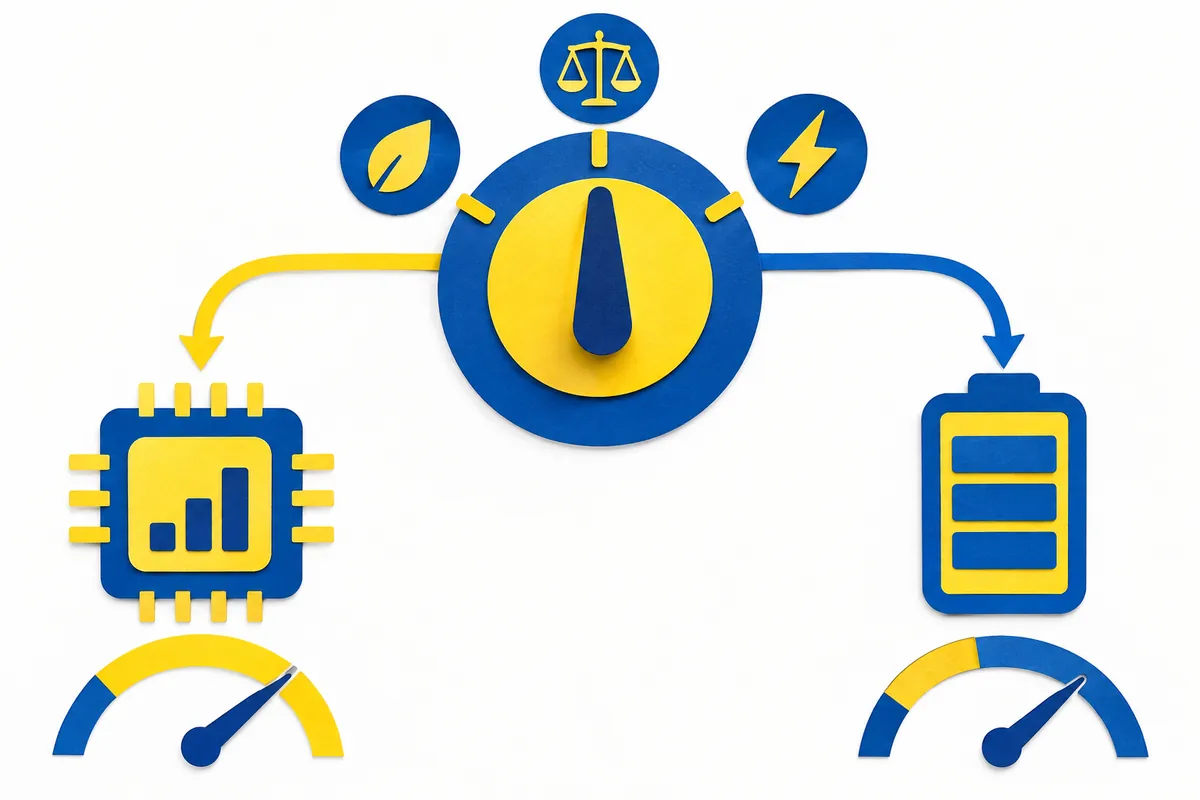
Use the same file, sequence, and connection. Do not mix first startup with repeated already-open use. Compare the same document section for response, or the same sample file and completion criterion for processing. This is not a professional performance test.
Choose two or three relevant records, such as completion, perceived response, and beginning/end battery charge. Include time for charge differences. A drop of 2 percentage points over five minutes cannot be compared with 3 over thirty by subtraction alone.
One short outcome cannot establish savings or improvement rates. Light tasks or background activity can weaken comparison. Record “difference difficult to establish under these conditions” instead of exaggerating experience to create one.
| Illustrative comparison field | Original setting record | Post-change record |
| Task and file | Read the same document | Read the same document |
| Power connection | Battery operation | Battery operation |
| Power mode | Balanced | Efficiency priority |
| Completion criterion | Check content and write notes | Use the same criterion |
| Observed result | Fill after actual use | Fill after actual use |
5. Compare Energy saver as a separate condition
Microsoft describes charge-trigger thresholds and immediate activation under Energy saver. Read actual activation and settings. If it turns on mid-comparison, record that another condition changed rather than attributing all results to mode.
Suppose the same meeting program starts first at 70% charge, then at 15%. Without checking saving differences, attributing performance entirely to mode may be wrong. Include preservation of required meeting, sharing, and document functions in outcomes.
To restore saving, compare changed thresholds and immediate options with originals. Restore only comparison changes rather than resetting all power settings. If new inconvenience appears, record results after returning to narrow causes.
6. When power mode cannot change
Microsoft advises checking Balanced in Control Panel, System and Security, Power Options when custom plans block changes. For company-policy or manufacturer-managed PCs, verify permitted scope first. Do not begin with registry or firmware changes for missing mode menus.
Retain current option name, check ordinary selection, and read manufacturer/organization guidance. Absent, disabled, and reverting options are distinct symptoms. Identify which occurs when requesting support.
If work remains slow after a mode change, record that. Mode does not resolve every delay. Examine onset, file specificity, and repetition. After an inconclusive setting comparison, narrow the actual failing task instead of changing settings indiscriminately.
7. Organize travel and desk settings separately
Notes for two common environments can list charging availability, tasks, and duration for travel, and peripherals and completion for desk work. One environment's suitable setting need not fit another. Actual purpose precedes the setting name.
Recompare when purpose changes, such as documents to video work or unavailable usual charging. Preserve old records and add new conditions/results to explain changes. Current values and reasons also help handovers.
The final record needs current mode, power conditions, compared task, verified outcome, and restoration values. Without measuring duration, do not quantify longer life; without actually doing work, do not claim verified performance gains. Clear observation scope supports task-appropriate choices rather than mode-name assumptions.
Official guidance and writing standards
References checked: 2026-10-06. This explanation was written with AI assistance after checking the official guidance below. Cases and records are illustrative, not direct measurements or tests on a particular PC. Windows builds, manufacturers, and management policies can alter screens and menu names. Current official guidance was rechecked during publication preparation.
Original illustrations created to help explain this article.
Original on Tistory ↗