When the Windows 11 Clock Is Wrong: Checking Time Zones and Automatic Synchronization
This article was translated from its source language with AI assistance. Please check technical terms and equations against the original.
Four observations for distinguishing clock problems
| A consistent difference of whole hours | Check time zones and the app's reference zone |
| Differences of minutes or seconds | Check automatic time, connectivity, and synchronization |
| Only one app differs | Check the service's display time zone |
| Recurs after restarting | Check conditions, managed settings, and device support |
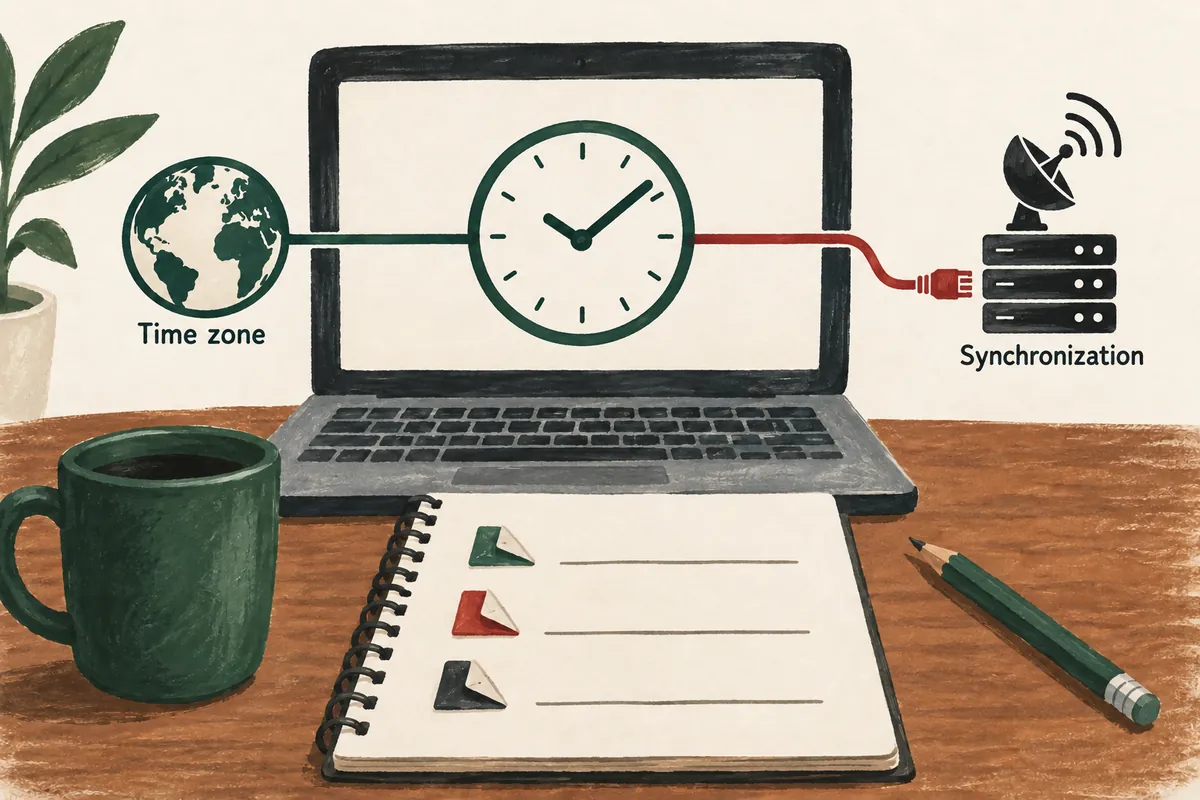
This explanatory diagram organizes the reading sequence. It is not an actual program screen or measurement result.
If your computer's time differs from your phone or another device, first check the date, time, and time zone separately. A difference of exactly several hours calls for different checks from a small drift in minutes or seconds. Manually correcting the date and time once does not mean the state will persist after the next login or synchronization.

This article explains how to read Windows 11 date and time settings and distinguish automatic time from automatic time zone. Since changing time can affect schedules and records, first check current values and required tasks. For a company-managed PC, follow the organization's time-setting guidance.
1. Record the discrepancy numerically and with its conditions
Choose a comparison reference and check both devices as close to the same moment as possible. Record whether the date is a day different, there is an exact fixed-hour difference, or there is a discrepancy of a few minutes. First distinguish whether a webpage's displayed time is the current time or its posting time.
| Pattern of difference | First check | What to record |
| Consistent difference of several hours | System and app display time zones | Each device's time zone, date, and time |
| Difference of minutes or seconds | Automatic time, synchronization, and connectivity | Check time and magnitude of discrepancy |
| Different only in one app | App or service display settings | Compare Windows clock with app time |
| Returns to an earlier value after powering on | Before and after restart, and managed settings | Power and connection conditions, change history |
Also check whether the clock uses a 12-hour or 24-hour format. Missing the AM/PM indication is different from the actual time being wrong. Recording the date and AM/PM or 24-hour notation together reduces confusion compared with checking only displayed digits.
2. Open Windows date and time settings
- Check for ongoing and scheduled tasks, and record the current date and time.
- Open Settings → Time & language → Date & time.
- Read whether Set time automatically is enabled.
- Check Set time zone automatically and the selected time zone separately.
- If settings are managed or cannot be changed, consult the current PC administrator's guidance.
Set time automatically and Set time zone automatically sound similar but control different things. The former automatically adjusts the clock's date and time; the latter concerns which region's time display to use. Enabling one does not mean every other choice is appropriate.
When capturing current settings, check whether unnecessary account or device names are included. Current date, time zone, discrepancy, and automatic-setting status provide a useful starting point for support. There is no need to share an entire personal-information screen.
3. Check the time zone for use in Korea
Korea Standard Time is nine hours ahead of UTC. Microsoft's time zone list shows Korea Standard Time, UTC+09:00, and Seoul. For a PC used on Korean time, check the Seoul entry in the Date & time time-zone list. Names may differ with display language.
To choose a zone manually, you can turn off automatic time zone and select the desired zone. Record old and new values. During overseas travel or work across regions, “the clock at my location” and “the meeting's reference time zone” can differ, so check according to purpose.
| Illustrative time | Calculated as Korean time | Point to check |
| UTC October 5, 00:00 | October 5, 09:00 | Add nine hours |
| UTC October 5, 18:00 | October 6, 03:00 | The date also moves to the next day |
| Korea October 5, 08:00 | UTC October 4, 23:00 | Subtract nine hours when converting to UTC |
| 08:00 without a time zone | Cannot be established from the given information alone | Check the service's reference time zone |
This table contains hypothetical examples explaining time-zone calculations, not actual schedules or completed reservations. When communicating a time, include date, time, and time zone. Unqualified expressions such as “eight tomorrow” can cause confusion in tasks crossing dates.
4. Automatic time and network connectivity
The Windows Time service synchronizes the clock with a network time reference. Microsoft explains that accuracy cannot be guaranteed with intermittent or absent network connectivity. Internet connection does not necessarily mean every time synchronization succeeded, so check current state and organizational settings together.
For a general check, read the automatic-time setting and verify that connectivity is available. If your Windows screen provides synchronization status or an action button, inspect its description and result. Record the state before changing a value and compare the time with the same reference afterward.
A domain-joined work PC may follow the organization's time hierarchy. Do not directly apply instructions that replace it with a server address intended for personal PCs. Give the administrator the current zone, discrepancy, failure time, and network status so they can check against organizational standards.
5. What manual correction means and how to restore settings
According to official Microsoft guidance, turning off automatic time allows manual changes to date and time. You can consider this when automatic settings cannot be used, but manually corrected time is not guaranteed to remain accurate or match organizational records.
If manual correction is needed, verify the exact date and AM/PM, and record current and new values. If scheduled tasks, synchronization apps, or workplace records are running, check their requirements before arbitrary changes. After checking, decide whether to return to the original automatic settings and observe the result again.
Daylight saving time relates to the time-zone rules of the region in use. Choosing the correct zone for your purpose is clearer than choosing another region's zone and arbitrarily combining daylight-saving options merely to make a Korean clock's numbers match. Check current official guidance for other regions' actual rules.
6. Windows is correct, but only an app shows a different time
If the taskbar clock is correct but a calendar app or website shows another time, check the app's display time zone and date basis. The service may show UTC or the region selected in the account. Do not start by changing the entire PC clock to correct one app's time.
For example, a service time explicitly marked “UTC” appearing nine hours behind Korean time may be a different expression of the same moment. Without a time-zone indication, check the reference in guidance or settings. Do not guess that it is current local time based on a title or screen position.
When comparing file records or error logs, read their time references too. Directly subtracting records using different references can misrepresent event order. Include the originally displayed time and that screen's time-zone information in support requests; if converted, state the calculation basis.
7. Check after restarting or changing connectivity
After checking settings, save your work and decide whether a restart is needed. Observe whether the same zone and automatic settings persist at the next login and whether reconnecting changes the time. Before-and-after restart differences help explain continuing problems.
| Check point | Information to record alongside it | Purpose |
| Before changes | Date, time zone, and automatic settings | Preserve the original state |
| Immediately afterward | Discrepancy from the reference and connection status | Check the current change's result |
| Next login | Whether settings persist and administrator guidance | Distinguish temporary fixes from recurring problems |
| When the problem recurs | App, network, and occurrence time | Organize reproduction conditions |
If the time changes substantially each time the device is powered off and on, collect records and consult manufacturer support. This symptom alone does not establish a particular component's failure. Software settings and device environment may need checking together.
8. Final records for scheduling and support requests
An illustrative record is “Korean time zone, automatic time enabled, Windows clock matches the reference, only app A displays UTC.” In this case, inspect the app's display basis rather than changing the entire PC time again. If “the date changes after restart despite the same time zone,” gather more conditions and change history.
- Did you compare date, time, and time zone together?
- Did you read automatic time and automatic time zone separately?
- Did you check date changes when converting Korean time and UTC?
- Did you check the time reference for an organization-managed PC?
- Did you observe whether the same result persists at the next login?
Do not assume correcting the clock automatically rewrites past records with correct times. When explaining important records, distinguish the period when the error existed from the verified correction time. This prevents confusing the current normal state with interpretation of historical material.
Official sources and writing basis
- Microsoft — Set date, time, and time zone
- Microsoft Learn — How the Windows Time service works
- Microsoft Learn — Default time zone list
Sources checked: October 5, 2026. Written by AI using official Microsoft guidance, with content and sources reviewed. Cases and inspection records help readers assess their situation; they are not measurements or tests on a particular PC. Screens and menu names may differ with the Windows build, manufacturer, and management policy.
Original illustrations created to help explain this article.
Original on Tistory ↗