Before Issuing Documents on Government24: Choosing Resident Registration Records and Checking Submission Methods
This article was translated from its source language with AI assistance. Please check technical terms and equations against the original.
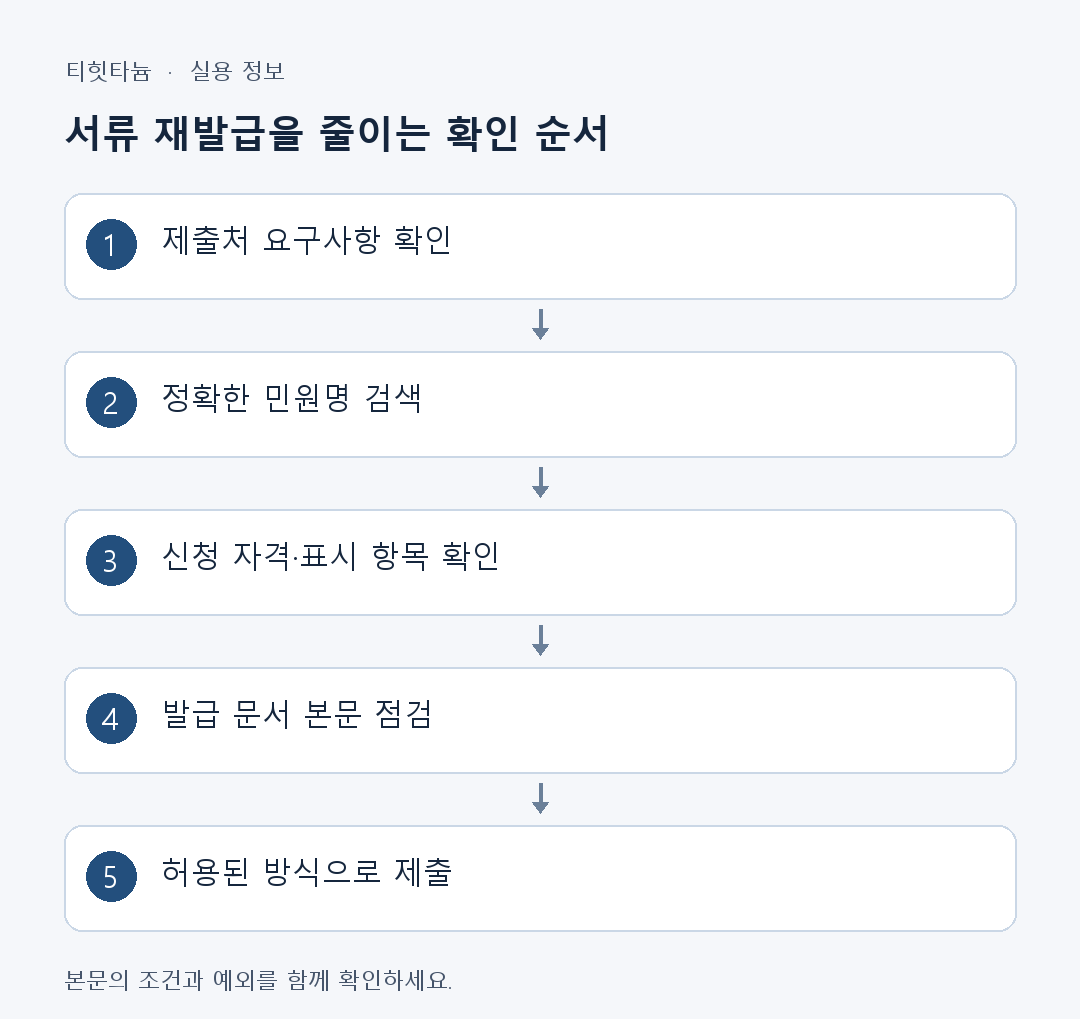
When an institution says “Please submit resident registration documents,” it is easy to immediately issue a household record. However, the document and displayed fields can differ depending on whether the recipient needs personal address history or current household composition. Before the issuance screen, check the submission notice's exact document name, required information, and permitted submission method.

This article guides you in organizing requirements before finding a document on Government24 and checking often-missed items afterward. It uses official explanations of household and individual resident registration records as examples. It does not determine personal application eligibility or acceptance by a particular institution and is not a record of actual issuance or submission.
1. Rewrite the submission guidance as five items
First record the exact document name. If wording is broad, such as “resident registration documents,” ask whether the recipient needs a household copy or individual extract. Next record the subject, required displayed fields, issuance-date criterion, and submission method. Look for these in the request or institutional guidance; leave missing information unverified rather than guessing.
Check whether requirements clearly specify address changes, household information, and display of resident registration numbers. Showing every field can disclose unnecessary information, while omitting needed fields may require reissuance. Choose the minimum necessary scope while ensuring it matches the recipient's conditions.
Do not assign one universal validity period to “recently issued.” Acceptance criteria and procedures can differ by institution, so check the stated date requirement. Distinguish the document's issuance date from the period accepted by the recipient. An old saved file is not automatically suitable for a current application; compare it with this request.
| Item to check | What to note | Example needing clarification |
| Document name | Exact name in the notice | Unclear whether household copy or individual extract |
| Subject | Whose document is needed | Applicant or household member |
| Displayed fields | Required history, household, and identification information | Whether address changes must be included |
| Issuance-date criterion | Recipient's requirement | Only “recently issued” is stated |
| Submission method | Paper, file, electronic document, and so on | Whether PDF and electronic certificates are accepted |
2. What information do household copies and individual extracts emphasize?
Government24 officially describes a household copy of the resident registration record as containing registration details of members of one household. An individual extract is described as a record containing detailed registration information about one person. This explains why checking a household and checking an individual's history are different requirements.
However, do not determine every displayed field from the name alone. Actual contents can vary with fields selected during issuance and application conditions. Compare the recipient's required fields with selections on the issuance screen. Address history in a previously issued extract does not mean every extract shows the same history.
Suppose hypothetical institution A requires “your individual extract including address changes.” A household copy showing composition or an extract omitting required changes may not satisfy the request. The important procedure is comparing the institution's instructions with the issued result; this is not a case reporting actual requirements of a specific institution.
3. Find the service on Government24 and read application guidance
Use service search on Government24's official home page to find the exact document name. The current home page includes service search, application history, electronic certificate guidance, and fact/authenticity verification. Menu names and placement may change, so read current service names and instructions rather than following only positions in older screens.
Read application method, eligibility, issued documents, processing time, fees, and required materials in detailed guidance. Resident registration copy/extract guidance lists online, in-person, and kiosk applications and explicitly states that online proxy applications are unavailable. Do not extend these conditions to every other service; check each detailed description separately.
Check current service guidance for online issuance fees too. The official resident registration copy/extract page states that online issuance is free. This does not mean every Government24 document is free. In-person or other application types may have different costs; rely on the actual screen and latest service guidance.
| Route | First check | How to assess use |
| Online | Whether self-application is permitted, authentication, and issuance conditions | Check current service guidance and account conditions |
| In person | Eligibility, identification, authorization, and required materials | Check detailed guidance and the receiving office |
| Self-service kiosk | Supported documents, operating hours, and location | Check Government24 kiosk guidance |
| Electronic document | Supported documents and recipient's ability to receive them | Check electronic certificate guidance and recipient conditions |
4. Distinguish paper printing, file submission, and electronic certificates
Viewing a document on screen may differ from formal submission. Check whether the recipient requires an original paper document, accepts a particular file, or receives electronic transmission. Do not treat photographs of paper, screenshots, ordinary files, and electronic certificates as equivalent. The receiving institution's guidance determines allowed formats.
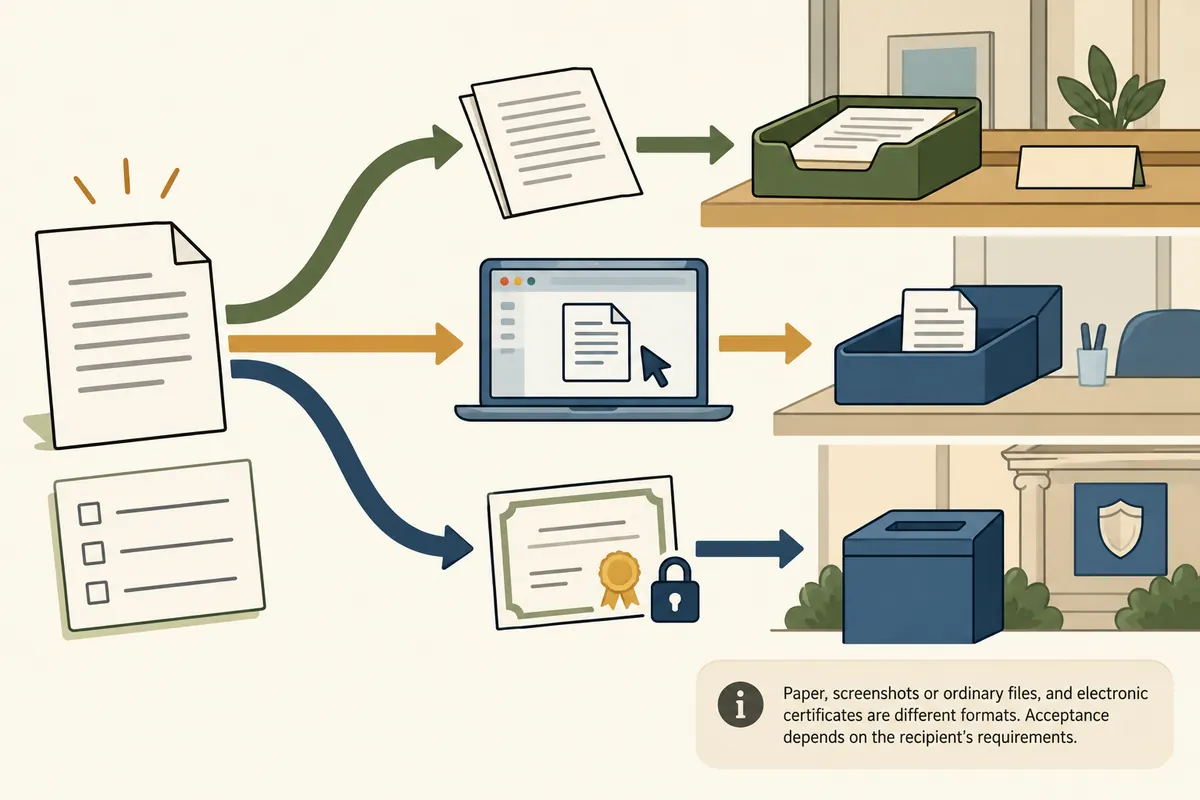
Government24 provides electronic certificate guidance and fact/authenticity verification routes. For documents with official download or viewer functions, follow that guidance. Do not assume a browser-created file has the same status as an officially provided file. First check that the issuance method matches the required submission method.
If hypothetical institution B receives electronic certificates through a specified route, emailing a screenshot is a different procedure. Conversely, an ordinary file attachment channel requires checking permitted formats and size. This article does not set actual institutional acceptance criteria; submit through the procedure that institution permits.
5. Read the document itself after issuance
Before sending an issued document, read its name, subject, issuance date, and selected fields. When organizing several people's documents, identify the subject in the text rather than relying on file names. Also inspect similar names and issuance dates in the same folder to avoid submitting the wrong file.
For printed copies, check cropped pages, missing pages, and readable text and identifiers. For files, verify they open, have the correct page count, and include required fields. Do not arbitrarily edit official contents or remove required information and submit the result as an original. If you selected incorrectly, issue it again with correct conditions.
Personal file names can be meaningful, such as “DocumentName_IssueDate_ForSubmission.” There is no need to include full resident registration numbers or sensitive information in names. Keep files in a personally managed location and check that they were not accidentally placed in public links or shared folders. Submission completion and storage completion are separate stages.
6. Separate requirements from issuance when problems occur
If you misunderstood document type or displayed fields, reconfirm requirements with the recipient. For login, authentication, issuance-screen, or printing-software issues, consult Government24 usage and technical support. Acceptance of submitted documents must be checked with the receiving institution. Treating every different issue as a browser error makes causes harder to find.
For technical support, record occurrence time, service name, exact error, and the stage where progress stopped. Authentication failure differs from printing failure after issuance. If sharing a screen, hide unnecessary personal information such as registration numbers or addresses. Information needed for consultation is not the same as all personal data in the document.
If the screen freezes after an application may have completed, check application history before deciding to apply again. Repeated applications without knowing status make final results confusing. When processing state is unclear, consult official guidance or support and record issuance and submission completion separately.
Final checklist before submission
Try a checklist: “Document name: □ / Subject: □ / Required fields: □ / Issuance-date criterion: □ / Submission method: □ / Document text checked: □ / Acceptance confirmed: □.” Filling requirement gaps comes before clicking Issue. This simple list helps reduce reissuance and sending the wrong files.
Even if addresses or menus change, find services by exact names and official detailed guidance. If Government24 links to another institution's service, read the destination's official guidance too. Do not apply resident registration explanations unchanged to family relation, tax, or property documents; check each document's purpose and application conditions separately.
Official sources and scope of verification
- Government24: Detailed guidance for resident registration copies and extracts
- Government24 official home, services, and electronic certificate guidance
Sources checked: October 3, 2026. An informational guide written by AI after reviewing official materials. Hypothetical cases and calculation examples are not actual user records or experimental results. Screens, service conditions, and announcements can change.
Original illustrations created to help explain this article.
Original on Tistory ↗