Getting Started with Codex Automations: Recurring-Task Prompts and Pre-Scheduling Checks
This article was translated from its source language with AI assistance. Please check technical terms and equations against the original.
Summary: Before choosing an execution time for a Codex automation, design its inputs, outputs, environment, and duplicate-prevention criteria. Check one manual result before scheduling the same task, and inspect the first few results and next run times. Recurring checks also need a place to retain the previous comparison baseline and a stopping condition.
1. Which Recurring Task Should You Start With?
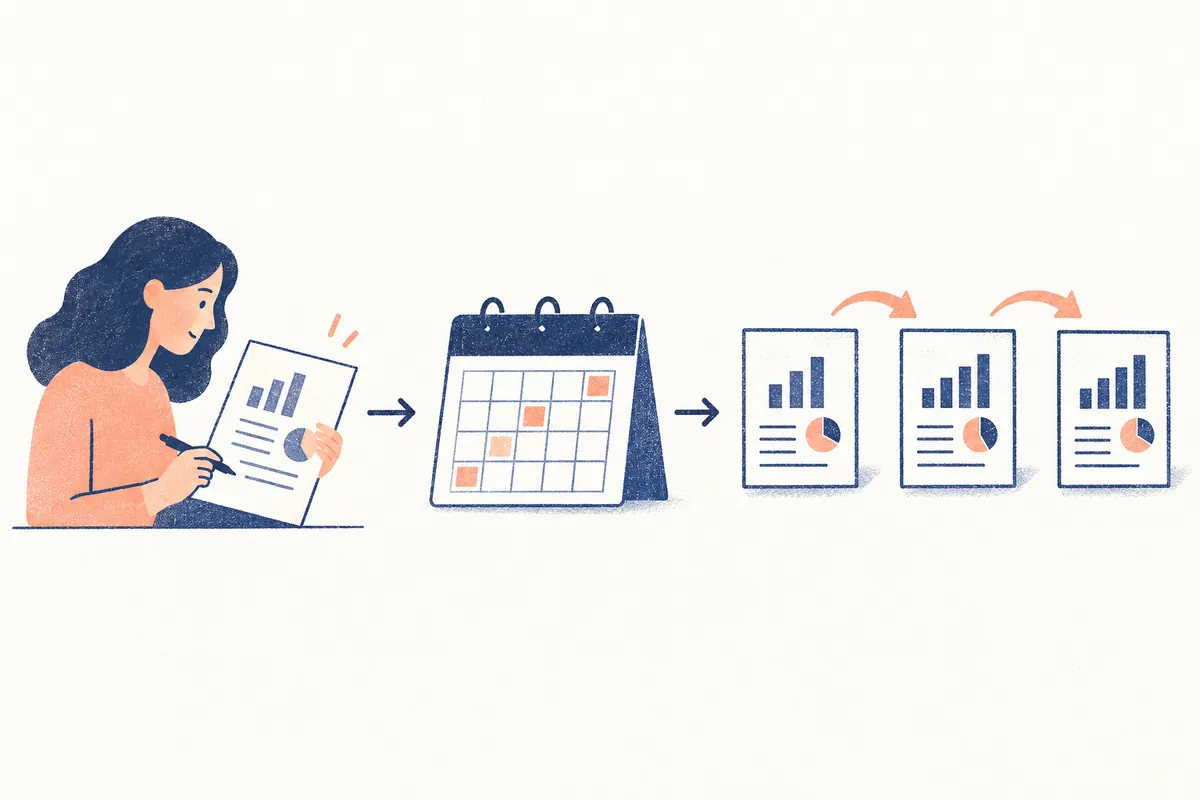
“Read changed execution commands in README and docs, and report incorrect paths and differences between documents with evidence” is easier to automate than “Manage the project,” because inputs are fixed and outputs reviewable. Including code edits adds requirements for target files and validation conditions. Begin with a small reporting task that lets a person decide the next action.
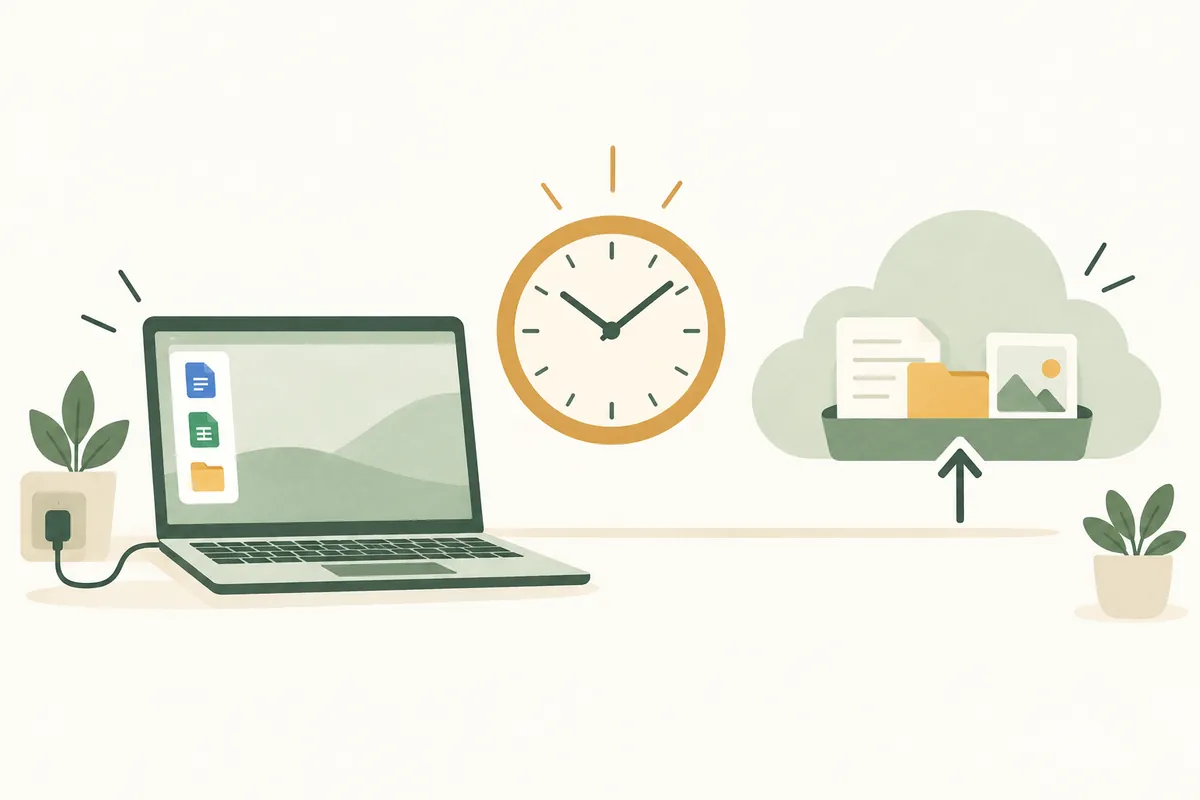
OpenAI's official Scheduled tasks documentation says scheduled tasks are created and managed on the web and in the desktop app; the CLI and IDE do not have the same scheduling-management screen. Tasks using local files require the computer to be on and the app running. Web tasks can use uploads or connected tools, but this differs from directly accessing local PC folders.
This article explains setup through an author-created fictional document-review case. It is not an account of registering a real schedule or running a particular project. Adapt prompt paths and comparison baselines to your project, and check available features in your current account and workspace.
| Task | Inputs to include in the automation | Reviewable output |
| Check document changes | Target documents, comparison commit, validation scope | Change summary and evidence locations for potential errors |
| Summarize recent commits | Repository, branch, exact period | Changes by topic and related commits |
| Track CI status | Target PR and run identifiers, accessible tools | New failures, completion, or states requiring user action |
| Draft document revisions | Files to edit, permitted changes, completion criteria | Changed files and actual validation results |
Letting execution find and fill missing inputs automatically may cause it to read another project or change the comparison scope. Specify the project, baseline, and report location first. If connected services are required, also check actual access during the manual run.
2. Complete One Run First
A manual run checks whether the prompt reads necessary material and produces useful results, not just whether it is well phrased. Supply an actual existing comparison commit in the example below. If brackets remain, complete the inputs before scheduling.
이 프로젝트의 문서 변경을 한 번 점검해 주세요.
프로젝트: [실제 프로젝트 경로]
비교: [실제 기준 커밋]부터 현재 HEAD까지
대상: README.md와 docs 폴더의 변경된 문서
확인: 실행 명령의 설명, 파일 경로, 문서끼리 다른 안내
출력: 비교 기준 / 변경 요약 / 문제 후보 / 근거 / 미확인 사항
명령을 실행하지 않고 읽어서 판단한 내용은 그렇게 표시해 주세요.
파일 수정과 외부 게시 없이 결과를 대화에 작성해 주세요.
변경이 없으면 확인한 비교 범위와 함께 변경 없음을 적어 주세요.
Check whether baseline and current commits were actually verified. Even “links are valid” must distinguish reading link strings from checking actual responses. If external link access is disallowed, only the documented address formats may have been reviewed. Defining required validation scope helps prevent overstated reports.
If the first result is long and vague, shorten the output first. Limit potential issues to five, for example, and request “file location, reason, impact, and verification method” for each. If too many documents are involved, start with installation and execution guides rather than the whole project. Increasing run frequency cannot fix unclear inputs.
3. Choose the Project and Execution Environment
The official Best practices guide describes selecting a project, prompt, frequency, and execution environment in the desktop app's Scheduled area. First verify that the registered project points to the actual working folder. When project names match, check paths and repositories too.
Project selection determines what to read; environment selection determines where to execute. Even for the same repository, a working local folder and a separate checkout may have different prepared dependencies or local material. The project name does not establish the document comparison baseline, so specify it separately in the prompt.
| Choice | Suitable situation | What to check before scheduling |
| Local project | Requires current-folder materials and installed tools | Working files and the scheduled task's editing scope |
| Git worktree | You want to review edits in a separate space | Starting baseline and required dependencies and configuration files |
| Materials accessible on the web | Uploads or connected-service materials are sufficient | Source currency, connection permissions, and result-storage location |
The official Worktrees documentation explains that scheduled tasks for Git projects can run in a separate worktree, while non-Git projects run in their project folders. Even for document-only review, check that comparison material actually exists in that environment. Do not assume every existing local file will be copied automatically.
The Local environments documentation describes setup scripts that can prepare dependencies for a new worktree. Unnecessary installation is not needed for a task that only reads documents. If command validation is required, first verify that the same commands will be ready in the new environment and that network access needed for installation is available.
4. Specify the Schedule and Time Zone
Include the time zone as well as weekday and time. “Every Monday at 9 a.m., Asia/Seoul” expresses intent more clearly than “Monday morning.” For international teams, specify whose workday starts then. The request below is a registration example; entering it alone does not complete scheduling.
방금 확인한 문서 점검을 반복 예약해 주세요.
작업 이름: [프로젝트명] 문서 변경 점검
일정: 매주 월요일 오전 9시, Asia/Seoul 기준
프로젝트: [현재 확인한 프로젝트와 경로]
실행 환경: [로컬 또는 Git worktree]
각 실행 결과는 독립된 검토 보고서로 남겨 주세요.
대상과 검증 범위는 확인한 프롬프트를 사용해 주세요.
새 문제, 해결, 접근 실패처럼 조치가 필요한 변화만 알려 주세요.
종료일: [예: 2026년 10월 30일 오후 6시, 한국 시간]
등록된 일정, 다음 실행 시각, 대상 프로젝트를 알려 주세요.
After registration, check the displayed next run time against the requested time zone. Using the dates in this case, the first Monday is October 5, 2026. A later start date or an already-past time can change the next run date. For important schedules, check both the request and the actually saved schedule.
If you have not checked how missed runs while the computer is off are handled, do not assume automatic catch-up. Choose times when local checks can run normally; if execution history has gaps, decide whether the next comparison should include them. A missed period and no changes are different states.
5. Continue the Same Conversation or Use Independent Runs
Official documentation distinguishes scheduling that continues an existing conversation from independent scheduling that starts with a saved prompt. The same conversation is convenient for following ongoing CI to completion; independent runs suit separately stored weekly reports. Specify the method and result location in the request.
Do not assume independent runs automatically remember previous reports or comparison baselines. Specify readable records when previous state is required. Even in the same conversation, recording dates or commits makes “since last time” easier to verify.
For fictional document checks, each report can record its starting and ending commits, and the next run can read changes since the last successfully checked ending commit. The state-file approach is an author-proposed operating method, not a file feature Codex creates by default.
상태 기록: [프로젝트 안의 .automation/docs-audit-state.json]
기록 항목: 마지막 성공 비교 커밋, 확인 시각, 기존 문제의 식별 정보
기록이 없으면 지정한 초기 기준부터 비교하고 초기 실행이라고 표시하세요.
기록의 커밋을 찾을 수 없으면 임의로 기준을 바꾸지 말고 알려 주세요.
문서 점검이 성공한 뒤에만 마지막 성공 기준을 갱신하세요.
실패한 실행에서는 기존 기준을 유지하세요.
쓰기 허용 대상은 지정한 상태 파일뿐이며 문서 본문은 수정하지 마세요.
This approach requires write access to the state file. For entirely read-only reporting, use a baseline from an accessible previous report or compare a fixed period each time. If creating a state file, decide which fields to retain and who updates it.
6. Reduce Duplicate Reports and Work
Duplicates can mean two copies of the same schedule, or one schedule repeatedly reporting the same issue as new. Identify the first by comparing project, purpose, and frequency, not just task names. Make clear that a schedule change should update the existing task, and check afterward that only one active schedule remains.
기존 [프로젝트명] 문서 변경 점검 예약을 수정해 주세요.
같은 목적의 새 예약을 추가하지 마세요.
요일은 유지하고 시간을 오전 9시에서 오전 10시로 바꿔 주세요.
시간대, 프로젝트, 실행 환경, 기존 프롬프트는 유지해 주세요.
수정 후 활성 작업과 다음 실행 시각을 확인해 주세요.
Manage duplicate issues by “same file location and same cause.” Counting every renamed file or shifted line as a new issue creates repetitive notifications. Without material for comparison to prior issues, require only this run's findings rather than a claim that duplicates were checked.
If a schedule includes “edit the documents,” first check for an existing proposal to avoid producing the same change again. Different schedules editing one state file can conflict, so assigning one task per record is simpler. A prompt prohibiting duplication does not guarantee file locking or collision prevention between concurrent tasks.
7. Define Failure, Completion, and Stopping Conditions
| State | What to report | Handling the comparison baseline |
| Successful check, no changes | Checked scope and time | Record successful baseline |
| New issue or existing issue resolved | Evidence and differences from previous state | Record successful baseline and issue status |
| Material-access failure | Failed target and required action | Retain previous successful baseline |
| Comparison commit absent | Fact that the baseline could not be found | Request a new baseline from the user |
| End date or completion condition reached | Final status and remaining issues | Confirm that schedule termination was applied |
Stopping conditions are especially useful for schedules tracking one state for a long time. Request that CI tracking end once success or failure is final, and time-limited document checks stop on the end date. For continuing work, instead schedule a review of usefulness and frequency after one month.
Scheduled tasks run unattended using default sandbox settings and are subject to organizational policy. Refer to the official Sandbox documentation to define required file and network scope. Rather than disabling all access restrictions after a blocked-access failure, align the reading targets, necessary commands, and validation scope again.
If stopping conditions appear in the prompt, also check that stopped or completed status is reflected in the actual management screen. Retaining records and stopping a schedule are separate tasks. Before organizing completed runs, identify reports to revisit and changes that must be retained.
8. Review Results Through Two Fictional Runs
Suppose the fictional “Lab Notes Web” project checks document changes every Monday at 9 a.m. In the first run, three changed documents between starting commit A and ending commit B are checked, revealing one wrong folder name in the execution guide. The report should retain the sentence, the path actually checked, and whether the command was executed.
The second run checks changes after B. If the folder error remains and no new errors appear, mark the existing issue unresolved. If a user changed the folder name, record evidence of resolution. If the app was not running and the check was missed, compare from the last successful point without advancing the successful baseline to reduce omissions.
Read the first few runs yourself for correct time, project, baseline, and issue status. If notifications are excessive, narrow the changes reported; if checks take too long, reduce target documents. Once useful results are stable, add editing tasks or other projects to make automation benefits easier to assess.
Official Sources and Date Checked: Scheduled tasks, Best practices, Worktrees, Local environments, Sandbox. Checked October 3, 2026. The case, state file, and prompts are illustrative examples by the author.
Original illustrations created to help explain this article.
Original on Tistory ↗