Understanding Codex Permissions and Approval Settings: Starting with a Small Scope
This article was translated from its source language with AI assistance. Please check technical terms and equations against the original.
Summary: Codex permissions are easier to understand by separating file and network access boundaries from how actions crossing them are approved. First define the working folder and result, then choose the scope needed for reading, editing, and installation. Fewer approval questions do not narrow access, and broader permissions do not improve code quality.
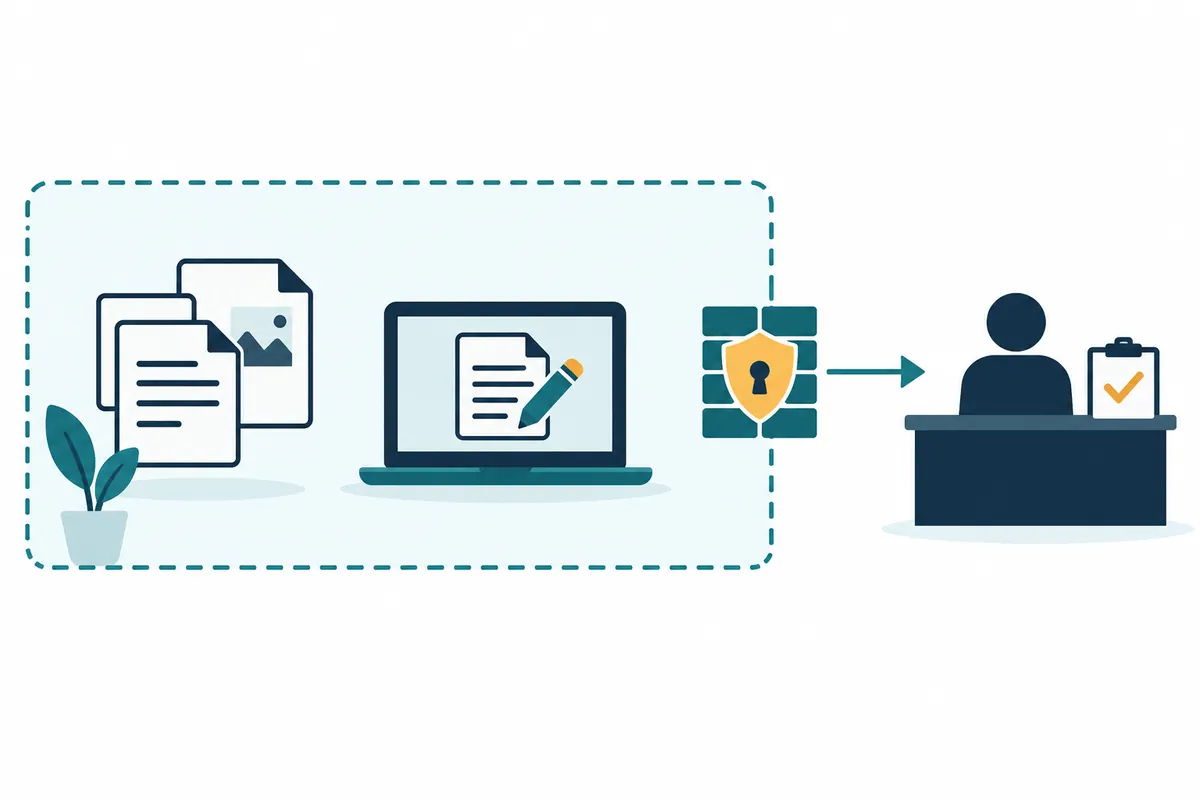
1. Read Three Settings Separately
OpenAI's official Sandbox documentation defines the sandbox as the file and network access boundary for commands, and the approval policy as when extra approval is requested. The approval reviewer determines whether a user or automatic reviewer evaluates the request. Choosing automatic review does not automatically expand existing sandbox boundaries.
In practice, ask three questions: “Where can it access?”, “Can blocked actions be requested?”, and “Who decides?” Editing text within a project may be possible inside the current boundary, while reading another repository or downloading dependencies may require additional access. Verify actual availability against current settings.
“Edit only this folder” in a prompt is a task instruction, not a technical file-access block. Conversely, asking to “edit files directly” while running with read-only settings does not create write permission. You need both a verbally defined work scope and a check that actual permissions match it.
2. Choose the Scope for Your Task
The table below is an author-created selection guide, not a list of defaults for every environment. Use it to judge which access this task requires. Start with one output and adjust the scope as needs emerge during work.
| Desired result | Initial required scope | When judging additional access |
| Explain code structure and error causes | Read related source and configuration | Check that nonexistent files are not assumed to have been read |
| Fix a search-input error | Write related project files and validate locally | Check locations of test caches and result files |
| Install a new package | Edit installation target files and use required network access | Check the package, download source, and installation scripts |
| Compare a shared module in another repository | Read needed files in that repository | Distinguish whether write access to both entire repositories is required |
| Publish results to an external service | Service connection and the specific write action | Distinguish targets and permissions for drafting and actual publication |
Choose the nearest common folder containing source, configuration, and required tests. Opening an entire Documents folder or multiple customer projects may bring unrelated material into the work context. If a common module is outside, first decide whether to read specific files or treat it as a separate project.
Even read-only investigation needs an output location. Requesting a local report file while saying “review only” requires writing. Distinguishing an onscreen explanation from a file report reduces incorrect setting choices.
3. Check Actual Settings in the App or CLI
The official permission-mode documentation recommends starting ordinary work with Ask for approval. This mode allows reading and editing within the workspace and ordinary local commands, while requesting actions beyond the boundary. Desktop apps and IDEs use the permissions menu below the input box; the CLI uses /permissions. The CLI's /status also shows the workspace.
If extra modes are absent in the desktop app, check Settings > General > Permissions in the current documentation. Enabling a mode's visibility in the menu differs from choosing it for the current conversation. Organization policies may restrict selection. Finding a menu name does not establish that an existing conversation's permissions changed.
To start the CLI with explicit intent, use officially supported options such as those below. The first line illustrates reading-focused investigation and the second project editing. They are alternatives for different tasks, not a procedure to run consecutively.
codex --sandbox read-only --ask-for-approval on-request
codex --sandbox workspace-write --ask-for-approval on-request
The official approvals and security documentation explains these combinations and protected paths. Even workspace-write separately protects paths such as .git, .agents, and .codex. Do not assume every configuration file is writable just because it is inside the project folder.
Confusing Points When Writing Configuration
The following is a small example expressing project-editing defaults in the traditional sandbox approach. It does not mean overwriting your entire actual configuration file. Review existing configuration and organizational requirements, then decide which settings apply.
sandbox_mode = "workspace-write"
approval_policy = "on-request"
approvals_reviewer = "user"
The current permissions-profile documentation also describes the beta default_permissions and [permissions] approach. It is not combined with the traditional sandbox_mode approach, so do not mix examples from the two. Check compatibility conditions in that documentation before using new profiles.
Native sandboxing and permission profiles are also supported on Windows. Do not assume WSL is required simply because an error occurred; first check the running environment and applied policy. Even on the same PC, native Windows and WSL work can have different paths and installed tools.
4. A Preflight Prompt You Can Copy and Adapt

The following is an author-created fictional search-app task. Replace brackets with your paths and requirements. Initially, use it to assess readiness by having materials read and necessary access explained.
작업 목표: [검색어 앞뒤 공백 때문에 검색이 실패하는 원인 설명]
대상 프로젝트: [실제 프로젝트 경로]
조사 범위: [검색 입력 컴포넌트, 호출 함수, 관련 테스트]
현재 작업 폴더와 확인 가능한 권한 설정을 알려 주세요.
먼저 관련 파일을 읽고 원인 후보와 근거 위치를 정리해 주세요.
이 단계의 결과는 대화에 작성해 주세요.
추가 접근이 필요하면 대상 경로·서비스, 목적, 예상 변경을 설명해 주세요.
확인하지 못한 설정이나 자료는 미확인이라고 표시해 주세요.
The result should be a list of needed files and validation methods, not a declaration that “all permissions are safe.” If reading the search component does not reveal the cause, actual error messages or request data may be needed. Providing reproduction inputs with personal information removed can help without broad file access.
When executing work, add desired behavior and completion criteria. The following sentence is a scope-instruction example and does not change the app's permissions settings.
수정 목표: [검색어 앞뒤 공백만 제거하고 기존 검색 동작 유지]
수정 대상: [확인한 파일과 관련 테스트]
기존 API 요청 형식과 다른 화면의 동작을 유지해 주세요.
프로젝트에 이미 설치된 도구로 관련 검증을 진행해 주세요.
추가 설치가 필요하면 패키지·출처·파일 변경·설치 스크립트를 설명해 주세요.
최종 결과에 수정 파일, 실행한 명령, 결과, 미실행 검증을 적어 주세요.
5. Five Questions for Reading Approval Requests
On an approval screen, read where inputs and results go, not just command names. The purpose “install dependencies” can involve different change locations for project-file installation versus a global tool installation. Whether downloaded material is plain data or an executable script also helps you judge.
- Target: Which folder, host, repository, or service is accessed?
- Input: Which files or values are read or transmitted?
- Change: What is created, edited, or deleted?
- Necessity: Why is this action needed for the current request?
- Scope: Is permission for one action, this task, or the session?
If the explanation is insufficient, request “Explain this command's file changes, external communication, code run after installation, and narrower alternatives.” Choose an offered approval scope sufficient to finish the task. If requests recur, check whether their targets change rather than automatically granting broader access.
Automatic review can also be mistaken. Approval means an action passed review, not that execution will succeed or results will be correct. If an approved installation fails, read installation logs and file status next. Requesting the same command again does not itself resolve the cause.
6. Distinguish Causes When Blocked
| Visible symptom | What to check first | Next action |
| File not found | Typo, relative-path base, actual file existence | Confirm the exact path and specify the file to read |
| Access denied | Read versus write, work boundary, OS permissions | Reassess only the failed target and required access |
| Installation download failed | Blocking message, DNS, proxy, repository response | Distinguish network policy from service errors |
| Test command failed | Executable presence, dependencies, actual test error | Record tool-preparation problems separately from code failures |
| Permission mode unavailable | Organizational requirements and current configuration | Proceed first with work possible within permitted scope |
If a test fails while writing temporary files, source-editing permission alone may be insufficient. Identify the needed write location and consider a result path inside the project. If the test fails because actual and expected values differ, broader permissions will not fix it. First identify which part of the failure message indicates an access restriction.
approval_policy = "never" means no approval questions; it does not disable the sandbox. Actions outside boundaries can fail, so even automatic execution needs designed access and failure reporting. Full access enables broad file changes and network execution, so do not treat it as the default fix for errors.
7. Verify Results Rather Than Permissions After Work
After editing, first compare requested and actually changed files. Check reasons for unexpected lockfiles, configuration files, or generated files. Distinguish the user's existing edits from this task's changes too. Even a small change list may lack completion evidence if core behavior was not checked.
- Were problematic and valid inputs each checked?
- Were reported commands actually executed, with results retained?
- Were failed checks separated from checks that could not run?
- If publishing externally or installing, did targets and results match the request?
- If extra access was temporary, has its applicable scope ended?
For a fictional search app, define expected behavior for “ metal ” with spaces, “metal” without spaces, and whitespace-only input. Reviewing edited files alongside validation results helps distinguish permitted access from resolved requirements. This article's examples are illustrative, not reports of running or testing that project.
8. A Practical Starting Sequence
Confirm the project folder, choose a reading or editing purpose, and check current permissions. When required actions exceed the boundary, read their targets and purposes and judge additional scope. Finally, inspect changed files and validation results. Learning this sequence lets you explain the access needed for the task instead of selecting the broadest permissions-menu option.
Official Sources and Date Checked: Permission modes, Sandbox, Approvals and security, Permission profiles. Checked October 3, 2026. Adapt configuration examples to your current environment and organizational policy.
Original illustrations created to help explain this article.
Original on Tistory ↗