What Is a Codex Worktree? Separating Coding Tasks and Avoiding Confusion
This article was translated from its source language with AI assistance. Please check technical terms and equations against the original.
Summary: Worktrees separate working folders in one Git project so multiple changes can proceed. Even with separate folders, inspect changes and validation again when combining results.
1. A Simple Worktree Example
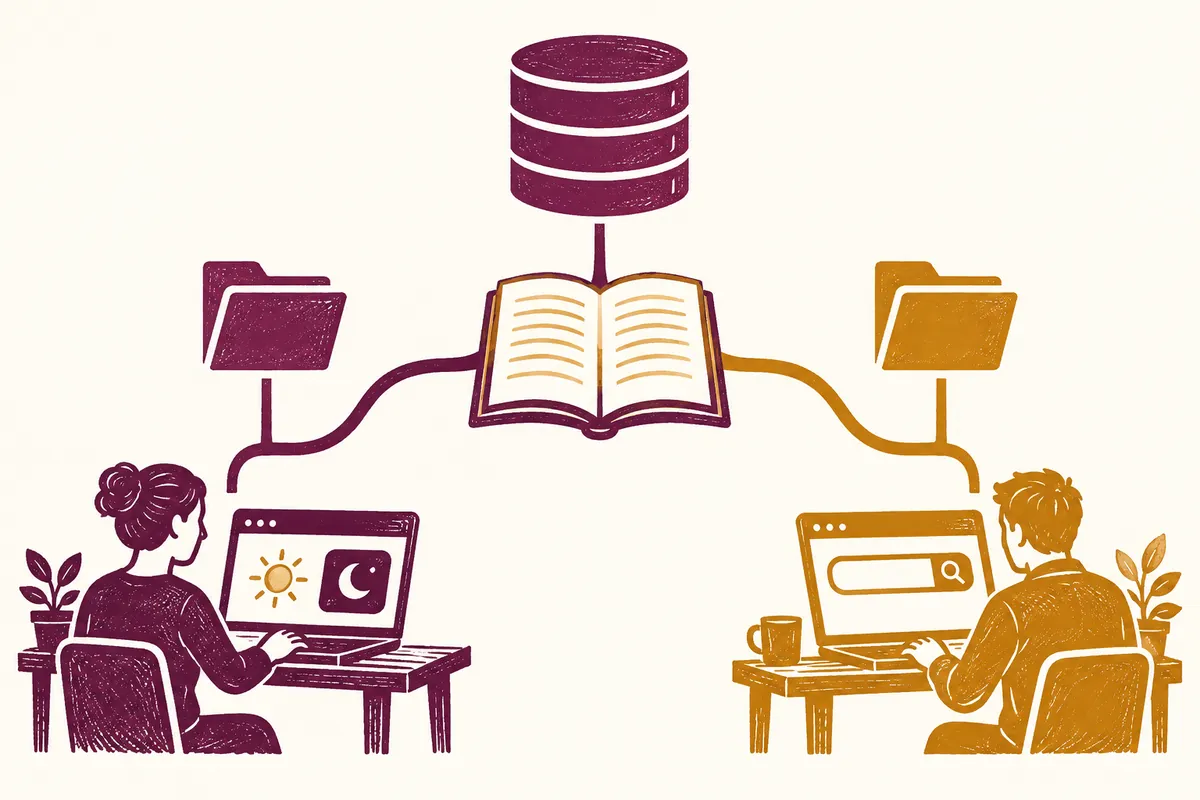
Suppose you are changing a notes app's screen colors yourself and want Codex to fix search. If both tasks edit one folder, identifying whose changes are whose may be difficult. Worktrees let each task use a separate working folder.
OpenAI's official documentation explains that a worktree is a separate Git repository checkout: file copies are separate, while Git information such as commits and branches is shared. Codex can use them for parallel independent tasks in one project. Distinguish simply copying a folder from Git managing working folders.
2. Understand Branches Versus Folders
A branch identifies where work continues in Git history; a worktree separates where files are actually edited. First check “which task's code is in the folder I am viewing?” Identically named files in different working folders may have different contents.
If the fictional notes app's main folder is for colors and another worktree for search, record which folder's development server the browser displays. Before editing again because the screen seems unchanged, check that the running server points to the edited folder. This habit applies to multiple checkouts regardless of AI tools.
3. Define Task Boundaries First
Separate folders do not define responsibilities. If search and color changes substantially edit the same component, later integration needs coordination. Split highly independent tasks first and clarify shared editing requirements beforehand.
검색 결과가 없을 때 안내 문구를 표시하는 수정만 진행해 주세요.
작업은 별도 worktree에서 진행하고 시작 기준을 알려 주세요.
주 작업 폴더에서는 색상 변경을 진행 중입니다.
공통 스타일과 다른 작업자의 변경은 덮어쓰지 마세요.
완료 후 변경 파일, 관련 검증 결과, 합칠 때 확인할 점을 정리해 주세요.
This example communicates task boundaries, not particular UI buttons. Check actual creation results and current official guidance for availability and starting baselines in your app. Do not assume ongoing unsaved edits automatically appear in other folders.
4. Check Immediately After Creation and Before Integration
After creation, check the working path, starting Git state, and required development environment. Source files in a new folder do not establish that packages and local settings are ready. If environment files are needed, follow the project's secure setup method rather than pasting their contents into conversation.
Before combining work, read diffs. Check whether search and color changes touch the same lines, public function signatures changed, or unintended generated files are included. Individual validation is useful, but check the combined state too: individually correct changes may create problems together.
5. Common Confusion and Resolution Checks
- Screen unchanged: Check the development server's working path and current browser address.
- Required commands fail: Check dependencies and settings in the new working folder.
- Changes mixed: Read file diffs and redefine responsibilities and shared editing areas.
- Folder cleanup needed: Identify commits and files to retain, then follow your app's cleanup procedure.
Check where results are retained before deleting unused working folders. OpenAI documentation also describes Codex handoff and cleanup. For an app-managed worktree, official management procedures make ongoing work easier to locate than arbitrary moves like an ordinary folder.
6. Visually Distinguish Working Folders and Git State
Suppose fictional memo-app uses the current folder for colors and another for search. Read paths and Git state at startup instead of relying on memory. The commands below query current folder, repository root, changed files, and connected worktrees in Git. They work in PowerShell; replace actual folder paths.
Get-Location
git rev-parse --show-toplevel
git branch --show-current
git rev-parse --short HEAD
git status --short
git worktree list
git worktree list helps inspect working folders and connected Git state together. Matching project names with different paths identify separate folders. If branch --show-current is empty, you may not have a named branch checked out; read Git status too. Official app documentation describes managed worktrees starting in detached HEAD by default. A missing branch name alone does not mean creation failed.
| Item to record | Fictional task A | Fictional task B |
| Purpose | Adjust screen colors | Guidance for empty search results |
| Folder | C:\Projects\memo-app | Actual separate-worktree path |
| Starting state | Record whether current changes are included | Record chosen baseline and starting commit |
| Editing responsibility | Shared colors | Search display conditions |
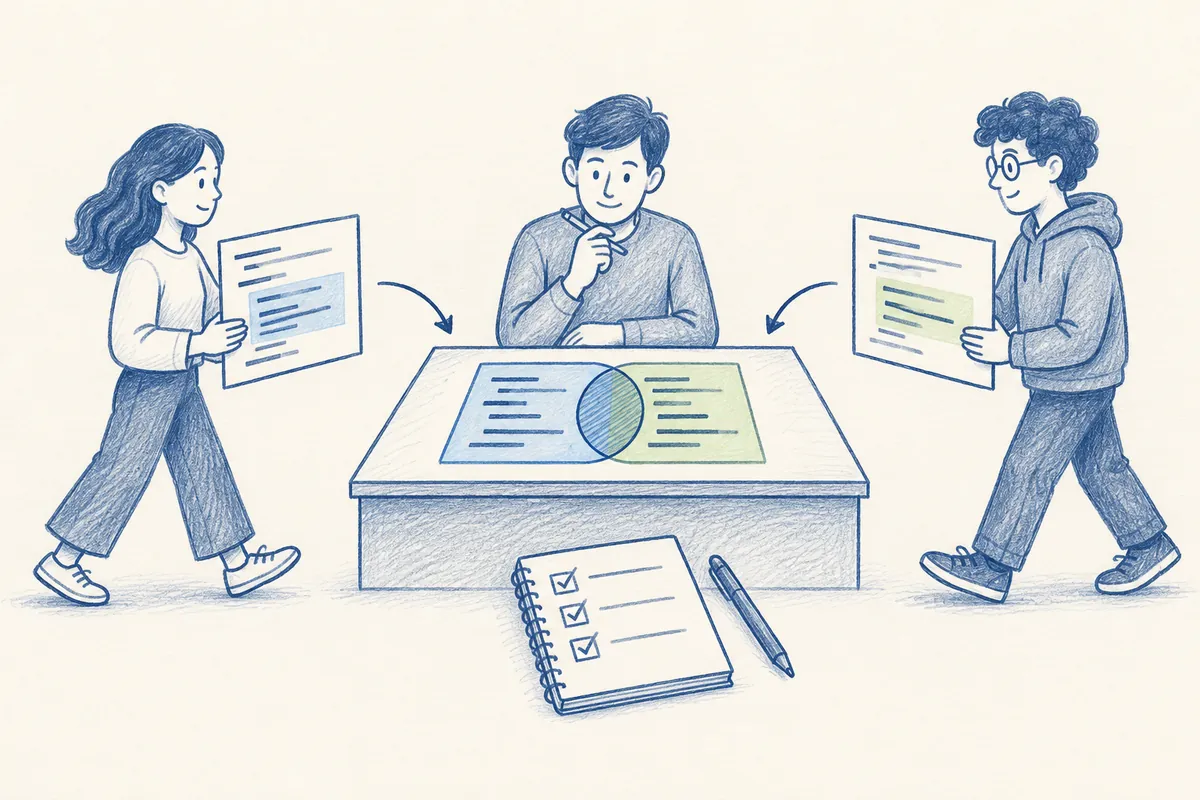
Record the starting commit and inclusion of local changes to interpret later diffs. A task thought to be current may have started from an older baseline, making unrelated differences appear beside search changes. Record starting-branch and local-change selections in the app. Also distinguish creation and cleanup of directly created Git worktrees from app-managed ones.
7. Execution Resources Can Remain Shared Despite Separate Folders
Separate source folders do not automatically isolate running servers or external data. Two servers using one port may make the later server fail or choose another port. Two folders connected to one test database can affect each other's results through data changes. Record worktree-separated scope separately from shared project resources.
- Read each folder's README and lockfile to use the same package manager.
- Check dependencies and follow project installation steps.
- Record the server's printed address with the task name.
- Check environment-variable names and connection targets to identify shared test services.
- Connect the browser address to the server for the edited folder.
If color work uses port 5173 and search work 5174, record which screen is checked at each address. These are fictional allocations, not ports every tool uses. Follow project configuration and startup output. Comparing browser address and server folder before editing more code is a quick diagnostic when the screen does not change.
새 worktree의 실행 환경을 점검해 주세요.
현재 경로, 시작 커밋, 관련 실행·검증 명령을 알려 주세요.
의존성과 필요한 설정 파일이 준비되어 있는지 확인하세요.
주 작업 폴더와 개발 서버 포트·데이터 연결이 겹칠 수 있는지 설명하세요.
환경 변수의 실제 비밀값은 출력하지 말고 이름과 준비 상태만 보고하세요.
8. Preparing Local Settings Excluded from Git
A common reason new folders contain code but cannot run is missing local configuration that Git does not track. First look for example environment files or setup guidance and follow them. Copying the entire old folder may bring unnecessary dependencies, caches, and build outputs, so identify required configuration separately.
Current official documentation describes placing .worktreeinclude at the repository root and listing paths or patterns for ignored files to copy when creating local managed worktrees. This applies to app-created local managed worktrees; do not assume it automatically applies to direct Git worktrees or remote environments. Tracked source is already in the checkout and need not be repeated in the copy list.
# .worktreeinclude의 가상 예시
.env.local
config/development.local.json
Do not automatically add the filenames above. First judge whether each is actually ignored and required in the new environment. Review whether copying production-service configuration into development worktrees is appropriate. If example files suffice, use that approach first. After changing copy settings for new worktrees, verify that actual creation prepares needed files.
To prevent Codex from inventing empty configuration merely to pass a command, request that unknown required environments be reported as unexecuted with preparation steps. Separating setup problems from feature defects reduces unnecessary source edits.
9. Before-and-After Checks When Combining Two Changes
Suppose search and color work each passed validation. Search added zero-result guidance; color work changed common message colors. Even without line conflicts, the combined guidance may lack contrast. Git's ability to merge and correct product behavior are different judgments.
| Stage | What to check | If a problem exists |
| Before combining | Each change's purpose, files, and validation results | First separate changes unrelated to the feature |
| Diff comparison | Shared components, styles, and API interfaces | Reconcile differing changes to the same condition |
| After combining | Normal search and empty-results screens | Reproduce integration problems separately |
| Before cleanup | Locations of retained results and local configuration | Secure missing files before cleanup |
검색 수정과 색상 변경을 함께 적용한 상태를 검토해 주세요.
각각의 의도는 유지하고 공통 메시지 표시 부분을 확인하세요.
정상 결과·결과 0개·로딩·오류 상태를 구분해 검증하세요.
충돌 해결 과정에서 빠진 기능과 관련 없는 변경이 있는지 살펴보세요.
개별 작업에서 통과한 검사와 조합 상태에서 실행한 검사를 나누어 보고하세요.
To move app worktree tasks to Local, use the official Hand off workflow. This moves work to continue in another checkout; it does not verify that two independent tasks were combined as intended. If local changes exist, understand that state before reading the handoff result. Using archive and restore for managed worktrees helps retain links between task records and folders.
10. Frequently Asked Questions
Can I use it without Git? This article's worktrees assume a Git repository. Do not equate them with separating ordinary project folders.
Do worktrees eliminate conflicts? Editing folders are separate, but integrating changes to the same code may require conflict resolution or semantic coordination.
Should I always split multiple tasks? They help with independent work. For one tiny edit, consider the effort of preparing and cleaning another environment. Understanding and validating each result matters more than task count.
Official Sources and Date Checked: OpenAI official documentation: Worktrees. Checked October 3, 2026. Check current environment and permissions before using commands and features.
Original illustrations created to help explain this article.
Original on Tistory ↗