Percentage Calculator: Calculate Growth Rates and Ratios Directly
This article was translated from its source language with AI assistance. Please check technical terms and equations against the original.
Percentage calculator
Inputs are processed on this screen only and are never sent to the server or saved.Percentage Calculator
Please enter 20 for 20%. Enter only numbers; do not include commas, %, or units. Each input is between 0 and 1 t. Use a period for decimal points.
① What percentage of the reference value is it?reference valuePercent (%) ② What percentage of the whole is the part?partial valueTotal value (greater than 0) ③ How much has it changed from the previous valuePrevious value (greater than 0)Value afterThe result is an approximation displayed with up to 12 significant digits. It calculates values exceeding 100% and does not handle negative threshold values. Input values are not transmitted to or stored by this tool on a server. This tool is not intended for calculating amounts, taxes, or determining investment returns.
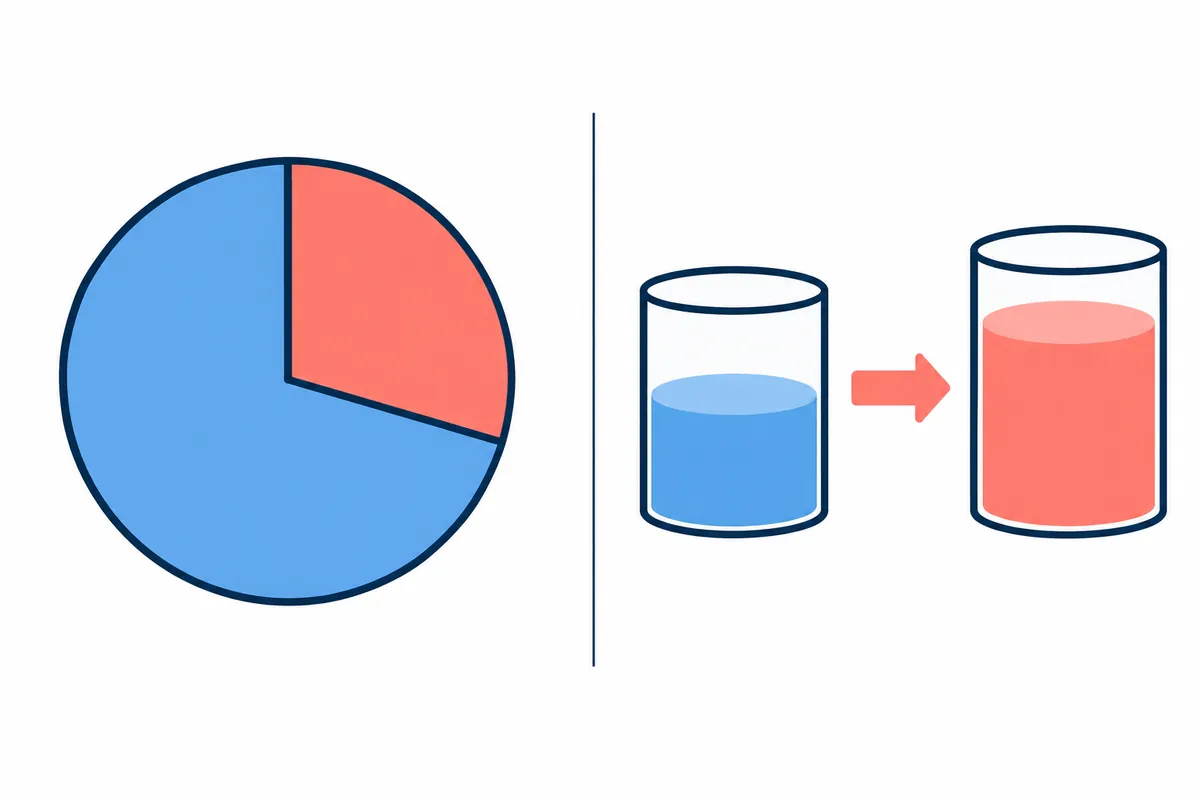
Key Summary: Calculates by distinguishing what percentage of the reference value it is, what percentage of the whole the part is, and how much it has changed from the previous value. Enter 20 for 20%, and stop the division if the total value and the previous value are 0.
Order at a Glance
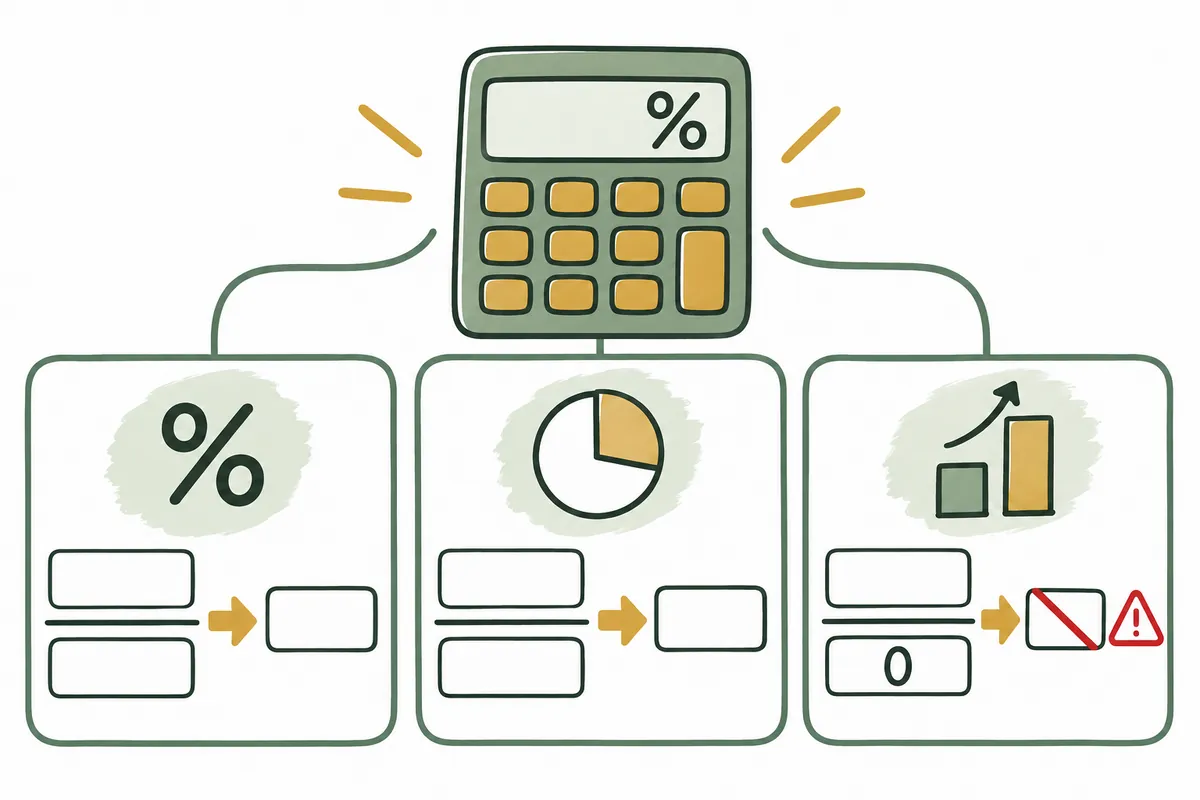
This is an illustrative diagram. It is not a screen capture or an actual test result.
1.Finding the reference value for the question
2.Select one of the three calculations
3.Separation of numbers and units
4.Comparison of formula and result
5.Check rounding/0 threshold
Decide on the question before entering the two numbers.
The statement that sales changed from 80 to 100 is a different question from the proportion that 80 accounts for out of 100. Even if you use the same number, the denominator changes. The former represents a 25% increase based on the previous value of 80, while the latter represents an 80% ratio based on the total of 100. Just because the calculator is called a percentage, you cannot enter numbers in the same order in every column. First, write next to the number whether it serves the role of the whole, part, previous, or after.
The calculations in this article deal with basic arithmetic involving non-negative values of the same unit. They are not financial calculations that examine the actual conditions attached to product prices, fees, or yields. Signed reference values or indicators combining multiple periods require separate definitions. Noting the value used for division next to the result can help reduce misunderstandings when explaining calculation results to others.
| question | Input Order | calculation formula | Virtual Example |
| What is 15% of 200? | Base value 200 / Percent 15 | 200 × 15 ÷ 100 | 30 |
| What percentage of 200 is 30? | Part 30 / Total 200 | 30 ÷ 200 × 100 | 15% |
| Growth rate changed from 80 to 100 | Previous 80 / Next 100 | (100−80) ÷ 80 × 100 | 25% |
| Decrease rate changed from 100 to 80 | Previous 100 / Next 80 | (80−100) ÷ 100 × 100 | −20% |
| The difference from 20% to 25% | Directly compare two ratios | 25−20 | 5 percentage points |
| Part value larger than the whole | Part 240 / Total 200 | 240 ÷ 200 × 100 | 120%; Reconfirm entire definition |
How to use the calculator
The separate calculator components have three areas. The first calculates partial values using a base value and a percentage. The second calculates ratios using a part and a whole. The third calculates growth rates using previous and subsequent values. Fill in two cells in the required area and press the Calculate button for that area. Fill in examples with 200·15, 30·200, or 80·100, and Clear All resets all inputs and results to their initial state.
Enter numbers without commas, won, %, or items. If you enter 0.15 to calculate 15%, this calculator reads it as 0.15%. Distinguish between the decimal percentages stored in a standard spreadsheet and the percentage input rules of this tool. The values you enter are not sent to or stored by the tool on a server. There is also no feature to restore previous calculations when you open a new page.
When calculating a part of the reference value
If you input a base value of 200 and a percentage of 15, 200 × 15/100 = 30. When checking manually, you can also use the method of adding 20 (10%) and 10 (5%). Calculating 150% of 200 with the same calculator results in 300. Inputs greater than 100% may imply a multiple greater than the base value, so calculations are not prohibited.
You must also distinguish between the discount amount and the amount after the discount. If you reduce the explanatory price of 200 by 15%, the reduced amount is 30 and the remaining value is 170. The first calculation area outputs the reduced amount. If you read the result 30 as the final price, the question changes. Label the result table with "Partial Value" or "Remaining Value" to indicate what was calculated.
The denominator of a ratio represents the whole.
The partial value 30 and the total value 200 must have the same unit. If you divide the quantity by the amount or mix values from different periods, the numbers may be calculated correctly, but the explanation of proportion may not be accurate. For example, dividing the number of completed cases (30) by the total target (200) results in 15%, but dividing the completed amount (30) by the total number of cases (200) does not have the same meaning.
You must also fix the range of the total. The results vary depending on whether you compare daily throughput to a monthly goal or a daily goal. This tool cannot check the definition of the total entered by the user. If a value of 120% appears where the part is larger than the whole, please check the explanation to see if you need to correct the units or if it is a metric that allows excess, such as the achievement rate relative to the goal.
The rate of increase or decrease is based on the previous value.
If it changes from 80 to 100, the difference of 20 is divided by the previous 80, so it is 25%. If you change the direction and it changes from 100 to 80, it is -20%. Even with the same difference of 20, the starting points are different, so they do not result in the same percentage. When comparing increases and decreases, do not conclude that they are symmetrical by looking only at the absolute value of the difference.
You must also be careful when adding two consecutive changes. If you increase a virtual value of 100 by 20%, it becomes 120, and if you then decrease it by 20%, it becomes 96. Since the base value for each step is different, it does not return to the original 100. The final change of multiple steps can be recalculated using the initial and final values, and the step changes can be stored in a separate column.
Percentage points and relative changes are written separately.
If the ratio changes from 20% to 25%, the direct difference between the two ratios is 5 percentage points. The relative change relative to the existing ratio of 20 is (25−20)/20 × 100 = 25%. While two expressions are possible for a single change, swapping them can misrepresent the magnitude. Please clearly label the result, especially when comparing survey weights or conversion rates.
If you enter 20 and 25 in the third area, you calculate a relative change of 25%. The 5 percentage point difference in the ratio is recorded by directly subtracting the two numbers. This tool does not state that the percentage points were calculated automatically. When reading statistical data, you must note what expressions were used in the original text and verify whether the reference group is the same.
| Input or result situation | Handling of tools | Content for readers to check |
| blank space | Instruction to enter a number | Do not treat spaces as 0 |
| Total value 0 | Calculation interrupted | Redefine the criteria for division |
| Previous value 0 | Calculation interrupted | The absolute amount increased from 0 is displayed separately |
| Negative input | Out of the range of this tool | For signed values such as profit and loss, review them starting from the definition. |
| 1,000 or 20% | Format Guide | Enter only numbers like 1000 or 20 |
| NaN·Infinity·String | Format or range guide | Re-enter as a finite actual number |
| Input larger than 1 trillion | Input Range Guide | Consistently reduce units or use other precision calculations |
| with a very small denominator, the result is infinite | Result Range Guide | Limit the corresponding ratio to a finite value that can be output. |
| The decimal result becomes long | Display 12 significant figures | Settlement and statutory rounding rules will be reviewed separately. |
Changes starting from 0 do not create percentages
If the previous value is 0, the denominator of the growth rate formula is 0. You cannot display a 100% increase simply because the new value is 10. In this case, you must explain it as an absolute change, such as "increased from 0 to 10" or "increase amount of 10," or find the formula definition for the relevant indicator. The calculator displays this situation as an error message and does not generate arbitrary large percentages.
If the previous value is negative, it is also outside the input range of this calculator. Cases where the balance shifted from deficit to surplus require interpretation of the sign and criteria, so the same explanations as general positive growth rates do not apply. If there are indicators used in separate business operations, please specify the indicator name and formula. Just because an input is rejected does not mean the data itself is incorrect.
Comparing identical values in a spreadsheet
In Excel, partial values can be calculated as base value × ratio, and the growth rate is calculated by subtracting the previous value from the subsequent value and dividing by the previous value. When converting the result to a percentage display, the saved value 0.25 appears as 25%. Since this calculator outputs the percentage number directly, if you paste the result 25 into a cell and then apply the percentage format again, a value different from what was intended may be displayed.
The formula below is for comparison with small positive number examples. If zeros or blank spaces are required in your actual document, you must apply your own data standards. If the tool result differs from the cell result, first check whether the percentage input was set to 15 or 0.15 and which value was placed in the denominator. Also, distinguish between the value before rounding and the display value.
설명용 Excel 대조
A2 = 200  (기준값)
B2 = 15   (퍼센트 숫자)
C2 = A2*B2/100  → 30

A5 = 30   (부분값)
B5 = 200  (전체값)
C5 = A5/B5  → 0.15; 백분율 표시 → 15%

A8 = 80   (이전 값)
B8 = 100  (이후 값)
C8 = (B8-A8)/A8  → 0.25; 백분율 표시 → 25%
Questions to check before completion
Verify that you have selected the appropriate range for your question, that the units and periods of the two values are the same, and that the denominator is the total or previous value. Also, check to ensure that you have not read percentage points converted to relative changes. When transferring calculation results to a report, leaving a brief record showing the baseline value and the formula, rather than just copying the values, makes future reviews easier.
The examples in this article are assumptions for arithmetic verification. They are not cases involving actual investigations into discount terms, taxes, interest, prices, or performance. Button actions and input validation are used to verify the calculator's operational range, and the meaning of user data is determined separately. The official sources serve as the basis for percentages and basic formulas, and each case and input policy was designed in-house.
Official Source and Verification Scope
- OpenStax — General Applications of Percentages
- Microsoft — Percentage Display and Calculation in Excel
Official Data Verified Date: 2026-10-08. Items Re-verified on Issue Date: Default percentage/growth rate formulas, Excel display rules, calculator normal/blank/zero/range handling, and behavior of the actual saved page.
AI Authoring Assistance. The examples, figures, and work records in this text are explanatory examples created by the author. They are not presented as experiences performed in actual user environments or measurement results.
Original illustrations created to help explain this article.
Original on Tistory ↗