Before Switching Git Branches: Managing Unsaved Changes
This article was translated from its source language with AI assistance. Please check technical terms and equations against the original.
If modified files remain when you want to inspect another branch, first determine what is stored where. Text not yet saved in the editor, code saved on disk but not committed, and newly created untracked files need different preservation methods. Reading the state before switching reduces forgotten changes.

main and feature-note below are illustrative branch names. Replace them with names actually present in your repository; these commands are not an automatically executed procedure. The explanation assumes a simple repository without submodules or an ongoing merge. Examine actual errors separately.
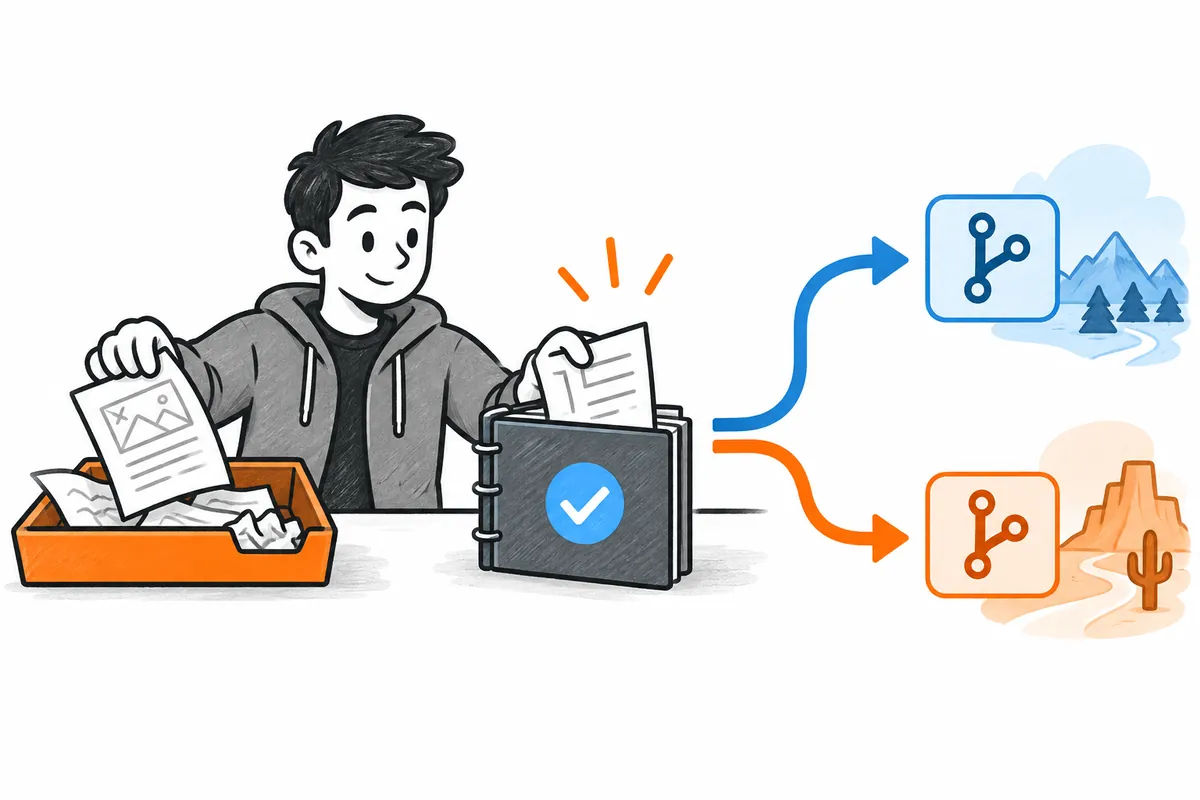
Branch switching and work restoration at a glance
Explanatory illustration — not an actual screen or test result.
1. Save editor contents to actual files
2. Check current branch, tracked changes, and untracked files
3. Preserve the necessary scope and verify the result
4. Switch to the target branch and check actual state
5. Apply preserved work at its original location and verify
1. Saving in an editor and committing in Git are separate steps
An unsaved marker in an editor tab means its content may differ from the disk file. Before preserving changes through Git, save the content you want and confirm its actual path. Saving under another name or project directory can make it invisible in the current repository's status.
Saving to disk does not include the content in a Git commit. Git distinguishes the working directory, the index gathering changes for a commit, and commit history. Saying whether code is editor-unsaved or Git-uncommitted clarifies the required action more than simply calling it “unsaved code.”
| State | Where to check | Action before preservation |
| Unsaved in editor | Tab marker and actual file path | Save the desired content to a file |
| Modified tracked file | Git status and diff | Choose the commit or temporary-storage scope |
| New untracked file | New-file list in status | Decide whether to include it |
| Ignored file | Actual file and ignore rules | Verify separate preservation if needed |
If a hypothetical developer edits a note only in the editor and creates a Git stash, that does not establish that the unsaved text was stored. First align the editor and disk for important content, then connect that with Git's observed scope. Git records do not replace every temporary editor state.
2. Read the current branch and change list before switching
git status --short --branch
git diff
git diff --cached
Status shows the current branch and changed files; diff shows actual modifications. In ordinary non-merge short status, the first column represents the index and the second the working directory. Two question marks indicate an untracked file; ignored files may not appear in the default list.
If a hypothetical result marks notes.txt modified and new-plan.txt untracked, decide whether to preserve both. Reading only tracked-file diffs can omit new files, so examine status too. Read new-plan.txt to determine whether it is necessary work material.
Recording the current branch and return location is also useful. Similar branch names can lead to restoration in the wrong place. Linking the actual name to the storage record is easier to judge after switching than vaguely remembering “return to the previous branch.”
3. Choose changes to commit or temporarily store
Completed meaningful work can be committed according to project conventions. Work still in progress can be considered for temporary stashing. Choose according to completion state and the return plan; do not commit unnecessary files together merely to switch branches.
If hypothetical notes.txt and new-plan.txt are still being written, specify which files to stash. Check whether existing-code modifications and the new document form one task, and name the storage record. Descriptions help select the correct item once several temporary records exist.
For important material outside Git tracking, check preservation conditions separately. A stash is a way to reapply work in the current repository, not an automatic external backup or guarantee of every editor state. Avoiding omissions of new and ignored files is central.
4. Example of stashing with untracked files
git stash push -u -m "before-switch-demo"
git stash list
git stash show -p -u 'stash@{0}'
git status --short --branch
The example specifies -u to include new untracked files. Git's official documentation distinguishes storing the working directory and index, -u for untracked files, and -a for ignored files. This basic example does not use -a, so do not assume ignored files were stored.
After stashing, read the list and diff to verify the record actually created. stash@{0} means the newest entry at that moment; after creating more entries, select the required one again. In PowerShell, references with braces can be enclosed in quotes as shown.
Recheck current status because unstashed files or other changes can remain. If an ignored hypothetical local-output directory matters, a -u stash alone does not establish that its contents were preserved. Check what remains and save necessary files by an appropriate separate method.
5. If switching is refused, check remaining changes before forcing
git switch main
git status --short --branch
This example assumes main actually exists and is the branch to inspect. Git documentation explains that switching does not always require a clean working tree, but operations that would lose local changes are normally stopped. It is inaccurate to say that all uncommitted changes prevent switching or that switching always removes them.
When refusal appears, read the named files and remaining changes, then recheck preservation scope. Ongoing merges or conflicts need separate treatment. Immediately adding options discarding changes merely to remove an error can conflict with the work you wanted to preserve and the switching purpose.
After successful switching, verify the actual current branch. Entering a command differs from confirming its result. If changes remain, identify them and decide whether they belong on the new branch. Compare unexpected files with the original record before further editing.
6. Reapply preserved work on the original branch
git switch feature-note
git stash list
git stash apply 'stash@{0}'
git status --short --branch
This illustrative sequence returns to feature-note and applies a record identified in the list. In actual work, read the required item's description and content before choosing its reference. Always using the newest item can apply another task's changes, so compare names and timing.
Official documentation distinguishes apply, which retains the entry, from pop, which combines application with removal from the list. Conflicts can occur; do not assume successful application. This example uses apply to inspect results while retaining the original temporary record.
Restoring the staged index state requires separate consideration. Read the difference between default apply and index-restoration options, and choose appropriately. Restored file content and an identical commit-preparation state are not the same result.
7. Check conflicts or missing files
If application conflicts, check whether current-branch contents overlap the preserved modifications. Compare original work with new branch changes to decide what to retain. Repeatedly applying an entry while the state is unclear can complicate matters; first inspect what actually resulted.
If a new file does not return, check whether it was included originally and whether the correct stash was selected. Also establish whether it existed only in the editor or was ignored. Rather than blaming every cause on “stash deleted it,” connect pre-storage records to the actual list.
| Post-restoration check | Evidence |
| Is this the original work branch? | Current branch display |
| Did required files return? | File list and actual contents |
| Are the new files present too? | Untracked files and stash diff |
| Do conflicts remain? | Status and relevant file contents |
| Is the temporary record retained? | Stash list |
8. A short record when resuming work
A hypothetical note can state “preserved feature-note's document changes and new plan file, inspected main, returned to the original branch, applied the specified item, and compared file contents.” This records performed actions; it is not a place to add restoration success that was not actually verified.
Before cleaning stash entries, verify the needed content returned and conflicts were resolved. Removing entries deletes original temporary records, so decide after checking the work. This article provides no bulk-deletion command and does not assume all your stash entries are unnecessary.
Before switching, save editor contents, read status, and check preservation scope; afterward, verify the actual branch and restored content. Evidence at each step turns a brief switch into a process for continuing work without losing edits. The illustrations are original explanations of this flow.
Official sources and writing standards
References checked: 2026-10-07. This explanation was written with AI assistance based on official sources actually opened. Separately marked calculations, code, and checking examples are illustrative, not results from directly testing or measuring the user environment. Recheck changes to features and references on the publication date.
Original illustrations created to help explain this article.
Original on Tistory ↗