Reading Git Status: Distinguishing Modified, Staged, and Untracked Files
This article was translated from its source language with AI assistance. Please check technical terms and equations against the original.
From editing files to preparing a commit
| STEP 1 | Edit and save the current file |
| STEP 2 | Check its state with status |
| STEP 3 | Read unstaged changes with diff |
| STEP 4 | Stage the necessary files |
| STEP 5 | Check prepared changes with cached diff |
This explanatory diagram organizes the reading sequence. It is not an actual program screen or measurement result.
When first using Git, it can be confusing to save a file and still see “nothing to commit,” or to find the same modified file in two lists at once. Understanding these situations requires distinguishing current files, the content prepared for the next commit, and the last commit. git status is the basic tool for reading these differences.
This article explains how to distinguish modified, staged, and untracked files in an ordinary Git repository. Commands and outputs are hypothetical examples for understanding, not results from your actual repository. It focuses on checking state and differences first instead of starting with commands that discard changes.
1. Distinguish the working directory, staging area, and commit
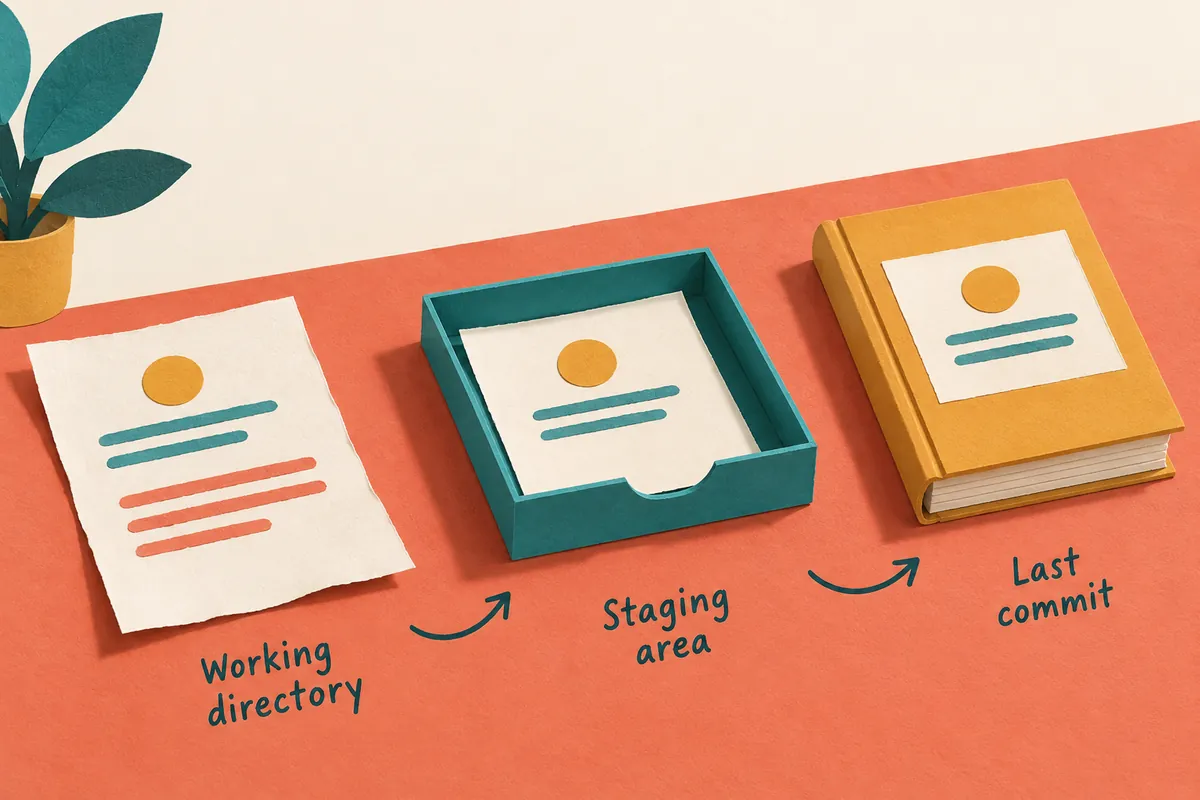
The working directory contains files you currently read and edit in your editor. The staging area, also called the index, holds content prepared for the next commit. The last commit is a snapshot already recorded. git status shows differences between these states, untracked files, and other information. Pressing Save is different from recording content in a Git commit.
git add prepares current changes for inclusion in the next commit. If you edit the same file again after staging, the staging area and current file may differ. The file can then appear both in the list of changes to be committed and in the list of unstaged changes. Do not assume it is an error; inspect each difference.
Suppose you write a first sentence in a hypothetical note.txt and stage it, then add a second sentence. The content prepared for the next commit is the first-stage file, while the working directory contains the additional sentence. To include the second sentence in this commit, check the current changes and stage again. A file name appearing in the staged list does not mean all its latest content is prepared.
2. Check the repository location and read the basic status
First check that the terminal is inside the correct project. Running the command in another folder may not show the intended repository's state. If an error says this is not a Git repository, check the current path and original project folder before creating a new repository. If the project already has Git history, read its status at that location first.
The basic command is git status. Its normal output shows the current branch, prepared changes, changes not yet prepared, untracked files, and other lists. Wording can vary with language, settings, and ongoing operations, so focus on what each list means. Different wording from this article's English examples does not necessarily indicate different functionality.
In hypothetical output, “Changes to be committed” means changes prepared for the next commit, “Changes not staged for commit” means differences between current files and prepared content, and “Untracked files” means files Git does not yet track. Open the listed files and decide which changes belong in this task. Check their purpose before adding everything at once.
git status
git diff
git diff --cached
The three commands above are basic examples for reading state and differences. git diff generally checks unstaged changes, while git diff --cached checks staged content against the last commit. Consult current official Git documentation for detailed behavior and options.
| Normal list | Meaning | First check |
| Changes to be committed | Content prepared for the next commit | Check actual content with git diff --cached |
| Unstaged changes | Differences between current files and prepared content | Check with git diff |
| Untracked files | Files not yet added to the index | Check whether they are necessary source files or temporary/generated files |
| Conflict-related status | Items needing resolution during a merge | First inspect conflicts and the ongoing operation |
3. The two columns in short output are different comparisons
git status --short displays a two-character status before each file. In ordinary non-conflict situations, the first column, X, represents the index state and the second, Y, the working directory state. The same M has a different meaning depending on its position. Spaces also matter; do not merge both columns into one character.
The hypothetical output “M app.py” illustrates M in the first column, while “ M app.py” illustrates M in the second. “MM app.py” may indicate both staged changes and subsequent working-directory changes. Do not assume a commit in this state automatically includes every change in the current file; inspect the staged diff directly.
Untracked files are shown as ??. A can indicate an addition, D a deletion, and R a rename. During merge conflicts, the same two columns follow separate rules, so do not interpret them solely by the ordinary rules. If you see U or unmerged guidance, consult the official status table and conflict-resolution guidance and identify the ongoing operation first.
| Hypothetical short output | Interpretation in an ordinary non-conflict situation | Difference to check |
| M app.py | Modification has been staged | Changes prepared for the commit |
| M app.py | Modified in the working directory | Changes not yet prepared |
| MM app.py | Further edits were made after staging | Check both kinds of changes separately |
| A new.txt | New file has been staged | File contents and reason for inclusion |
| ?? temp.txt | Untracked file | Decide whether to track or ignore it |
4. What to check when a new file is missing
If you create a file but it is absent from the list, first check whether you actually saved it and whether the project path is correct. Next check whether ignore rules cover it. Files matching .gitignore are usually excluded from the untracked files list. Status options or settings can also hide untracked files, so check the current command and configuration.
Assess ignore rules according to file purpose. Build outputs, caches, and environment-specific settings may be excluded under project policy. Conversely, review the rules if a source file needed for a feature is unintentionally ignored. Rather than forcibly adding all ignored files because a new one is missing, identify which rule and file are involved.
Adding a tracked file's name to .gitignore does not automatically stop tracking it. Already recorded files and untracked files are handled differently. If a file containing sensitive values was accidentally tracked, merely hiding it from the list does not resolve exposure in past history. Appropriate repository management and action on the affected credentials may be required.
5. A small sequence for reviewing and staging one file
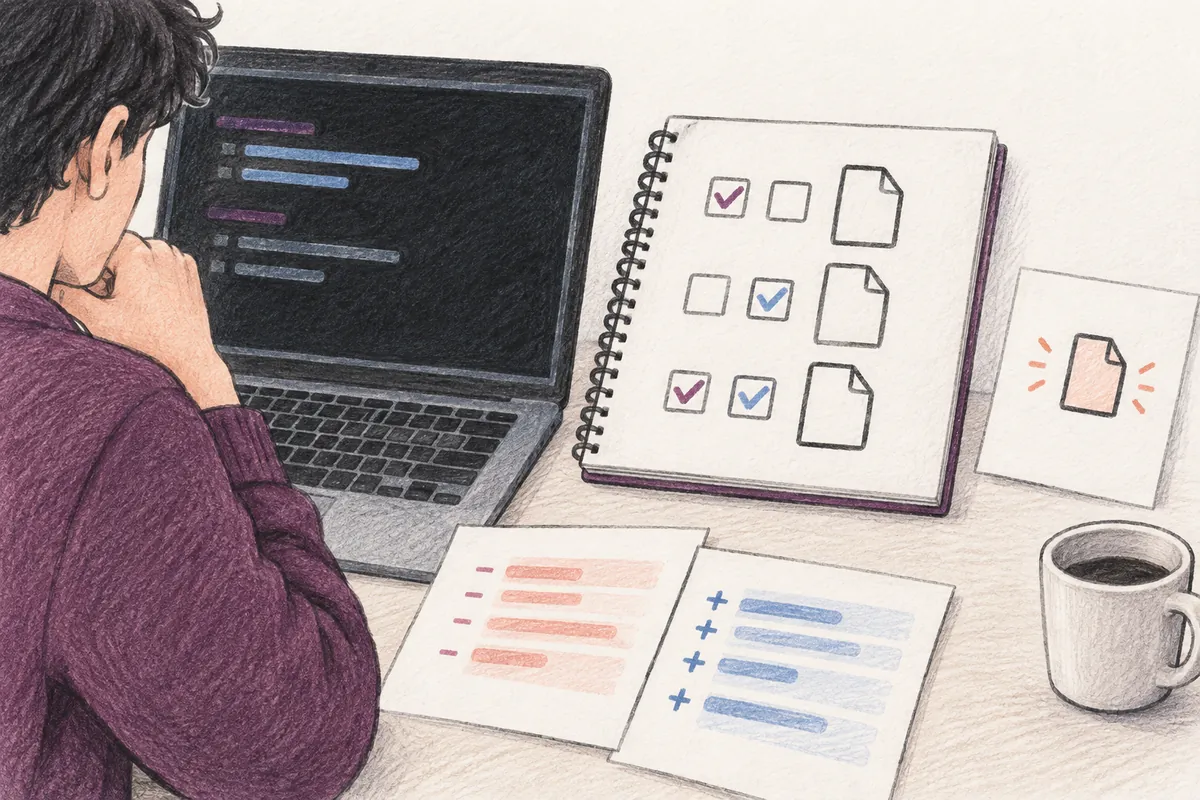
If you modified only app.py in a hypothetical task, first check git status, then read the changes with git diff -- app.py. After confirming that the changes are needed, prepare them with git add -- app.py. Then read git diff --cached -- app.py to ensure the next commit contains the intended content, and check git status again.
The principle is the same for new files or larger tasks. However, you may need to examine new file contents, generated outputs, and dependencies across files together. Staging files individually does not make a feature independent of other files, so think about the set of changes needed for one feature. Also check scope to avoid including changes from unrelated tasks.
Before committing, review changes and perform the validation required for the feature. A clean status does not mean tests passed, and a commit does not guarantee correct execution results. Status checking manages what to record; feature validation is a separate step assessing whether code behaves as required.
6. Three commonly confusing situations
First, saving in the editor without staging can leave no prepared changes. Second, editing a file again after staging can put it in both lists. Third, an untracked new file will not enter this commit unless added beforehand. In all three cases, inspecting the difference between the index and current content is clearer than looking only at file names.
In hypothetical teamwork, do not immediately assume a file in the status list is your change if someone else created it. Check who is doing which task and the changes in the current checkout. Deleting or reverting listed changes merely to make status clean can destroy necessary work. The status list is information for understanding current work, not a deletion list.
Distinguish ongoing merges, rebases, and conflict resolution from ordinary editing. Read the progress information and related files shown by status to identify the current stage. Instead of executing several suggested actions in sequence without knowing their meaning, first establish the task's purpose and which changes must be preserved. Read-only checks provide the basis for your next choice.
A short record to keep before committing
A note of “current branch, files included in this task, staged diff checked, feature validation result, and changes not yet staged” makes moving to the next task easier. If a file appears in both lists, note the later edits. Even if excluded changes remain intentionally, you can record the reason.
Remember three main points together: saving a file saves its current content, git add prepares the next commit, and committing records the prepared content. Connecting each list and the two columns to their meanings helps distinguish the states of new and modified files and record necessary changes carefully.
Official sources and scope of verification
Sources checked: October 5, 2026. Written by AI after reviewing official materials. Hypothetical cases and calculation examples in the text are not actual user records or experimental results. Service conditions, menus, and published materials can change; check the necessary conditions in current official guidance.
Original illustrations created to help explain this article.
Original on Tistory ↗